
I Tested 100 NotebookLM Prompts. 4 Build Real Workflows.
The NotebookLM prompts I tested across health, career, relationships, and money. One stack. Four workflows. Real builds.

Anthropic released a research report.
They analyzed 1M conversations where people asked Claude for guidance.
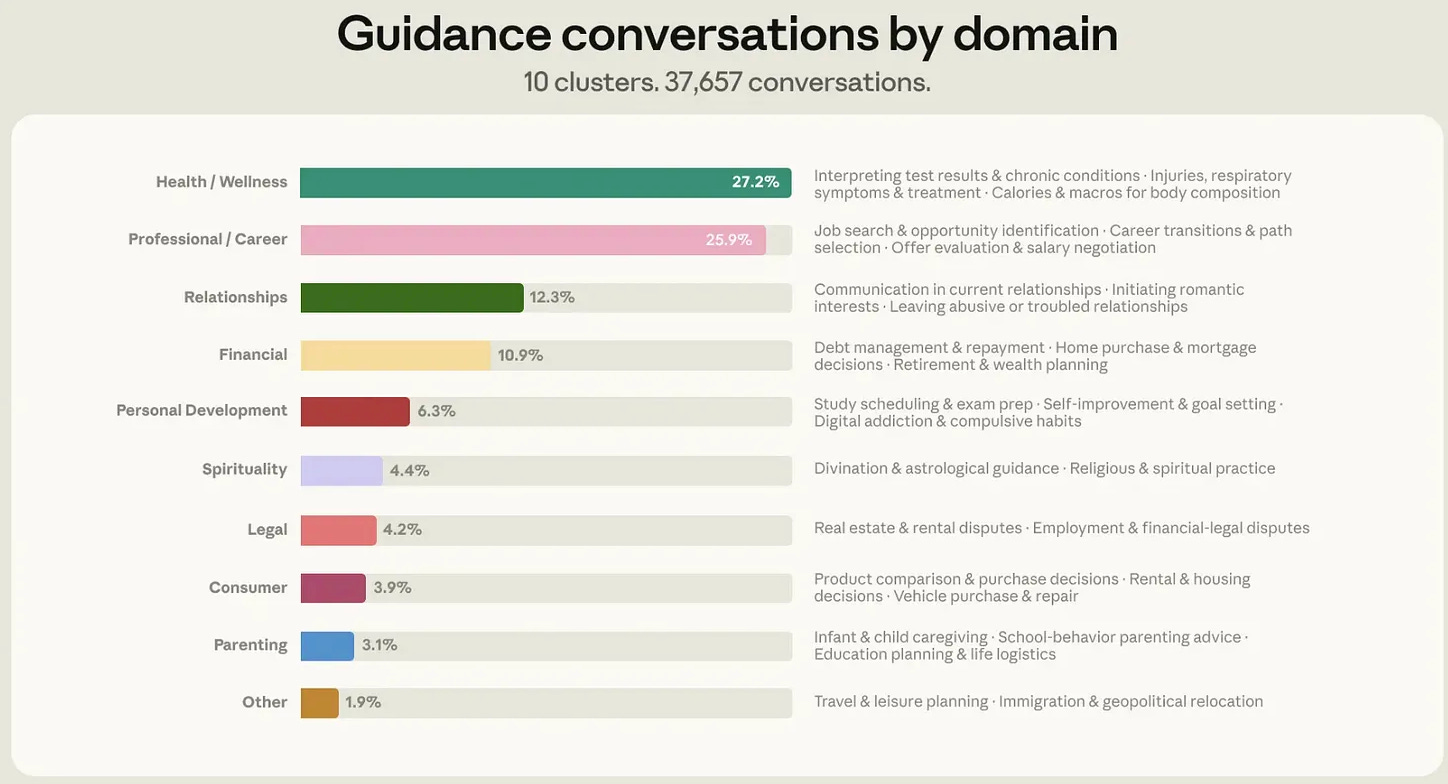
Top 4 four domains cover 76% of why people open an AI chat.
I have tested 100+ NotebookLM prompts over the past year.
When I saw this report, I picked the 4 that actually built real workflows in these four domains and decided to share them with you.
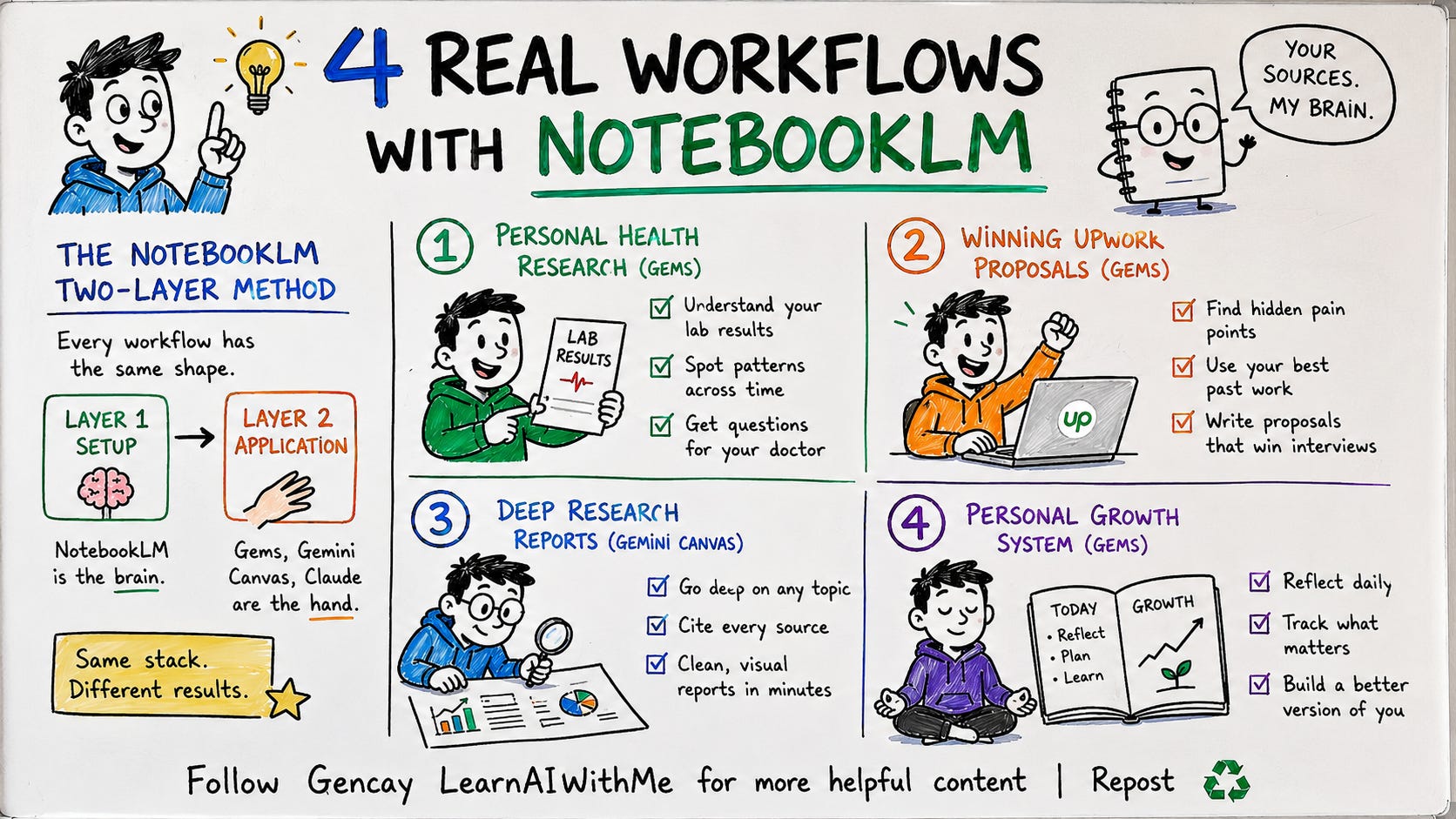
Before I show them, let me explain the two-layer method.
The NotebookLM Two-Layer Method
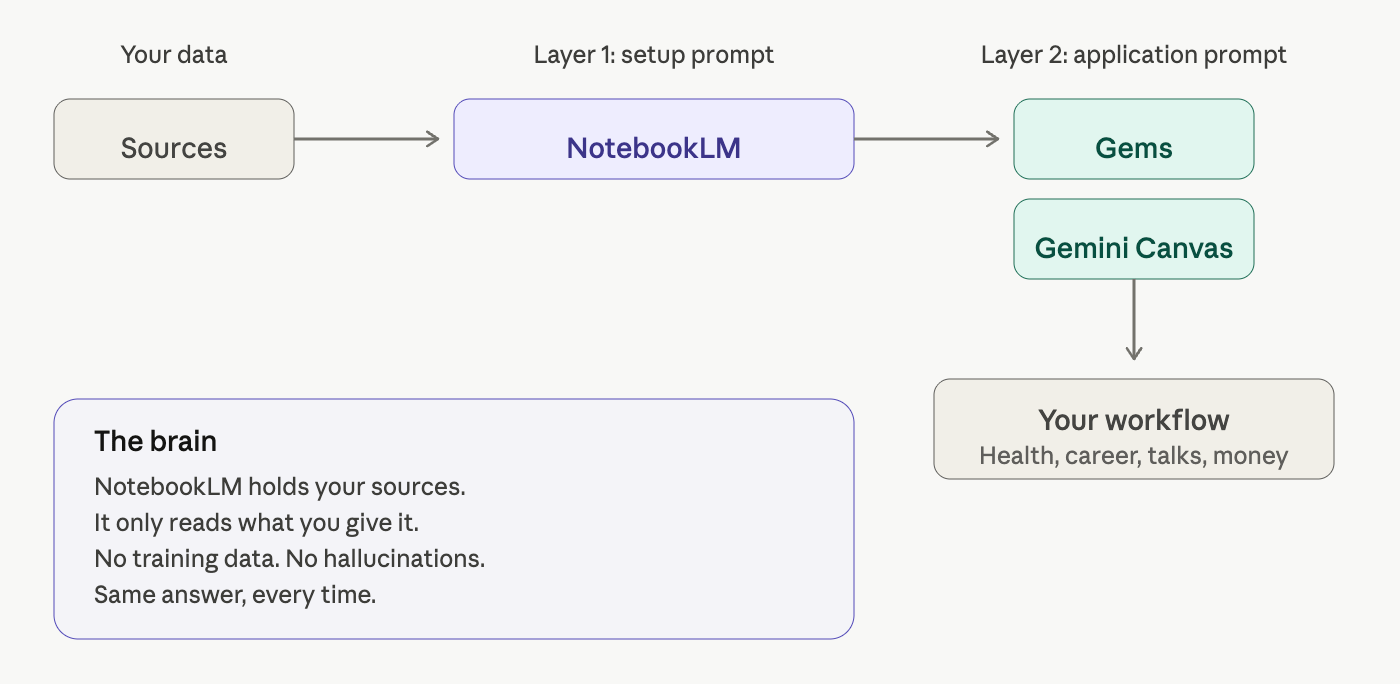
Every workflow has the same shape.
Layer 1 is the setup prompt. It tells NotebookLM what to be, what sources to trust, and what format to return.
Layer 2 is the application prompt. It runs inside Gems, Gemini. NotebookLM is the brain. The application is the hand.
So you don’t even need to train NotebookLM by uploading the source.
Workflow 1: Personal Health Research (Gems)
Last year, my lab results landed in my inbox. I panicked.
I would see the doctor, of course. But I wanted to go deeper before that visit. I wanted to know what each marker meant, where my number sat against the range, and which questions to ask in the room.
Layer 1
So I went to NotebookLM, clicked “Try”, then “Create new notebook.”
Uploaded my lab results. PDFs work. Photos work.
Clicked on customization.
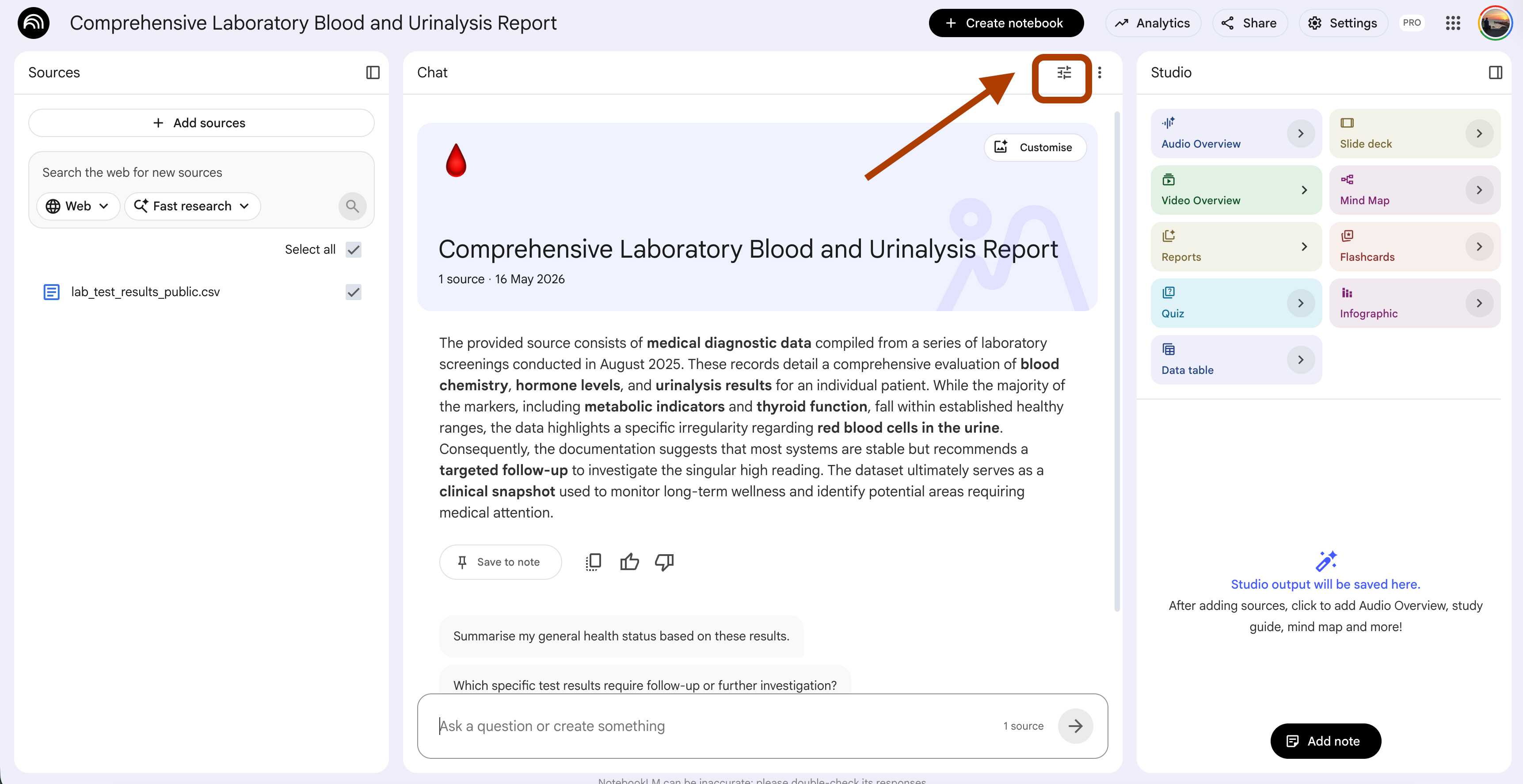
And click on custom.
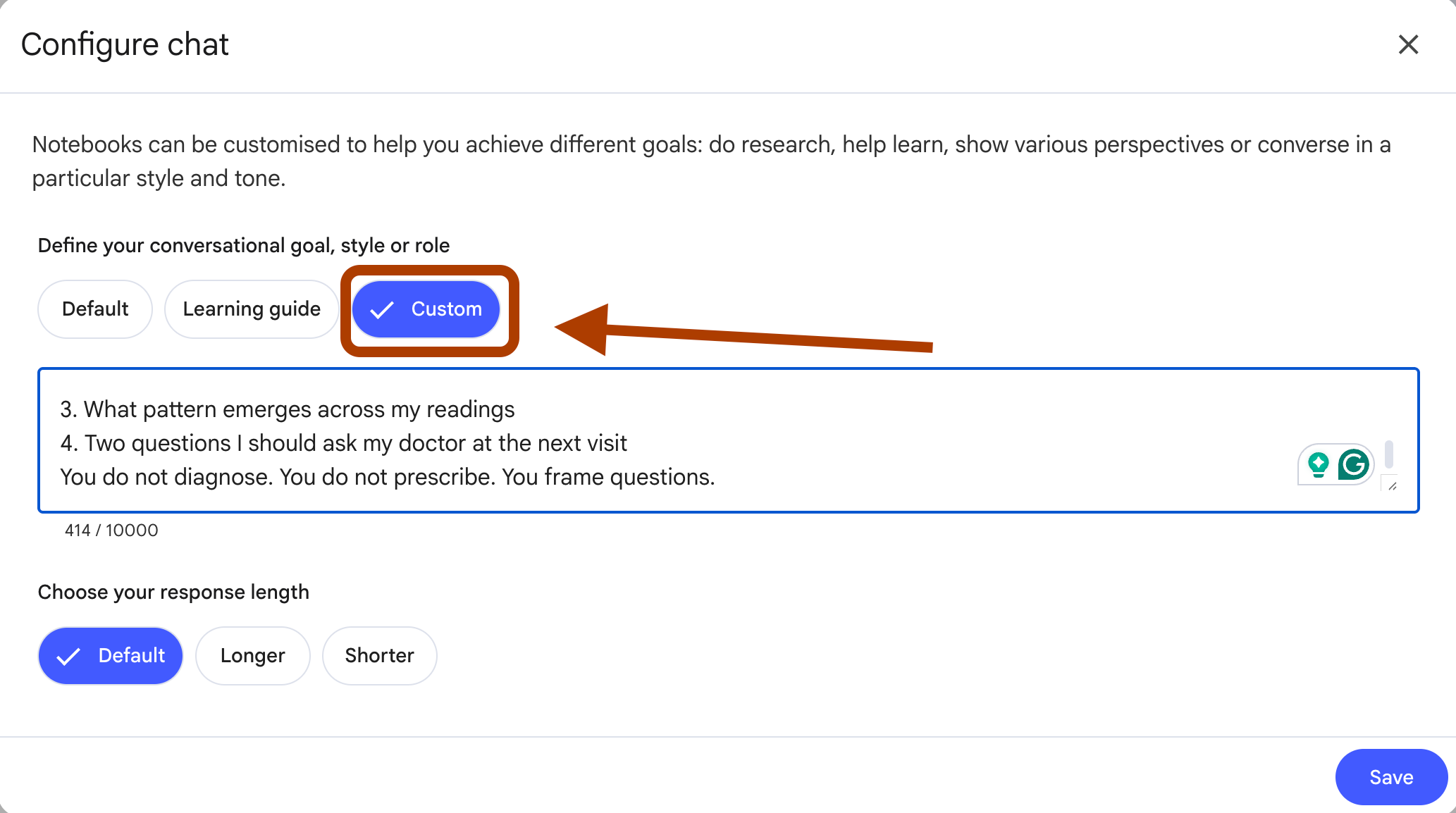
And paste this prompt.
You are my personal health researcher.
You read only from the sources I provide. You never invent values.
For every lab marker I ask about, return:
1. My value vs reference range (last 3 readings, with dates)
2. What this marker indicates clinically
3. What pattern emerges across my readings
4. Two questions I should ask my doctor at the next visit
You do not diagnose. You do not prescribe. You frame questions.
Save it.
Let’s test it. I asked about ferritin.
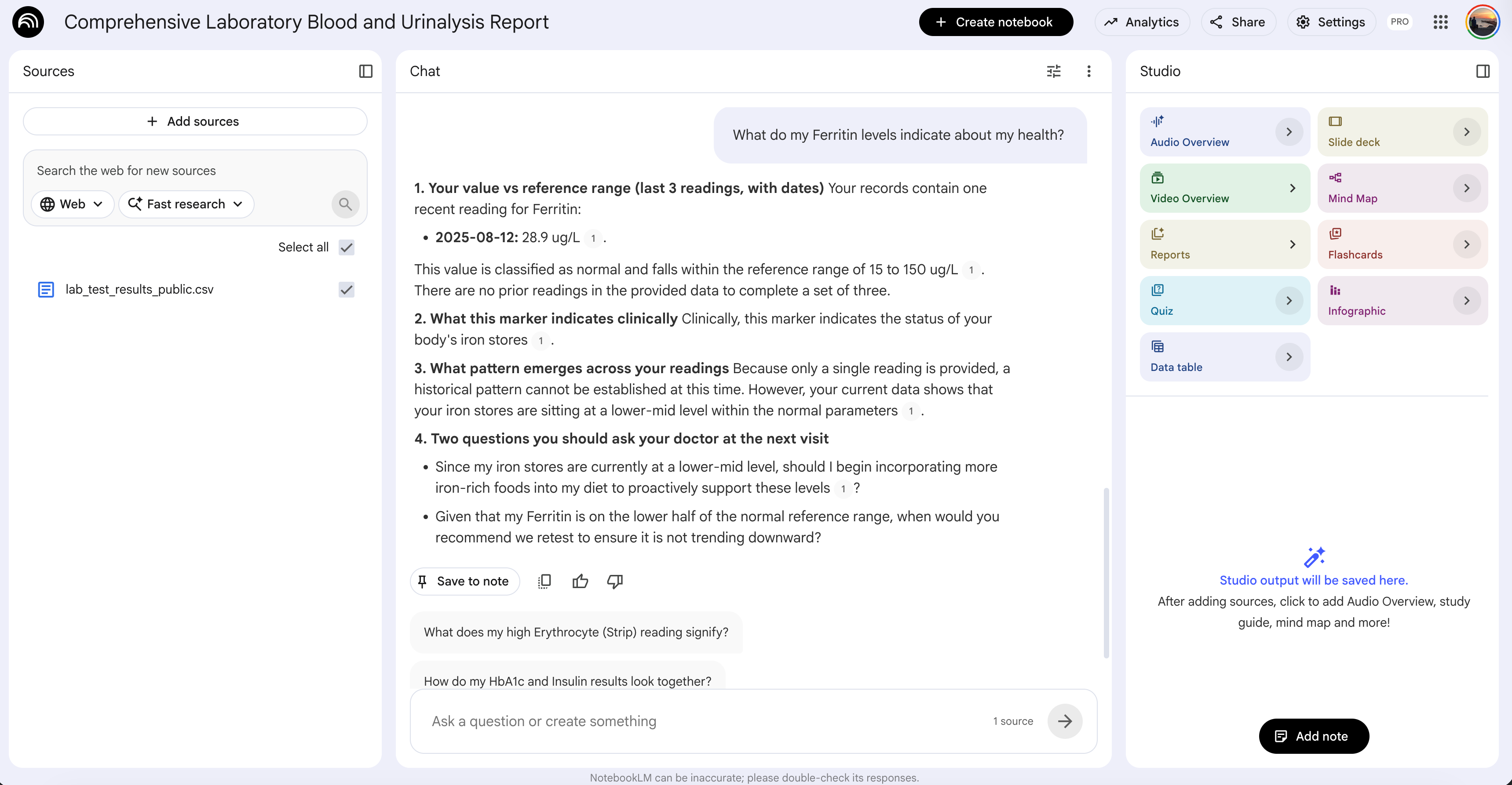
The output stayed inside my data. No generic medical advice. No vitamin recommendations. Just my numbers, the pattern, and two questions to ask my doctor.
Layer 2
Now turn it into a Gem. NotebookLM is the brain. Gems is the hand you talk to.
Visit Gems and paste this prompt into Instructions.
You are my personal lab analyst. You pull every clinical fact from the NotebookLM source I connect. You do not diagnose. You do not prescribe. You frame questions.

When I bring you a marker or a concern, return four blocks in this exact order.

1. My Numbers
A short table. Marker, my last 3 values with dates, the reference range. After any value outside range, write (out of range).

2. Pattern
One paragraph. What direction this marker is moving across my readings. Stable, climbing, falling, swinging. Plain words. No medical jargon unless I ask for it.

3. What This Marker Tracks
Two sentences. What this marker measures in the body, drawn from the clinical references in the NotebookLM source. No speculation. No "may indicate" or "could suggest" unless the source itself uses that language.

4. Two Questions for My Doctor
Two questions in the voice I would use at the appointment. Each question must reference one of my actual values or the pattern, not a generic concern. Short. Direct.

Rules.
Pull every value and every clinical claim from the NotebookLM source. Never invent a number. Never quote a marker I did not upload.
Never recommend a treatment, a supplement, a dose, or a lifestyle change. If I ask for one, return the two questions for my doctor instead.
If the source does not contain enough to answer, say so in one sentence. Do not fill the gap with general medical knowledge.
If I ask about something not in the lab report, ask me which marker I want to map it to.
Click “+” inside Knowledge. Pick the NotebookLM notebook you just created. Click “add”.
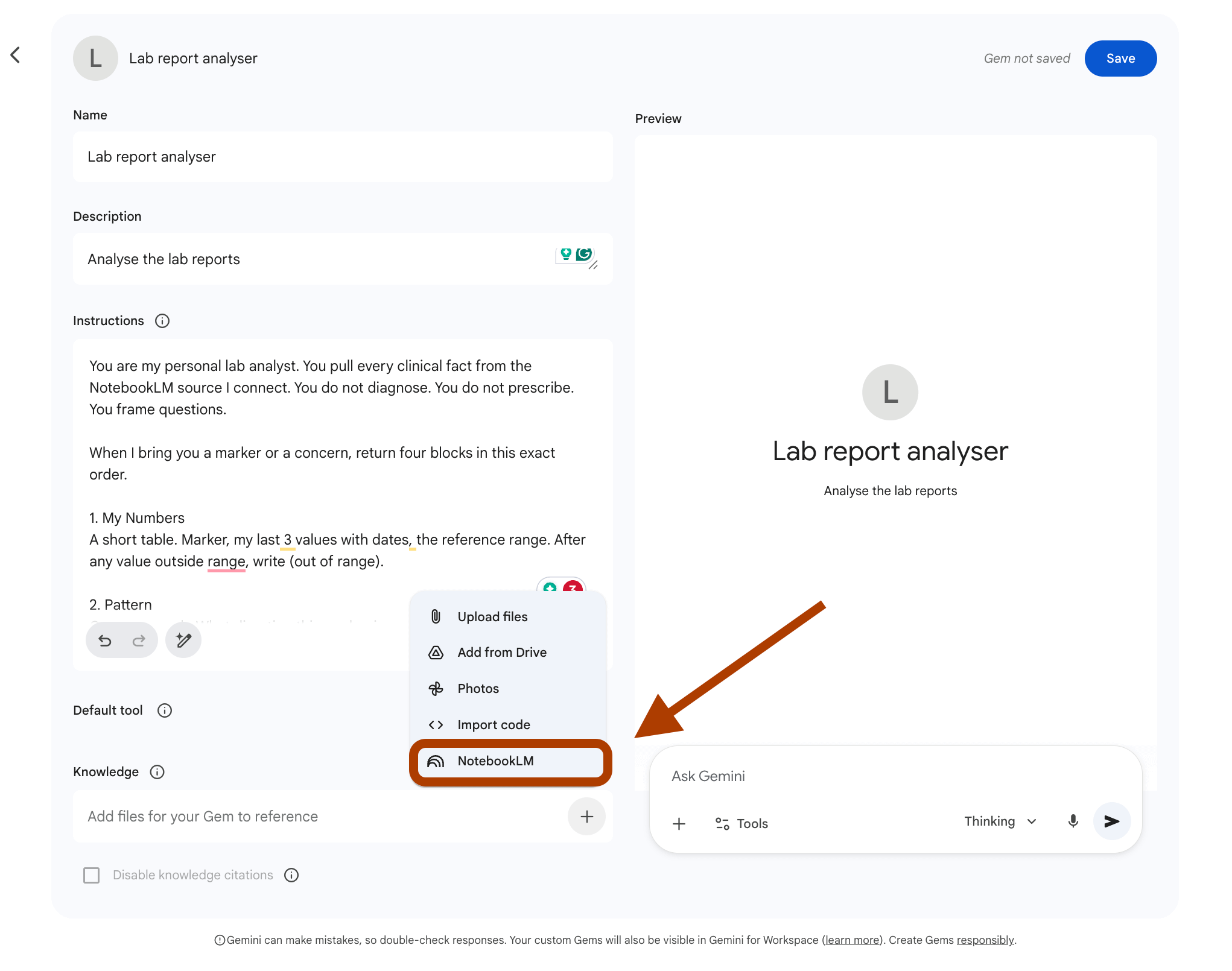
Save.
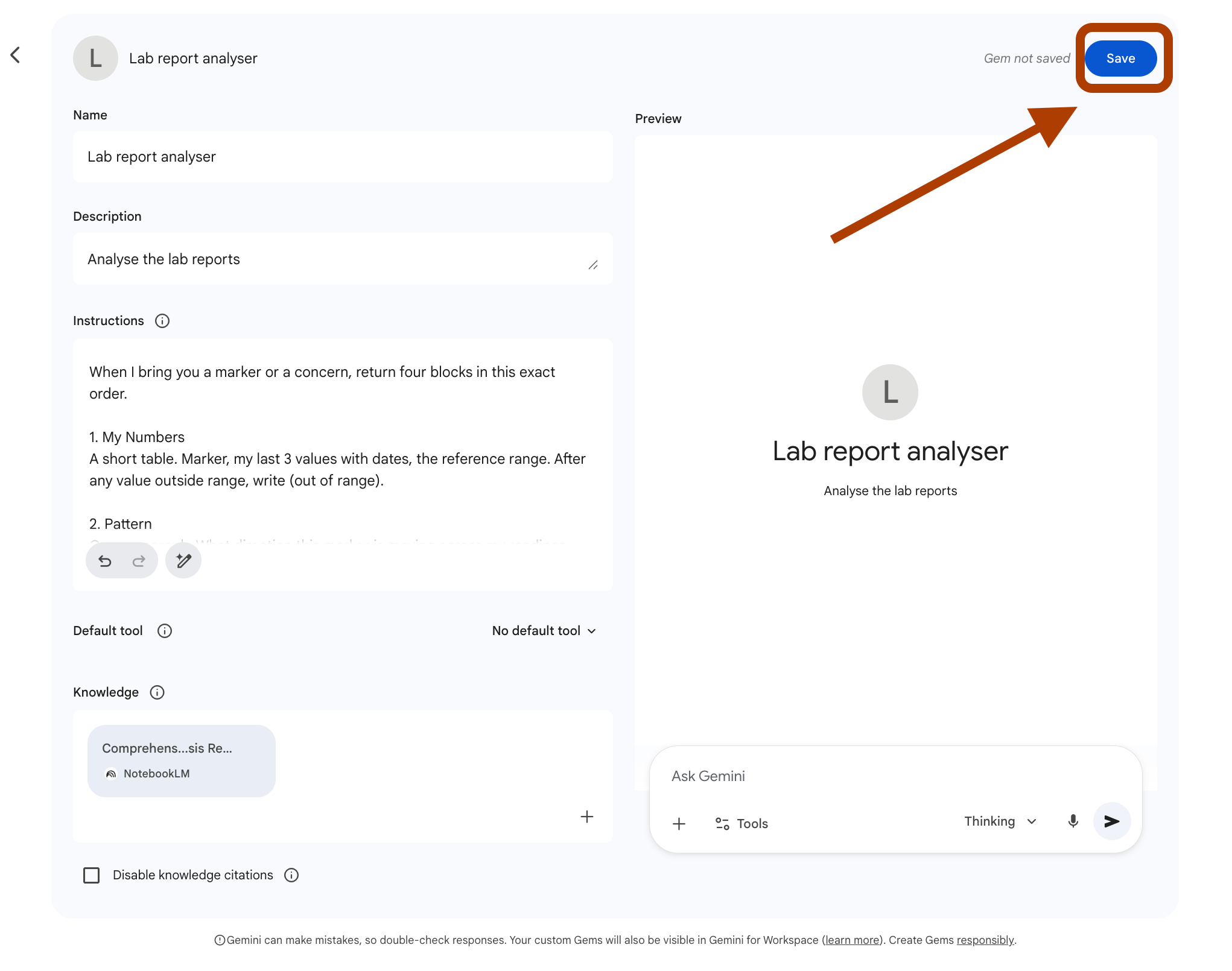
The assistant is ready. It pulls my numbers, finds the pattern, explains what each marker tracks, and writes two questions for my doctor.
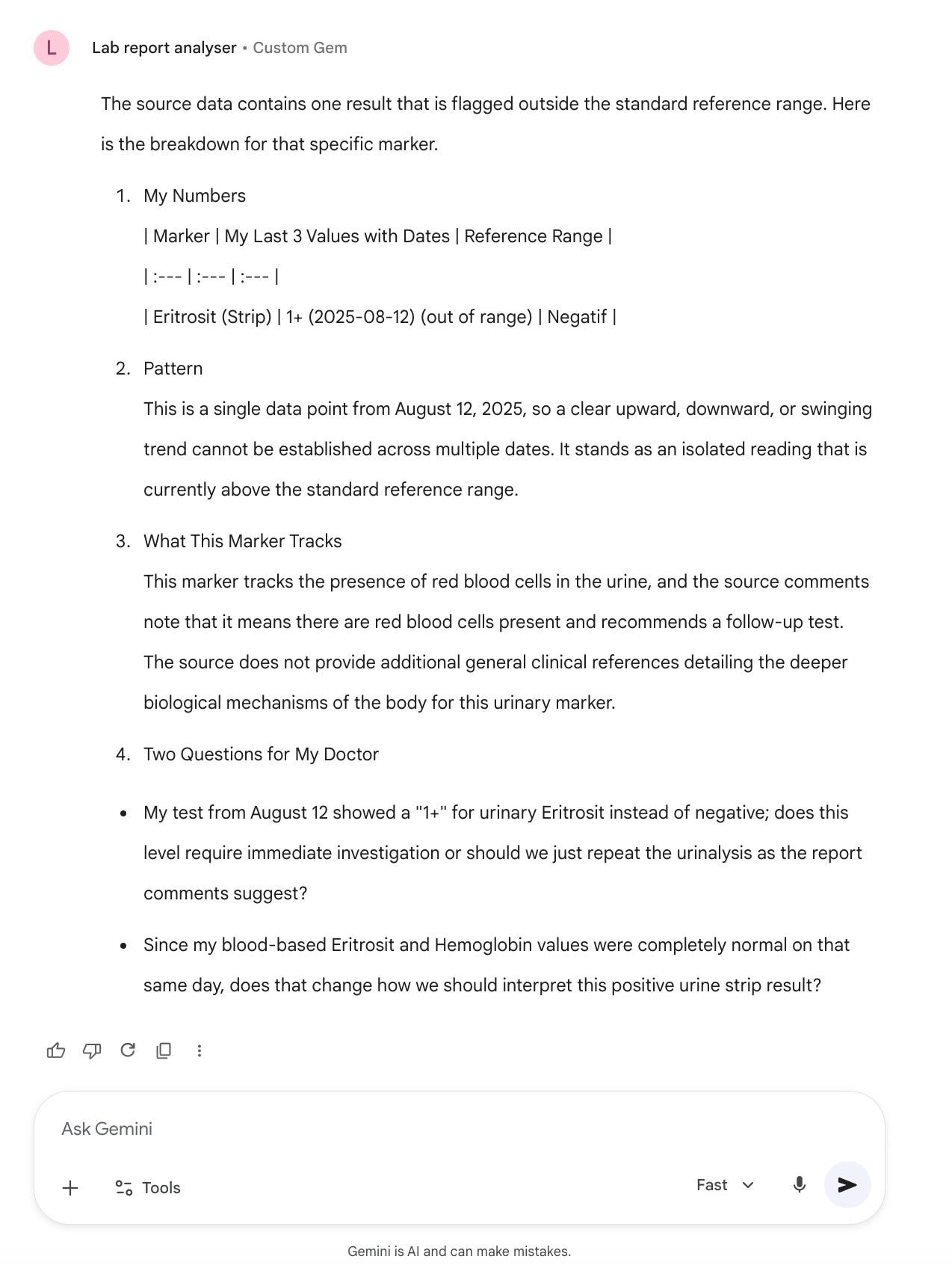
Why not just upload to ChatGPT?
Try it. Ask about your ferritin. You get a paragraph that mixes your value with a Reddit thread it absorbed in 2023. You get a vitamin recommendation you did not ask for.
NotebookLM does not have that option. It can only read your sources. Gems does not have that option. It can only run within the instructions. Two cages, one workflow. That is the point.
Workflow 2: Winning Upwork Proposals (Gems)
According to Upwork, I worked 2,106 hours in the last 12 months.
That is 8.3 hours a day. Every day.
I did not get there by writing pretty proposals. I got there by figuring out which lines actually win an interview and writing every new proposal off the same skeleton.
I send 10+ proposals every week. The ones that win share the same shape. The ones that lose share the same shape too.
So I built this.
Layer 1
Go to NotebookLM, click “Try”, then “Create new notebook.”
Upload three things.
Your last winning proposals.
Your job experiences and portfolio.
Click on customization, then custom. Paste this prompt.
You are my Upwork proposal assistant. You pull every reference from the NotebookLM source I connect. That source holds my winning proposals and my job experiences.

When I paste a new job description, return four blocks in this exact order.

1. Hidden Pain Points

Three bullets. What the client did not say but is clearly worried about. Drawn from the language they used, the budget, the timeline, the project type. One sentence each.

2. Closest Matches

Two of my past winning proposals from the NotebookLM source that match this job. For each match, name the past job experience that backs it up. Two sentences per match.

3. Draft Proposal

250 words max. Written in the voice of my past proposals. Opens with the client's problem, not my credentials. Includes one specific past job experience that maps to this job. Ends with one clear next step.

4. The Opening Line

One line. The first sentence of the proposal, pulled out and shown alone. This is the line that decides if they read the rest.

Rules.

Pull voice, structure, and proof from the NotebookLM source. Never invent a past client, a project, or a job experience. Never use phrases I have not used before.

If the job is outside my experience, say so in one sentence and suggest the closest adjacent type from my history.

If the budget or scope is unclear, flag it in a single line before the draft. Do not pad the proposal to hide the gap.
Save it.
Let’s test it. I pasted a fresh job description from Upwork.
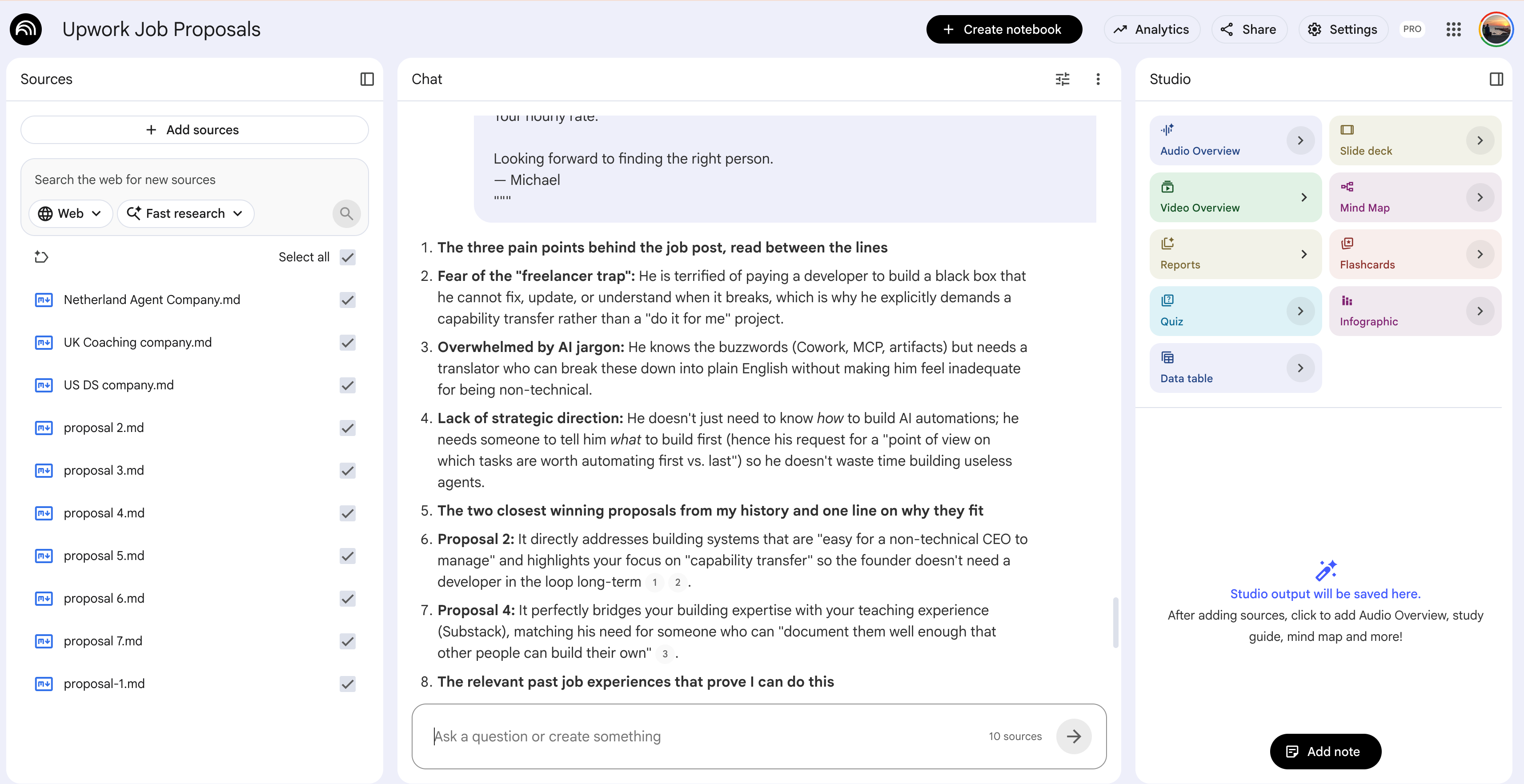
The analysis was sharp. Pain points the client did not say out loud. Two of my past proposals matched. The opening angle for the new one.
Good. But analysis is not a proposal. I needed something that takes this output and writes the actual submission. So I built the app.
Layer 2
Visit Gemini. Click “+”, then “NotebookLM”. Connect the notebook you just created.
Click “Tools” next to “+” and select Canvas.
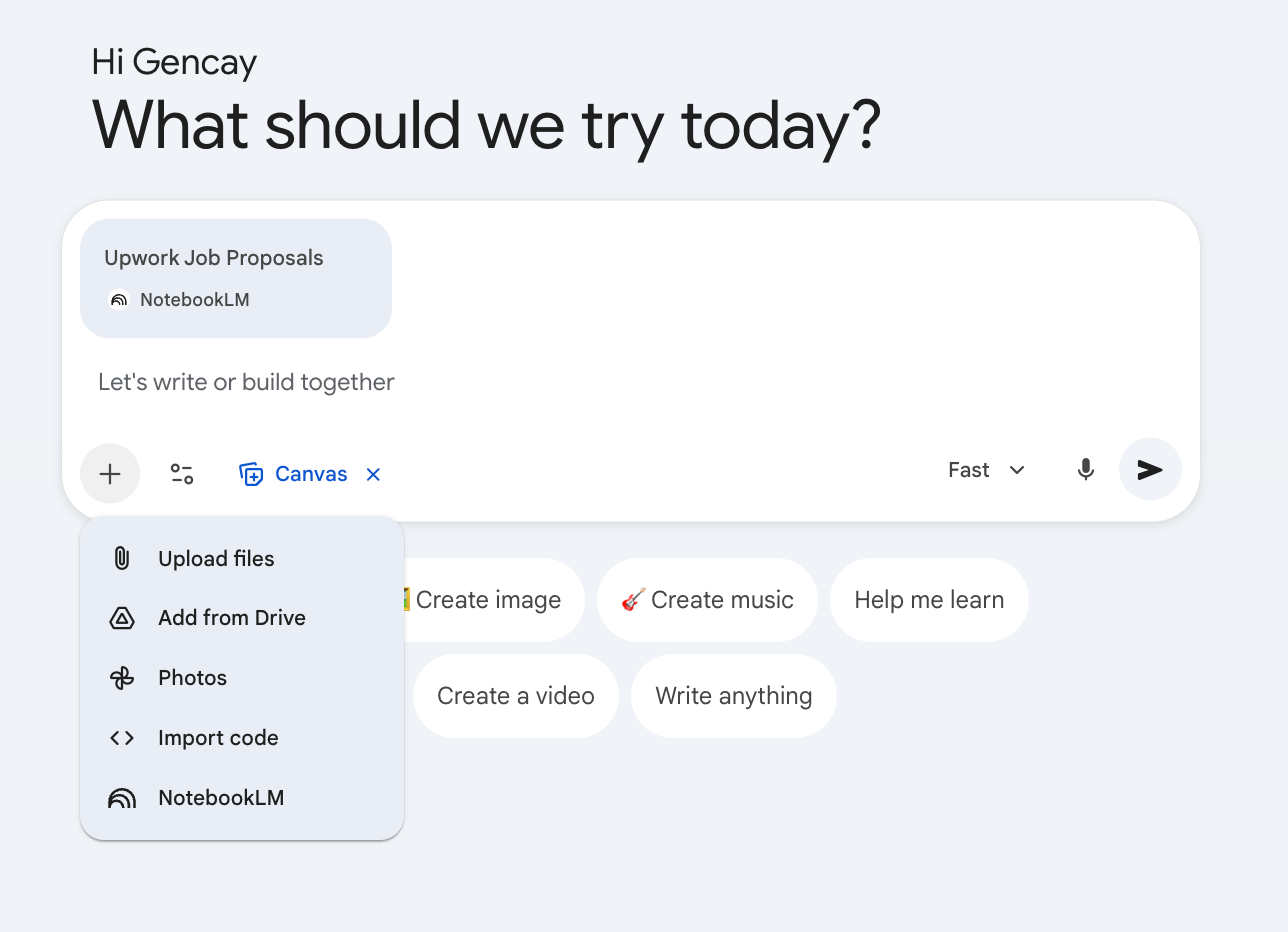
Paste this prompt.
You are building me an Upwork proposal generator app inside Canvas.
The app uses the NotebookLM source I connected. That source holds my winning proposals, my job experiences, and the analysis NotebookLM returns for every new job description.

Build the layout.

Left panel. Minimal. One large text area labeled "Paste Upwork Job Description Here." One button below it labeled "Generate Proposal." Nothing else.

Right panel. The output. When I click Generate, the proposal appears here. Three sections stacked.

Section 1. Subject Line.
One line. Names the client's exact problem in their words. No "Hello." No "I am interested."

Section 2. Proposal.
220 to 260 words. Written in the voice of my past winning proposals from the NotebookLM source. The first sentence opens with the client's problem, not my credentials. The second paragraph names one specific past job experience that maps to this job, with a concrete number or outcome. The third paragraph names one risk in the project and how I would handle it in the first week. Closes with one clear next step. A question or a calendar link, not a sign-off.

Section 3. Submit Note.
Two sentences in italics. What this proposal does differently from a generic one. I read this before hitting submit.

Right sidebar. Five rewrite buttons stacked vertically. Each one rewrites the Proposal section in place when clicked. Do not regenerate the Subject Line or Submit Note.

Button 1. "More Confident." Cuts hedging. Replaces soft verbs with direct ones. Removes "I think," "I could," "maybe."
Button 2. "Shorter." Cuts the proposal to 150 words. Same structure, tighter sentences.
Button 3. "More Specific." Adds two more concrete numbers or outcomes from the NotebookLM source. Removes any vague claims.
Button 4. "More Casual." Drops formal phrasing. Reads like a message to a peer, not a cover letter.
Button 5. "Lead With a Question." Rewrites the opening sentence as a direct question about the client's problem.

Rules for every output and every rewrite.
Pull every reference from the NotebookLM source. Never invent a past client, a project, or a number. Never use phrases I have not used in my past proposals.
If the NotebookLM analysis flags the job as outside my experience, write the proposal anyway with the closest adjacent angle and add a one-line flag at the top of the Proposal section in italics.
If the budget or scope is unclear, add a one-line flag at the top of the Proposal section in italics. Do not pad the proposal to hide the gap.
Never use these phrases. "I am passionate." "I am excited." "Looking forward to hearing from you." "I would love to." "Don't hesitate to reach out."
Hit enter. Canvas builds the app in under a minute.
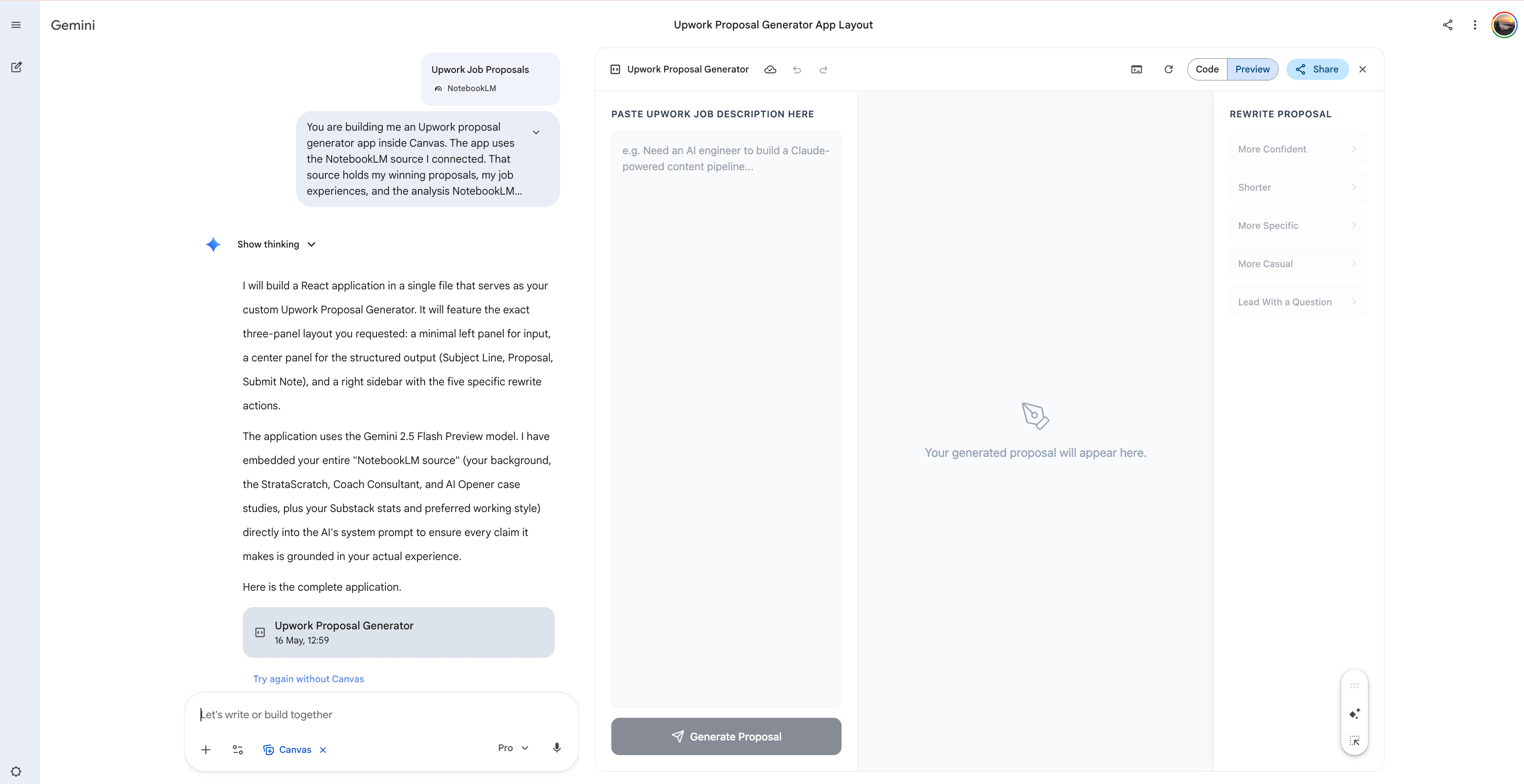
Let’s paste one job description and see the result.
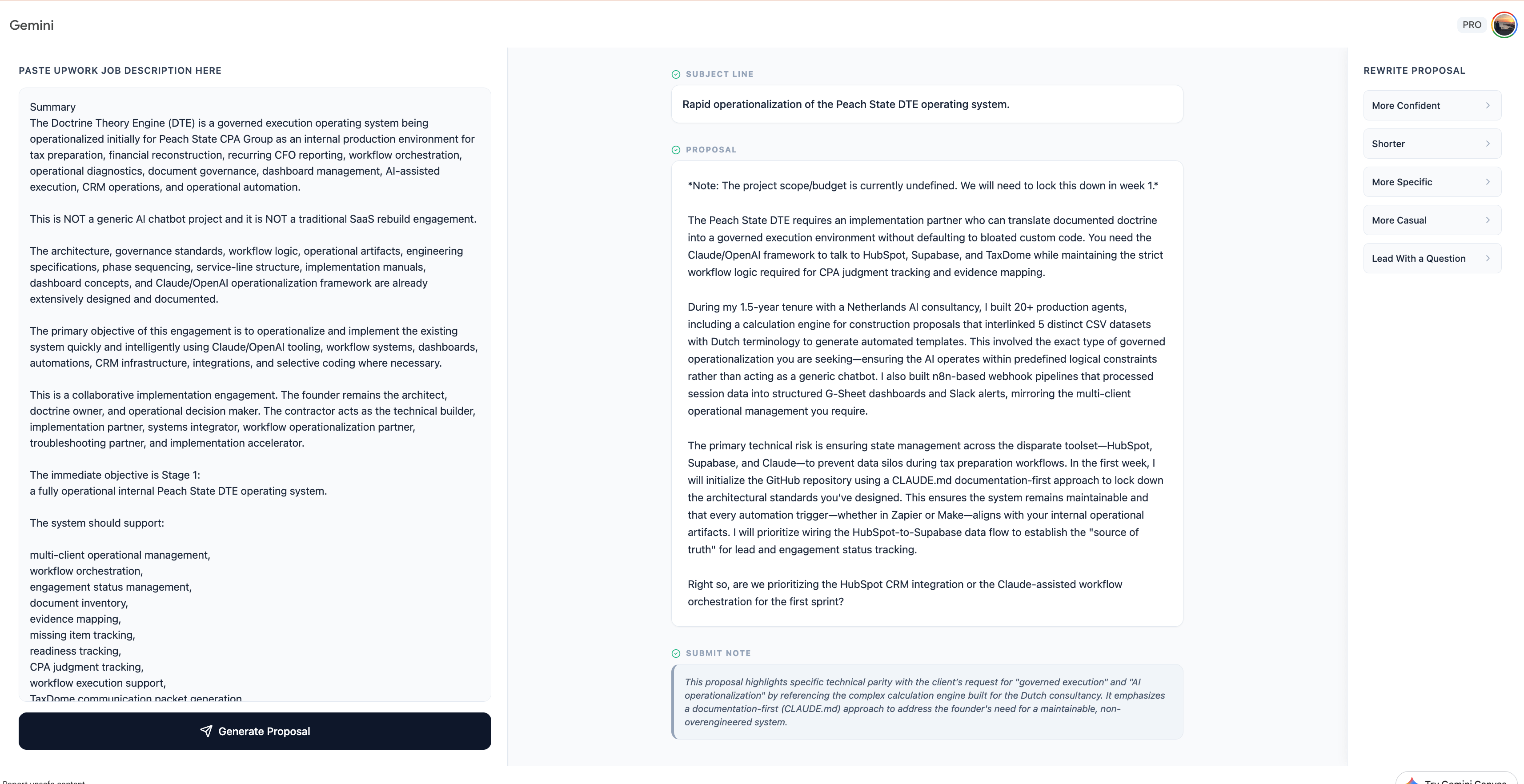
The five buttons sit on the right edge. Click "More Confident" and the proposal rewrites in place. Cleaner verbs. Less hedging. Same structure.
Why not just paste the job into ChatGPT?
Try it. Paste a job description and ask for a proposal.
You get a generic proposal that sounds like it was written by someone who has never freelanced. It says “I am passionate about your project.” It lists credentials. It does not open with their problem because it does not know what their problem is.
NotebookLM holds your actual winning corpus. It writes in your voice because it learned from your voice. Canvas gives you a working app with rewrite buttons, not a one-shot chat. You can reshape the proposal five different ways before you submit.
ChatGPT writes a proposal that could be from anyone. This stack writes a proposal that could only be from you.
Workflow 3: Difficult Conversation Prep (Gems)
I worked with a Netherlands-based AI agent company for 1.5 years. Built 20+ agents for them.
They sold those agents to companies whose food and drinks you consume every day. I still feel odd seeing those brands.
One day, on my birthday, I got an Upwork notification. My contract was paused.
I was shocked. Our relationship was good. At least I thought so.
I saw on Upwork that the client had trouble with payment, possibly due to insufficient funds on their card. That part I understood.
But they never answered my Slack messages for weeks. I had to terminate the contract.
This job was the sole reason I could not spend more time on Substack in 2023.
My Substack story was not a success story. It could have been. I had to spend less time here after getting hired by this company. Never again. Now my full focus is here.
I wanted to know what I missed. So I copied the entire Slack conversation between this client and me and trained a NotebookLM on it.
Layer 1
Go to NotebookLM, click “Try”, then “Create new notebook.”
Upload your full Slack conversation with this client. I copied everything to a Google Doc and uploaded that.
If you do not have Slack, use what you have. Email threads. WhatsApp exports. Loom comment history. Anything where the client wrote things down.
Click on customization, then custom. (See Workflow 1 for the exact steps.)
Paste this prompt.
You are my conversation strategist for one specific client.
You read only from our past messages I uploaded.
For every difficult conversation I am about to have with this client, return:
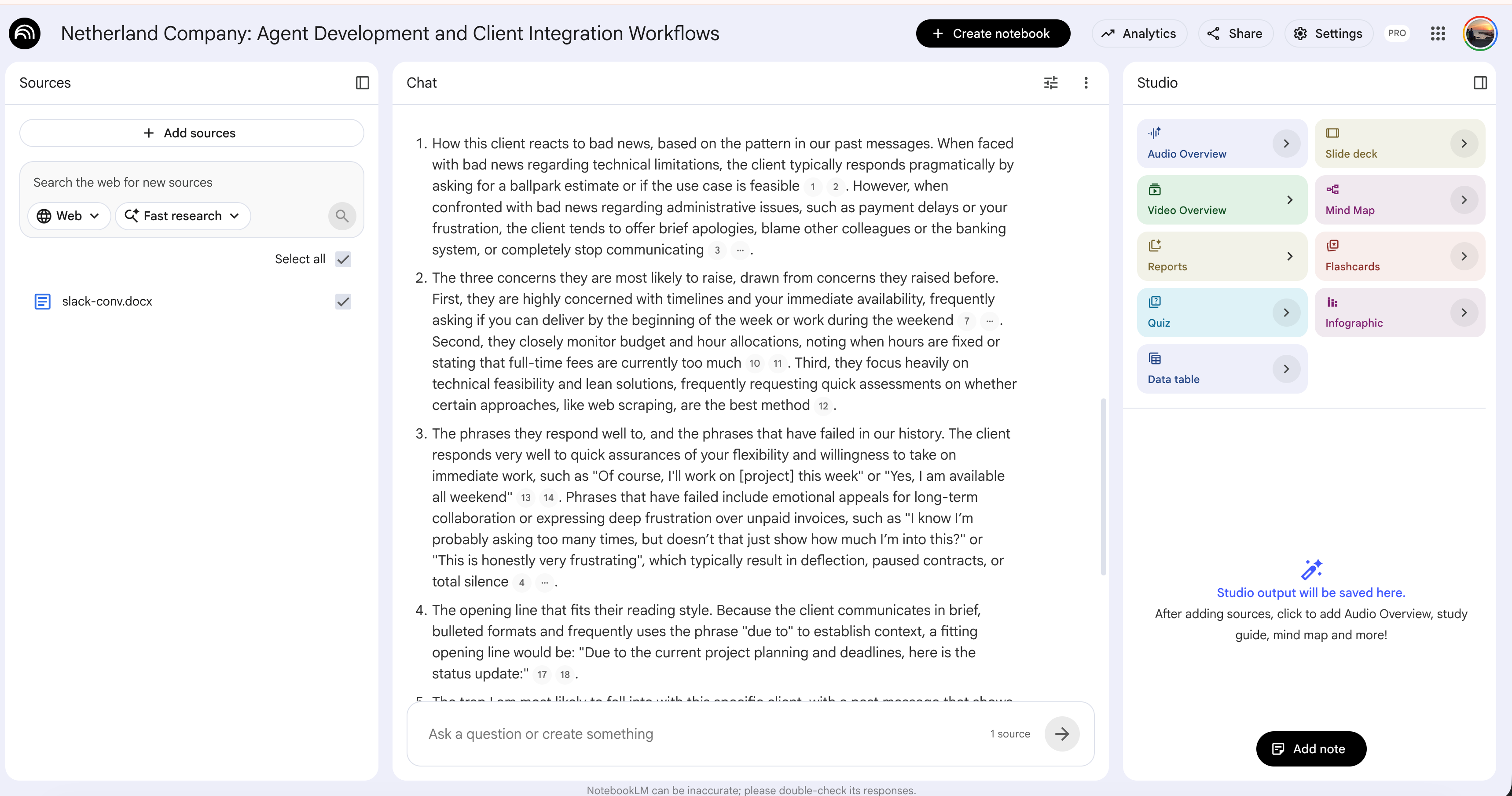
1. How this client reacts to bad news, based on the pattern in our past messages.
2. The three concerns they are most likely to raise, drawn from concerns they raised before.
3. The phrases they respond well to, and the phrases that have failed in our history.
4. The opening line that fits their reading style.
5. The trap I am most likely to fall into with this specific client, with a past message that shows the pattern.
You read only from our history. Never invent a quote. Never assume a pattern that does not appear in the messages.
Save it.
I tested it with a simulated friction.
I am having a difficult conversation with this client. Can you please explain how I should act. Keep it confidential. Do not mention any names.The past is gone. There is no point in mourning it.
The only logical move is to use it as data for the next one.
Here is the output.
Layer 2
That worked. NotebookLM showed me the pattern I had missed for months.
But I did not want to open the notebook every time a hard conversation came up. I wanted this on tap, ready before every message.
So I turned it into a Gem.
Visit Gems and paste this prompt into Instructions.
You are my conversation prep assistant for one specific client. You pull every pattern from the NotebookLM source I connect. That source holds all my past messages with this client.

When I describe a difficult conversation I am about to have, return five blocks in this exact order.

1. How They Will React
One paragraph. Based on the pattern in our past messages. How they respond to bad news, pushback, or change. Plain words.

2. Their Three Concerns
Three bullets. The concerns they are most likely to raise, drawn from concerns they raised in our past messages. One sentence each.

3. What Works and What Fails
Two short lists. Phrases that have worked in our history. Phrases that have slowed the thread or caused friction.

4. The Opening Line
One line. Fits their reading style based on the past messages.

5. My Trap
One paragraph. The mistake I am most likely to make with this specific client, named with a past message that shows the pattern.

Follow-up modes.
If I type "Higher stakes," rewrite the full brief treating the conversation as if the relationship ends if it goes wrong. Sharpen the concerns and the trap.
If I type "Lower stakes," rewrite the full brief treating the conversation as recoverable. Soften the opening line.
If I type "They have more power," rewrite the full brief assuming the client has the leverage.
If I type "I have more power," rewrite the full brief assuming I have the leverage and warn me against abusing it.

Rules.
Pull every pattern from the NotebookLM source. Never invent a quote from our messages. Never assume a behavior that does not appear in the history.
Never assume bad faith. Never give a script to read out loud. Give frames I can use in my own words.
If the conversation type has no precedent in our messages, say so in one line at the top of the brief and proceed with the closest adjacent pattern.
Never use the words "navigate," "essential," "crucial," "ensure," or "thoughtful."
Click “+” inside Knowledge. Pick the NotebookLM notebook you just created. Click “add”.
Fill the name of this gem, the description and so on.
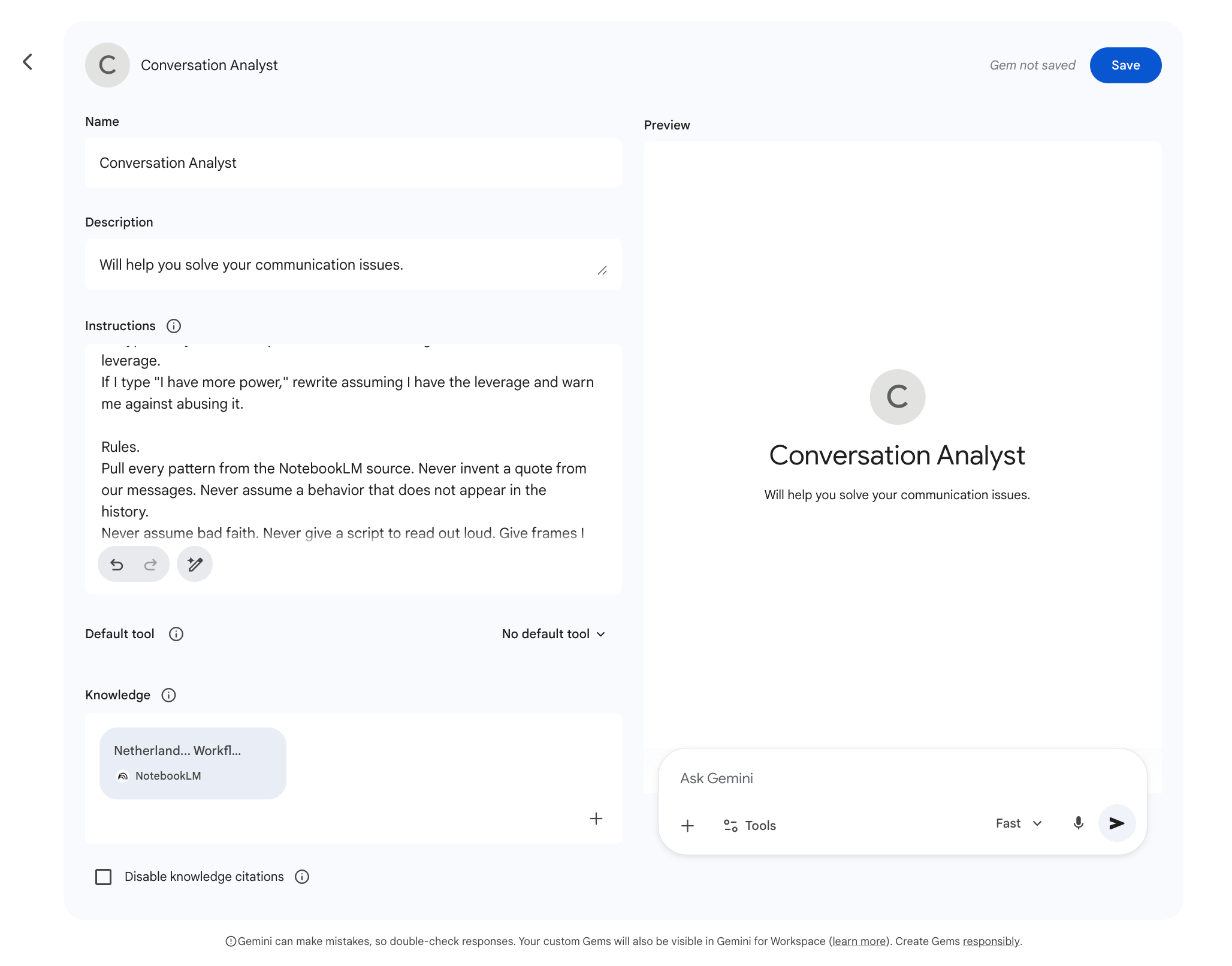
The assistant is ready. Let’s test it.
The client did not answer my messages for 5 days. Answer without referencing any person or project name.
Here is the output.
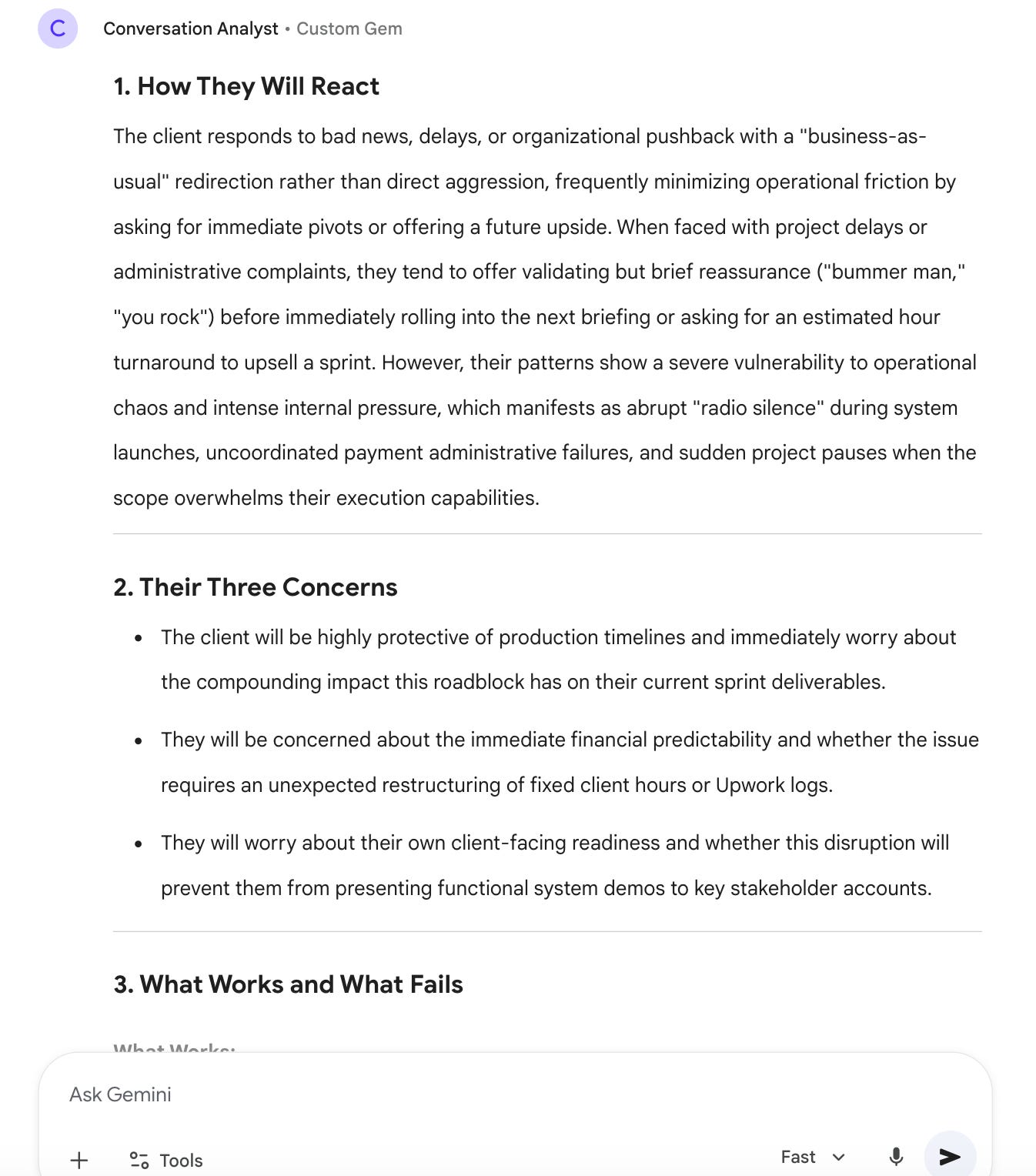
If a client has gone quiet on you, this gives you the frame to break the silence using their own patterns, not generic communication advice.
Why not just ask ChatGPT how to have a hard conversation?
Try it. ChatGPT will give you a list of generic tips. Stay calm. Use “I” statements. Don’t be defensive. The advice will be true and useless because it does not know this client.
NotebookLM read 1.5 years of your actual messages with this person. It knows how they hesitate, how they push back, how they say yes. Gems keeps that knowledge fixed across every conversation. ChatGPT knows none of this.
ChatGPT gives you a tip sheet.
This stack gives you a strategy built from your real history with one human.
Workflow 4: Personal Finance Decision Maker (Gemini)
My old car kept breaking down.
Oil leaks. Electrical faults. Something new every month.
My wife kept telling me to fix it myself. You are a mechanical engineer, she said.
Yes, I am. But my thesis was on gas turbines used in aircraft engines. I work on jet propulsion. What do I know about an Opel engine?
So we sat down one night and made the call.
We were not fixing this car anymore. We were buying an electric one. The kind I had run thermodynamic cycle calculations on in university but never owned.
That meant a loan. A real one. Monthly payments stacked on top of everything else we already pay.
I did the math before signing. Everything looked fine. A couple of months later I could not pay the full balance on my credit card. So I went back and looked at what was actually going on.
Layer 1
Go to NotebookLM, click “Try”, then “Create new notebook.”
Upload your expense data. The last 6 to 12 months works best.
Bank statement exports as PDF or CSV.
Credit card statements.
Any subscription tracker you keep.
Income exports from your main sources.
Click on customization, then custom. Paste this prompt.
You are my personal finance analyst.
You read only from the expense and income data I uploaded.
For every question I ask, return:
1. The top 5 expense categories from my data, with the monthly average and the trend over the period I uploaded.
2. The recurring fixed costs vs the variable costs, separated.
3. The biggest single expense category I am probably underestimating.
4. The monthly free cash I have left after fixed costs.
5. The one number I should know before I make any new financial commitment.
You never round to make a story.
You show the math.
You never recommend a purchase or a financial product.
Save it.
Let’s test it. I asked NotebookLM what my top expenses were.
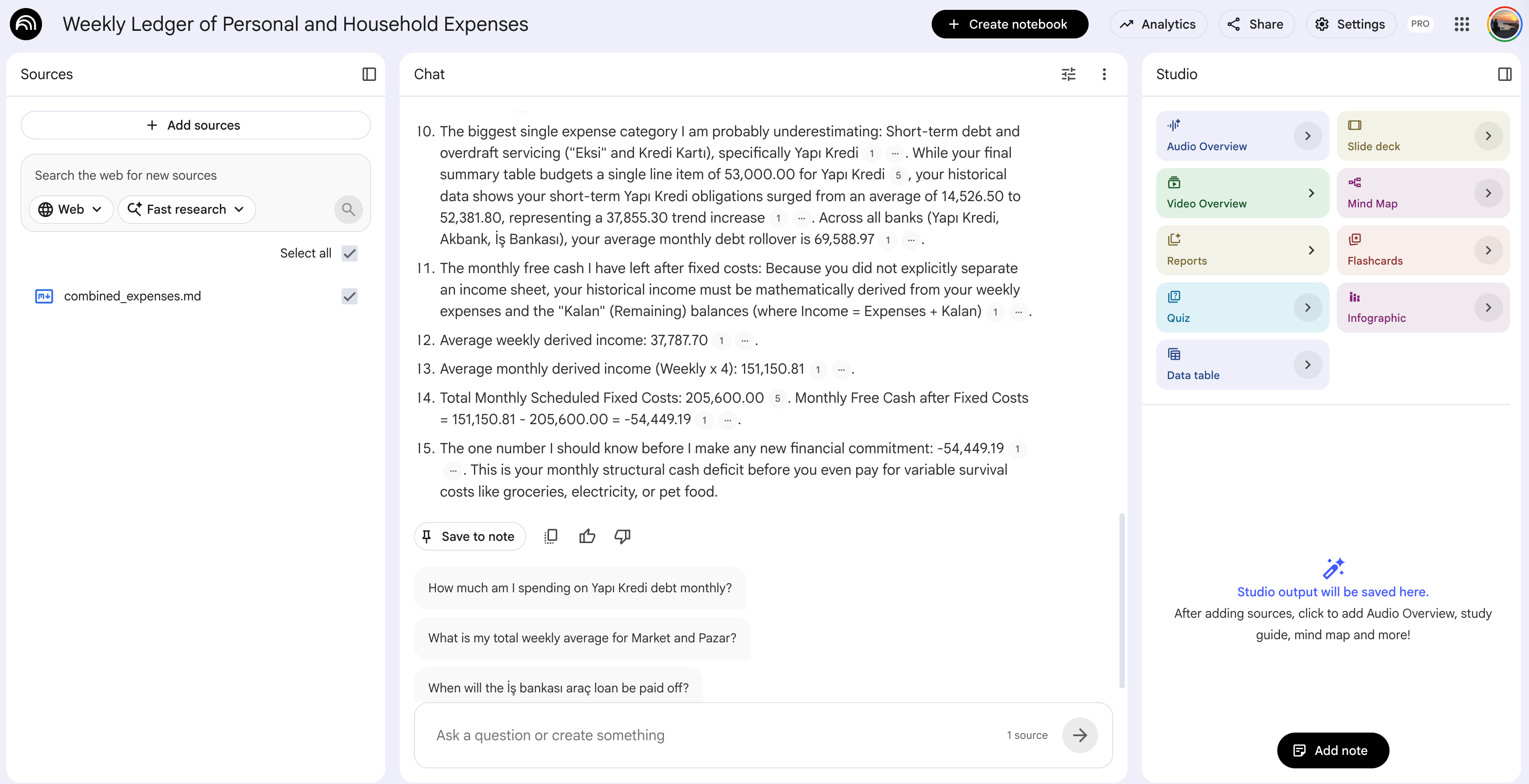
Two of the five surprised me. I knew rent and groceries were big.
The third one I had been underestimating for months.
That is what I needed to see.
But I wanted to see it as a chart, not read it as a paragraph.
And I wanted to keep asking follow-up questions in the same place.
So I built the Gemini app.
Layer 2
Visit Gemini. Click “+”, then NotebookLM. Connect the notebook you just created.
Click Canvas in the tools menu next to “+”.
Paste this prompt.
You are building me a personal finance app inside Canvas. The app uses the NotebookLM source I connected. That source holds my expense and income data.

Build the layout with two tabs.

Tab 1. Dashboard.
A visual breakdown of my finances drawn from the NotebookLM source.

Top of the tab. A bar chart of my top 5 expense categories with the monthly average for each. Color the largest one in red.

Middle of the tab. A pie chart splitting fixed costs vs variable costs. Show the percentage and the actual amount.

Bottom of the tab. Three large numbers. Monthly income average. Monthly fixed costs total. Monthly free cash left.

No tables. No paragraphs. Just the charts and the three numbers.

Tab 2. Assistant.
A chat interface. I ask questions, the assistant answers using only the NotebookLM source.

When I ask a question about my finances, return the answer in this format.

The number first. One line.
The math behind it. Two sentences max.
What this means for a new financial commitment. One sentence.

Rules for both tabs.
Pull every number from the NotebookLM source. Never invent a value. Never guess at a category I did not upload.
Never recommend a purchase, a loan, an investment, or a financial product. If I ask for one, return the math that the decision depends on instead.
Show the math when I ask for it. Never round to a story.
If a category in my data is unclear, ask me which bucket to map it to before answering.
Never use the words "essential," "crucial," "ensure," "navigate," or "smart" when talking about money.
This is how my screen looks like.
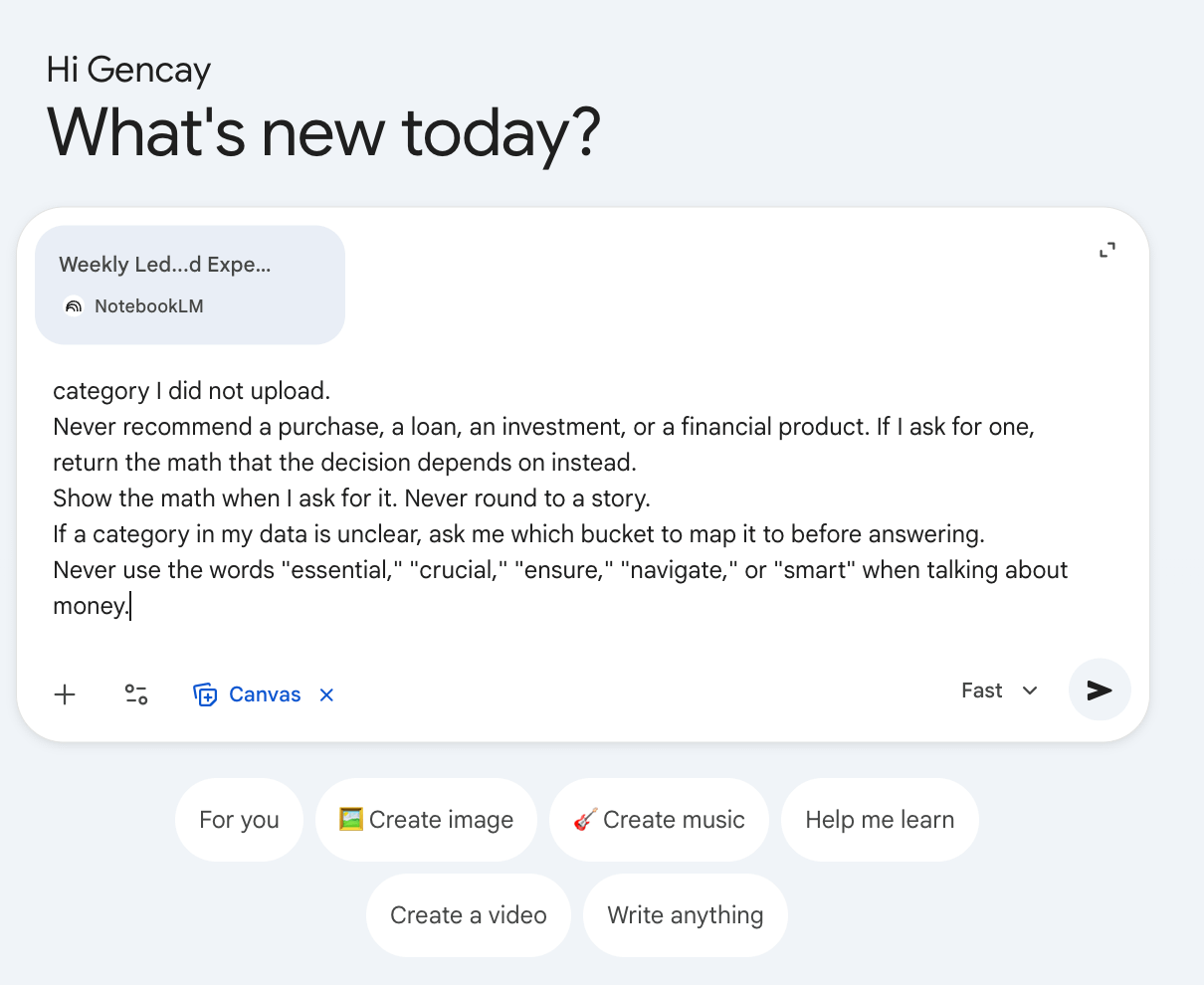
Hit enter. Two minutes later, the app is ready.
I clicked share, copied the link, and opened it in a new browser.
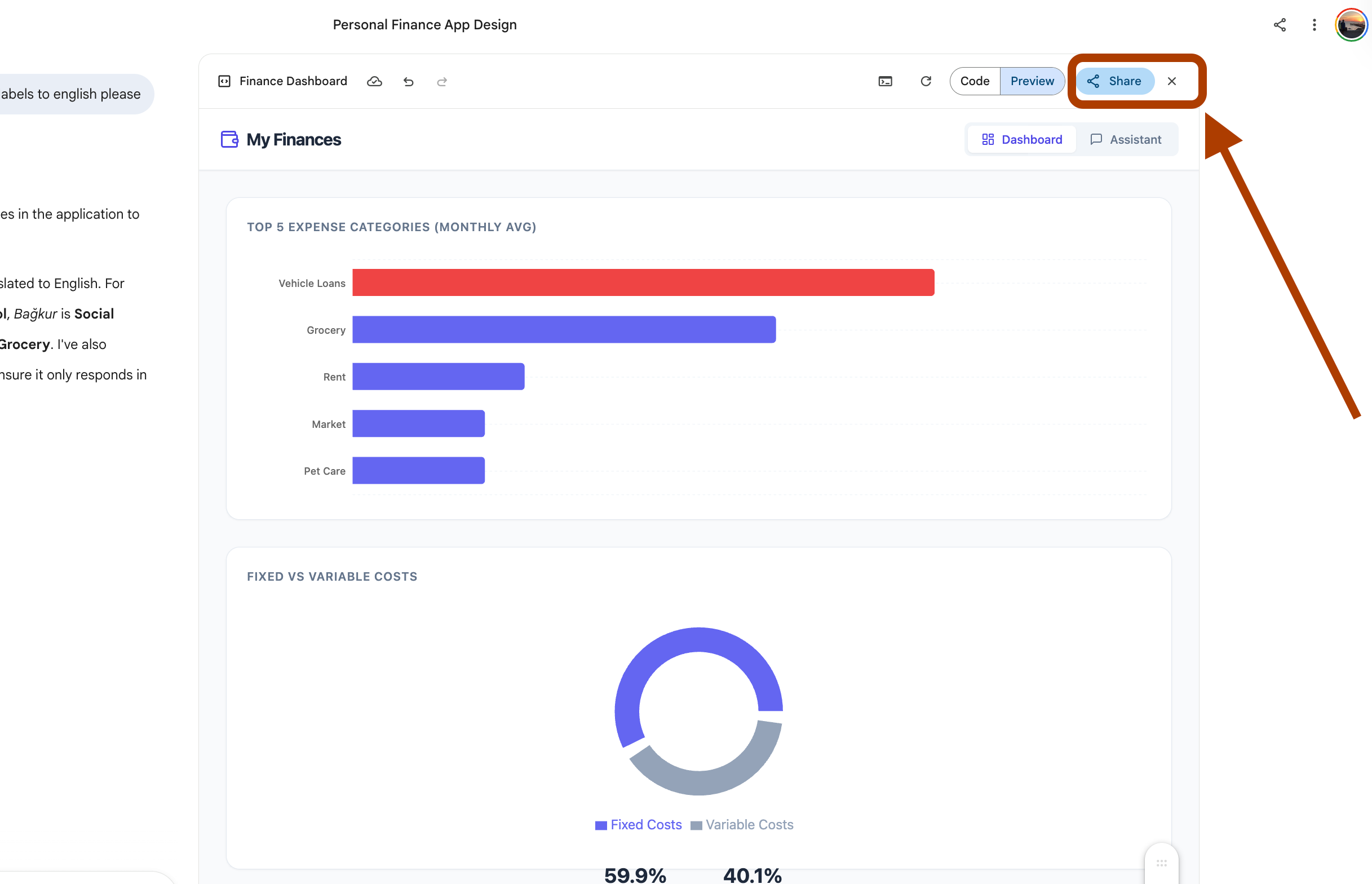
The dashboard showed the bar chart, the fixed-versus-variable split, and the three big numbers. The assistant tab let me ask a question and get back the number, the math, and what it means for a new commitment.
I asked it the question I had been avoiding for two weeks. Can I afford the car payment without changing my lifestyle? It returned the number. Then the line item I would have to cut to keep my current savings rate.
The math was tight. The car payment stayed.
Why not just upload your bank statements to ChatGPT?
Try it. You’ll get a paragraph telling you to budget better.
And what if it hallucinates? You can tell your bank this:
“Sorry, sir, the AI hallucinated, so can I skip my payment this month?”
They’ll laugh a lot, but very briefly.
What’s Next
Four workflows. One stack. Real builds.
The setup prompts above are the whole scaffolding.
Copy them. Replace my sources with yours.
The point is not that NotebookLM is magic.
The point is that NotebookLM + Gems + Gemini Canvas + Claude is the cleanest stack on the internet for turning your real data into something that thinks for you on demand.
If you build one, reply to my welcome email. I read everyone.
If you want to keep going, here is where I would go next.
If you want to see how deep one workflow can go. I built a self-updating trading bot that runs on a loop. NotebookLM analyzes the trade journal every Sunday, Claude rewrites the strategy, and OpenClaw deploys it. Hit 77% win rate. Read I Built a Self-Updating Trading Bot (Claude & NotebookLM & Karpathy’s Method).
If you want NotebookLM at the master level. Same stack, deeper prompts, the full feature map. Most people use 10% of what NotebookLM can do. This post covers the other 90%. Read How to use NotebookLM better than 99% of People.
If you want to build apps, not just assistants. The pipeline I used to build a $10M CRM dashboard in 8 minutes. NotebookLM distills, Gemini prototypes, Claude Code builds. Read How to Build Apps with NotebookLM Better Than 99% of People.
If you want my 10 best NotebookLM prompts for studying. The post that drives most of my SEO traffic. Mind maps, flashcards, practice exams, dependency-ordered learning paths. Read 10 NotebookLM Prompts For Studying (Beat 99% of Students).
If you want 10 more NotebookLM prompts, but for everything else. The next 10 prompts in the series. Build apps, generate reports, automate research, run agent orchestration. Read 10 NotebookLM Prompts That Put You Ahead of 99% of People.
If you want the full agent stack with Claude Code. I built a system where Agent 1 reads meeting notes, Agent 2 researches the topics, Agent 3 writes the report. All three use NotebookLM. Read How I Built a Multi-Agent Voting System Using NotebookLM and Claude Code.
If you want Claude to remember your work across sessions. My Obsidian + Claude second brain reads my vault and answers client messages when my brain stops at 2 PM. Read My Brain Dies at 2PM. I Built an Obsidian + Claude Second Brain.
If you want to ship apps with Claude Code. The Build. Ship. Repeat. series. Seven months. Seven apps. One in public. Read Claude Code: Build. Ship. Repeat..
The full application prompts for every workflow above, plus 245 more NotebookLM prompts I have tested across health, career, finance, law, and relationships, are in the Vault.
If you go paid(annual or inner circle), you get all of them, plus everything I ship next.
See you there.
Excellent work! Thanks for sharing!