
NotebookLM Now Lives Inside Gemini. I Built 3 Apps in 10 Minutes (Zero Code)
Google just merged NotebookLM into Gemini. Learn how to connect them and build apps from your notebooks using one prompt. Step-by-step with NotebookLM and Gemini.


Google just merged NotebookLM into Gemini.
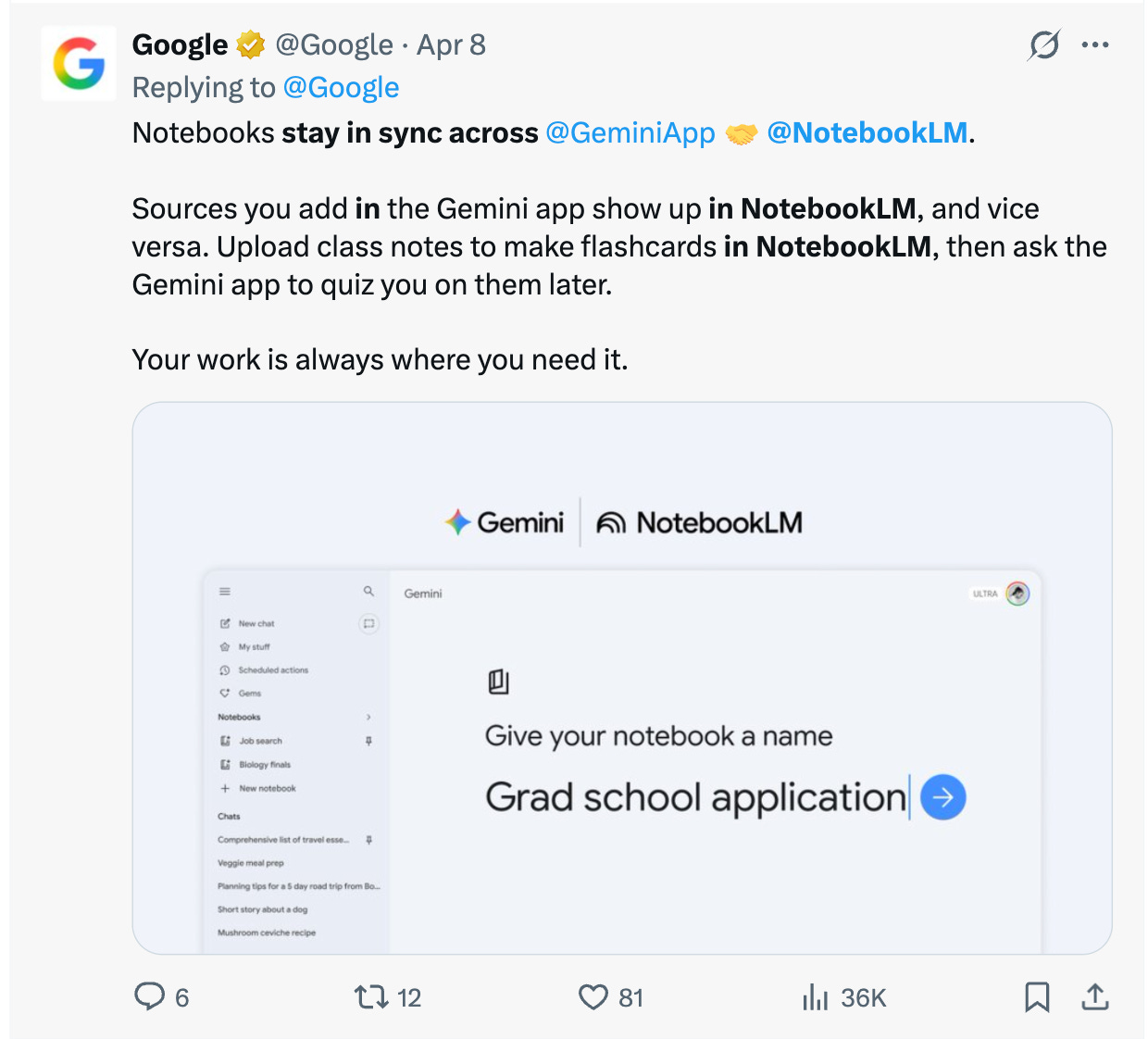
Notebooks stay in sync across both apps. Sources you add in Gemini show up in NotebookLM, and vice versa. Your work is always where you need it.
If you have been following my work, you know I have been building with NotebookLM for months. I connected it to Claude Code to build production apps. I paired it with Antigravity to turn docs into working code. I built AI teachers, prompt advisors, and research back reports using this connection.
But this update changes the game. Because now you do not need any external connection to build apps from your notebooks. NotebookLM lives inside Gemini. Select your notebook, choose Canvas, type one prompt, and Gemini builds your app.
Here is what changed and how I did it.
How to connect Gemini with NotebookLM?
After visiting NotebookLM, you probably see a notification like this.
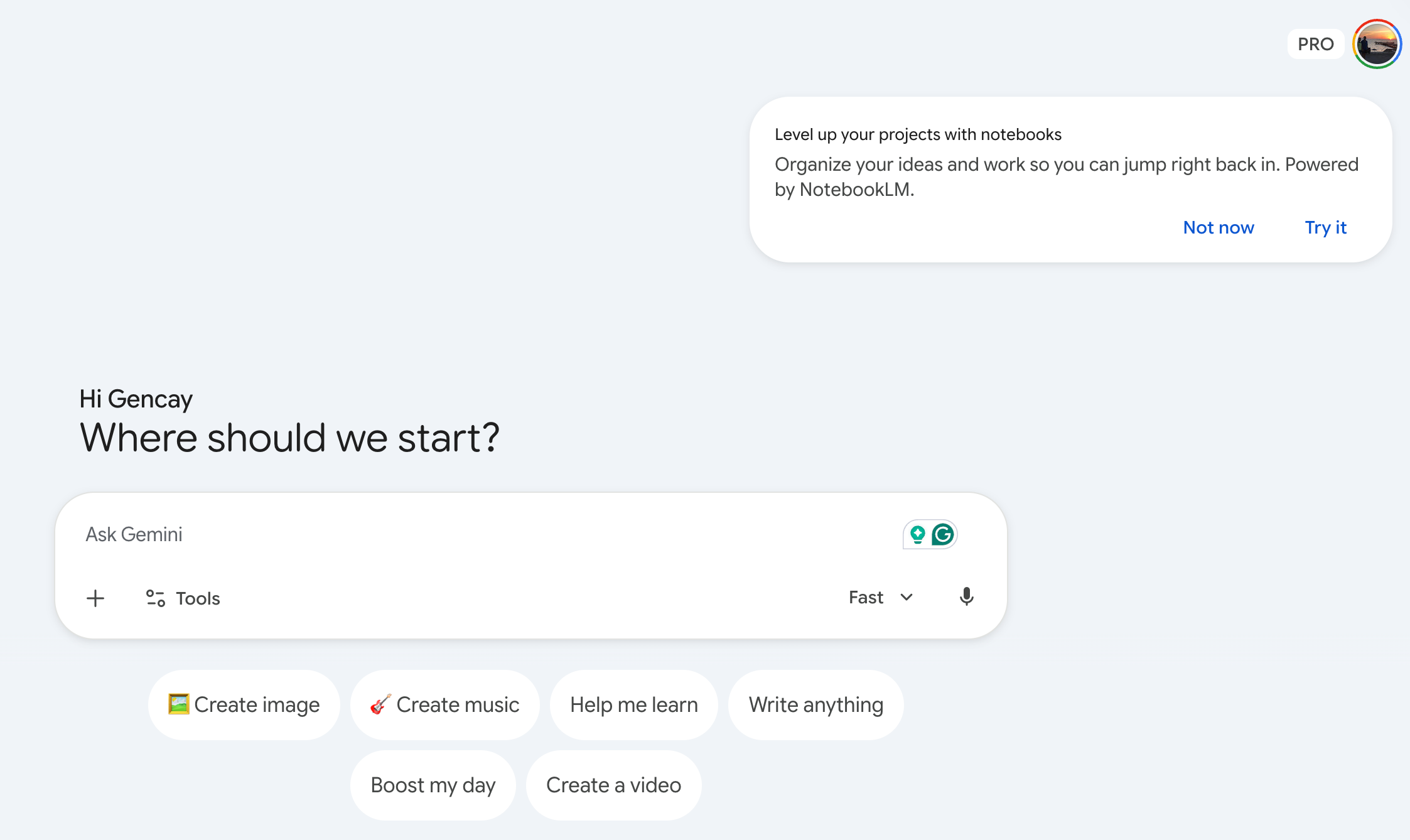
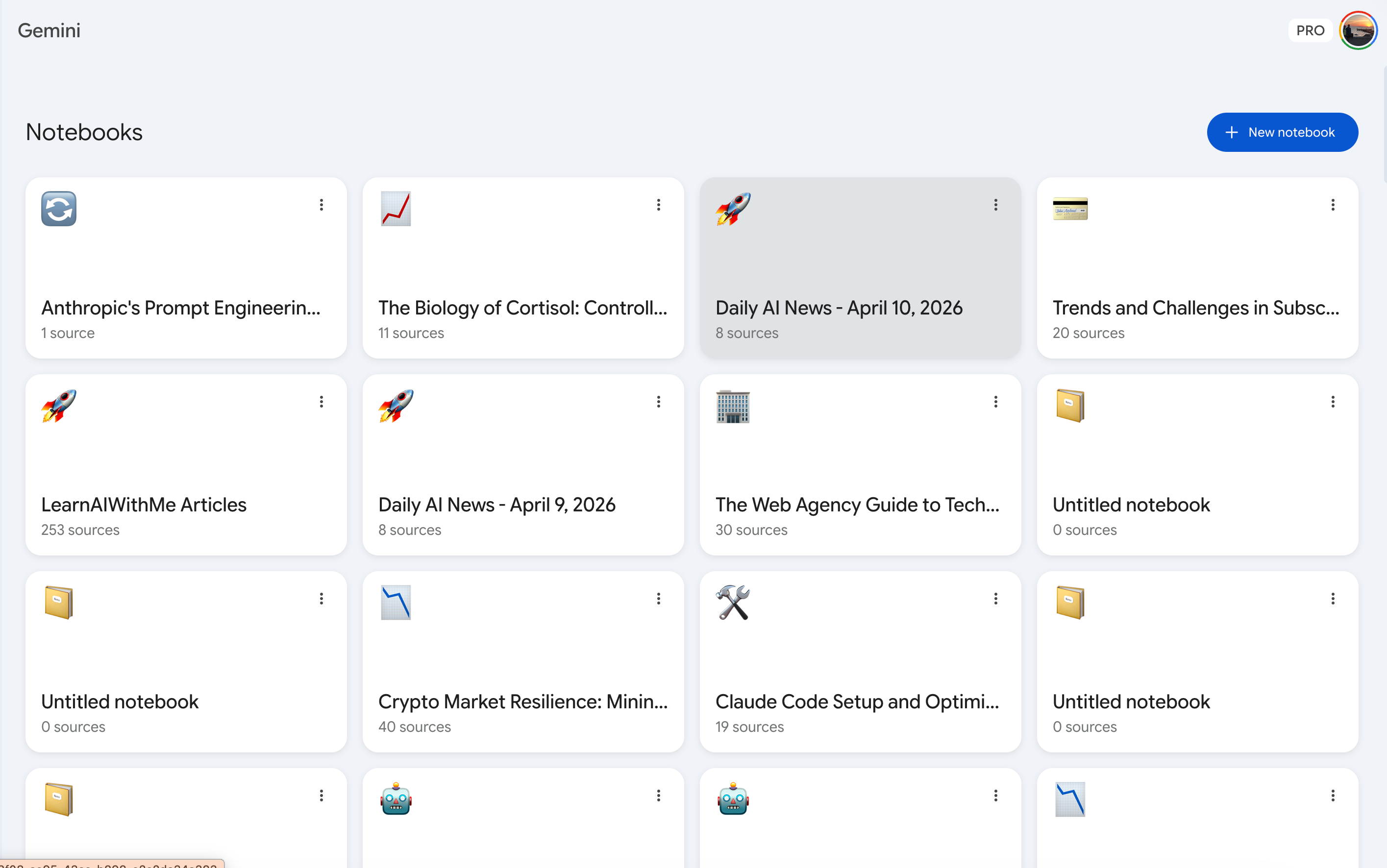
Once you click “Try it”, you land inside Gemini. All of your notebooks are here.
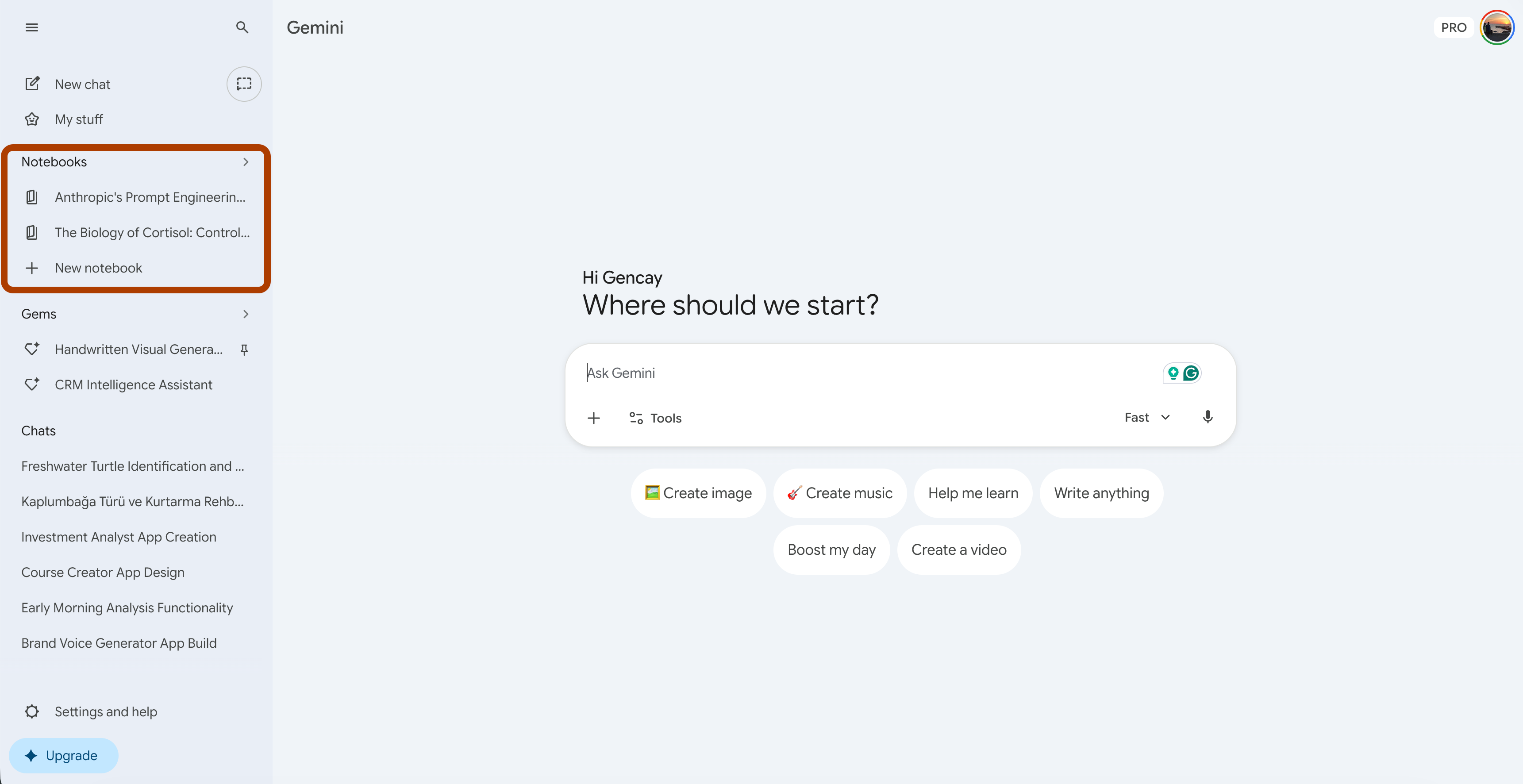
You can also select all of your NotebookLMs from the left sidebar.
Once you select one of your NotebookLMs, the chat will change like this. You are now inside Gemini, talking to your notebook.
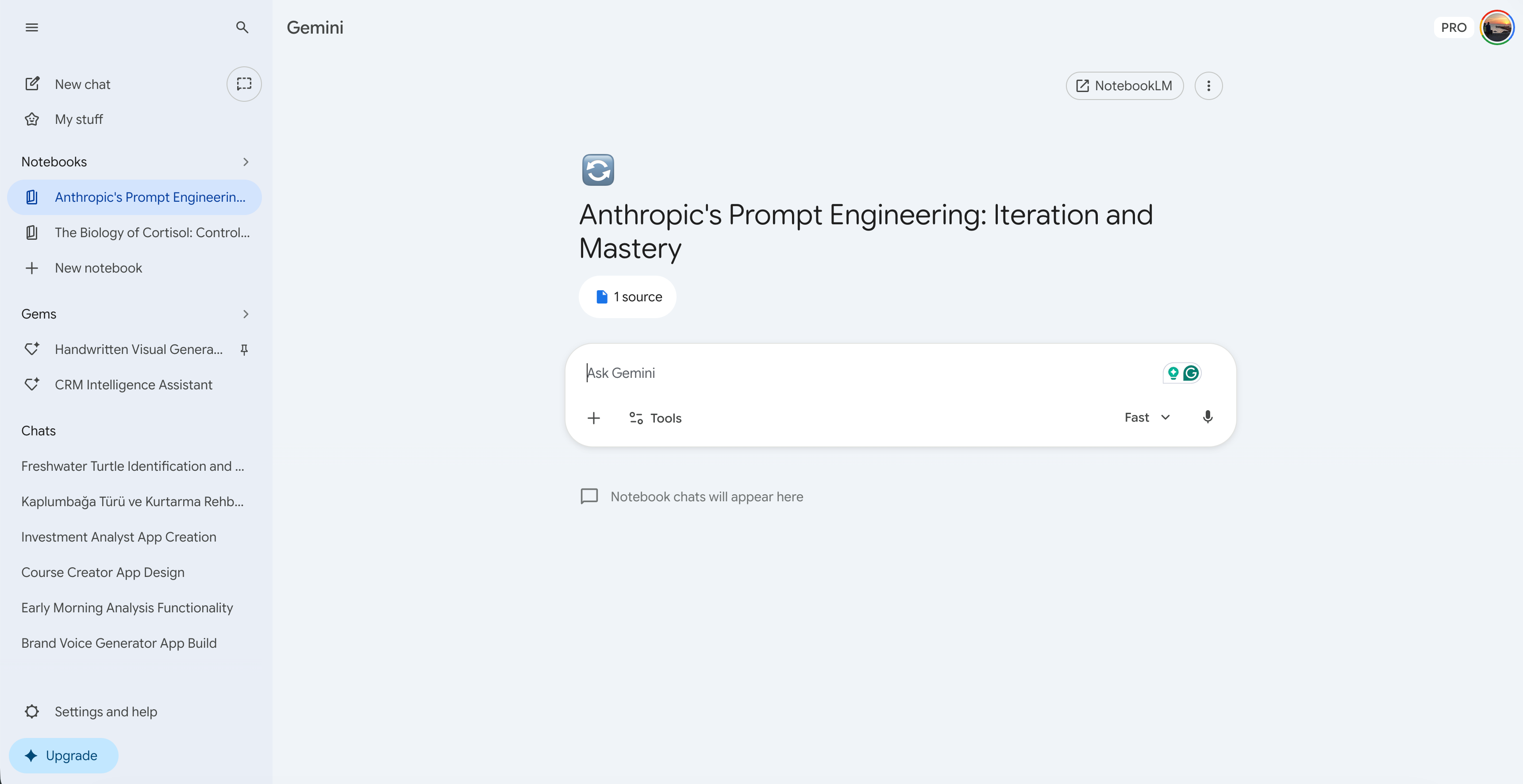
Click on the three dots, and you get notebook settings.
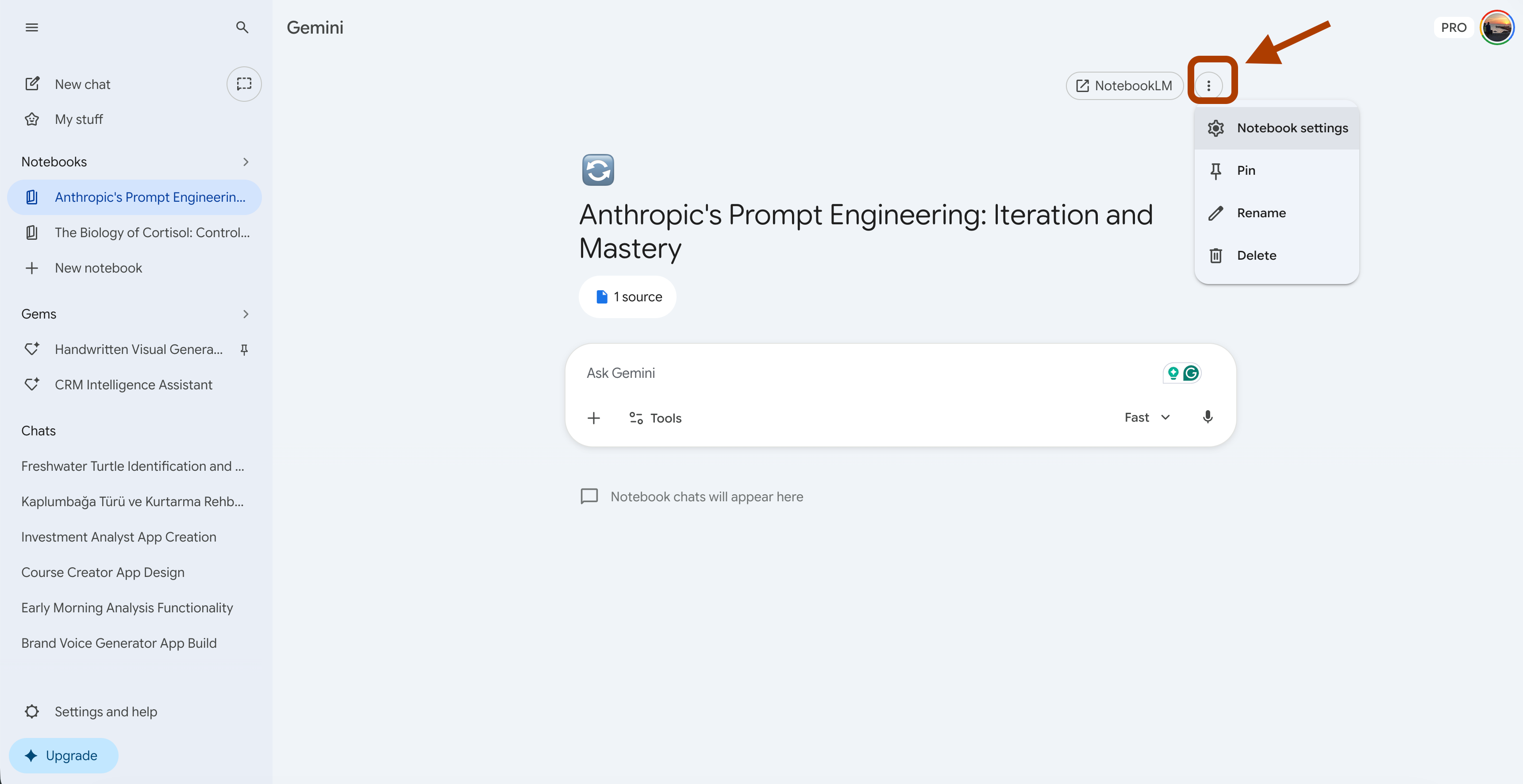
Here you can adjust instructions and set a persona. I set mine to “Act like Ms. Nilüfer, who is always passionate and patient with my questions, and explains everything visually so I can learn clearly.”
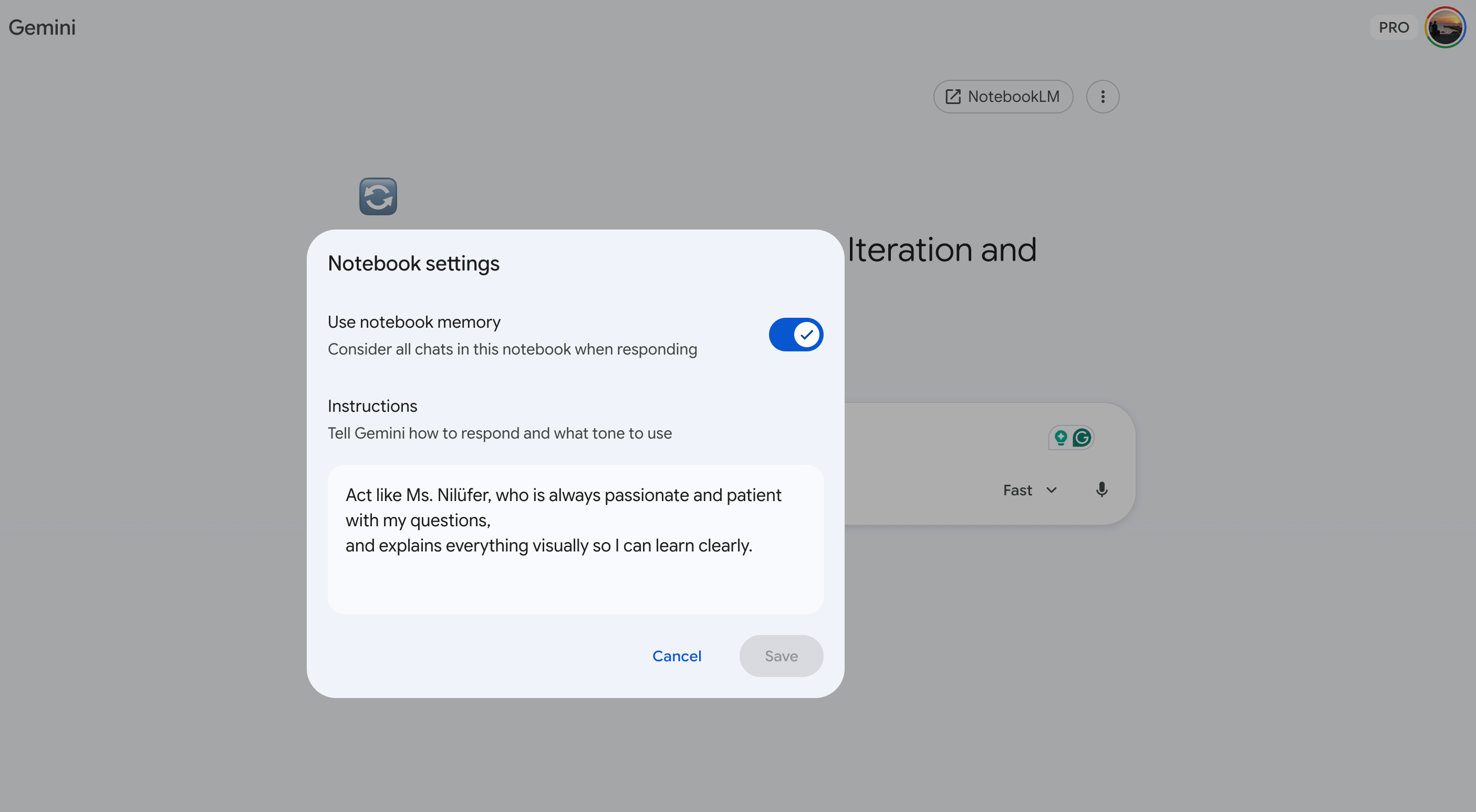
This part is basically the same as NotebookLM’s chat.
Same sources, same grounded answers, same citations.
But here is what makes this different: you can build apps from your notebooks directly inside Gemini.
How to build an app using Gemini and NotebookLM connection?
Once you are inside your notebook in Gemini, click on “Tools” at the bottom of the chat. Select Canvas.
Then type what you want to build.
Gemini reads your notebook sources and builds the app right in front of you.
Here is the prompt I used:
Build an app from this NotebookLM, which teaches me how to prompt.One sentence. Gemini started generating code, designing the layout, and writing content from my sources.
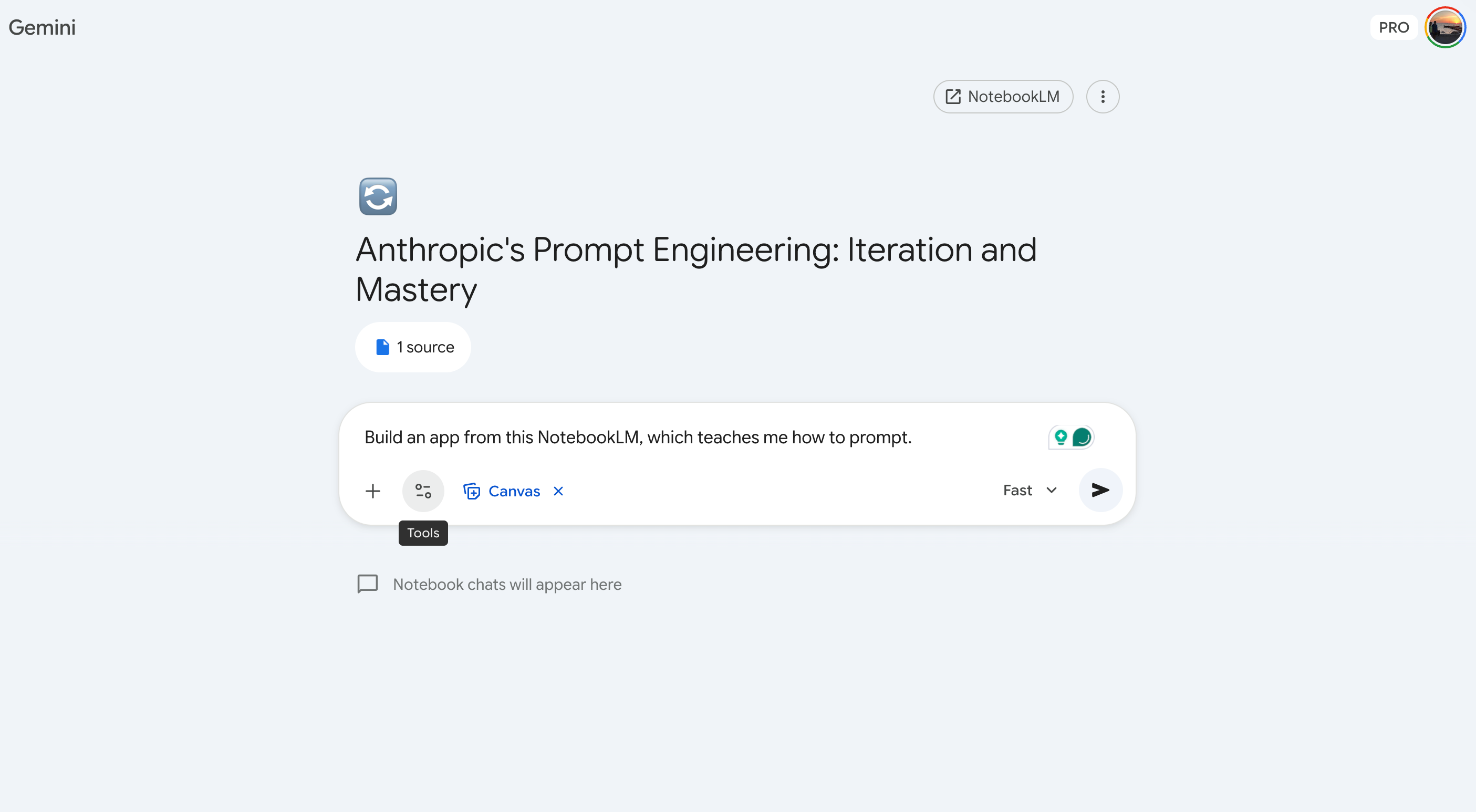
Two minutes later, a working app appeared.
Once the app is built, you can rename it, view the files, move it to a notebook, or share it with a public link.
That is the entire process. Pick a notebook, select Canvas, type a prompt, and get an app.
Now let me show you what I built.
3 Apps We’ll Build with NotebookLM and Gemini Connection
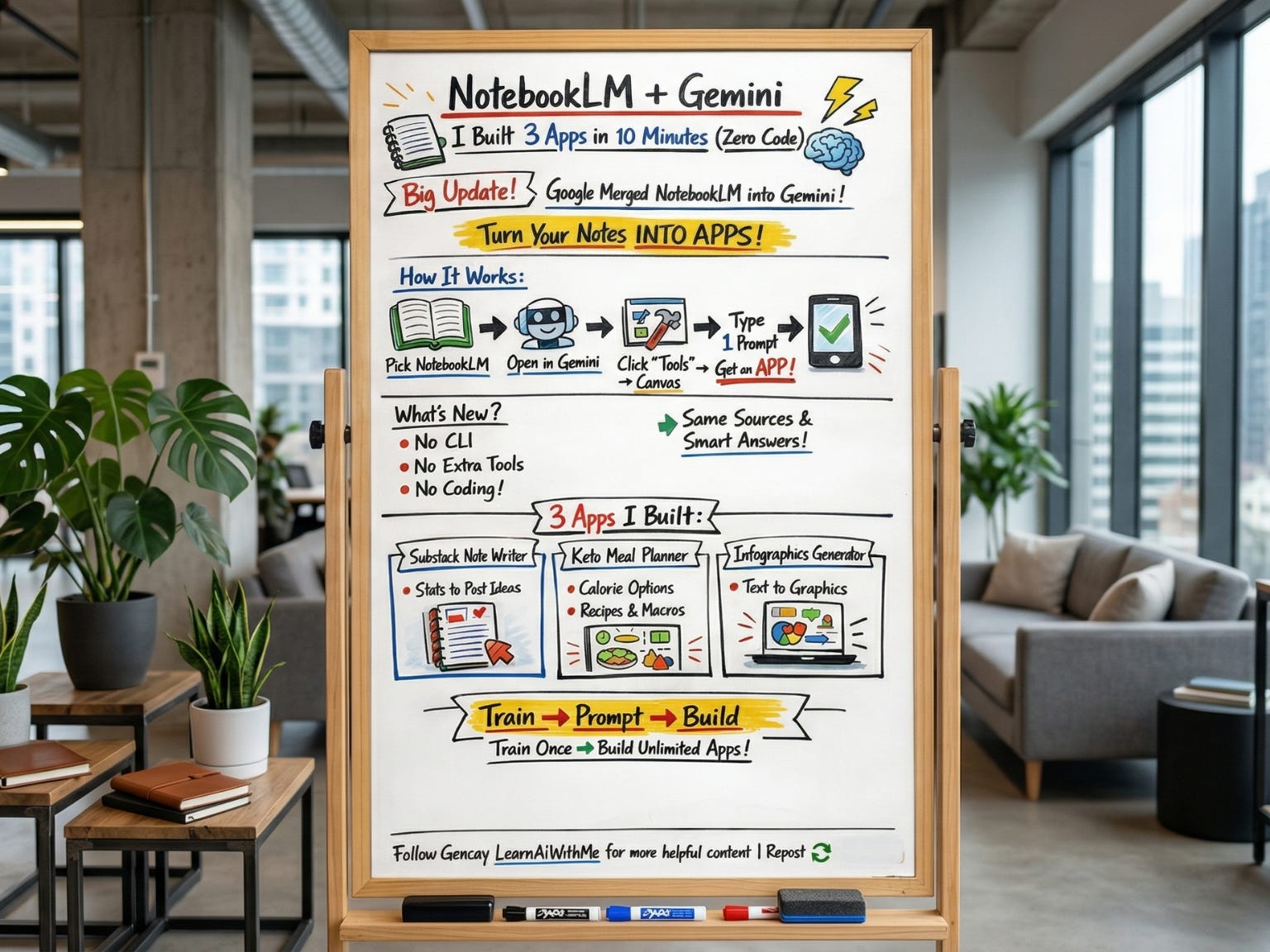
In this one, we’ll build 3 different apps;
Substack Note Writer
Keto Meal Planner
Infographics Generator
I’ll show you how I trained NotebookLM and how I built these apps using it.
I’ll also share the links so you can try them yourself.