


You track 5 stocks. You check the news 3x/day. You make emotional trades.
You lose money.
Here’s the problem: Bloomberg Terminal costs $2,000/month.
Free apps sell your data.
Building your own used to take weeks.
But not now.
You can build an AI investment analyzer in under an hour.
No code or emotion.
Train it on YOUR portfolio.
Let’s See What We’ll Build at the End
Let’s see what we’ll build at the End
Three pages. One app. Built in minutes.
How does this app work?
There are 3 pages.
Page 1: Wallet
Your portfolio, live. Add XRP, SOUN, AAPL, whatever you hold. Real-time P&L updates from Yahoo Finance.
Page 2: AI Advisor
Click Fetch News → today’s headlines for every asset.
Click Run AI Analysis → Gemini reads your portfolio, cross-references 40+ pages of research, returns: risk score, recommendation (Buy/Hold/Reduce), key catalysts.
Your portfolio. Your risk.
Page 3: Trade Log
AI that knows your positions.
Ask anything: “Should I average down on XRP?” “What’s my stop-loss?” “Summarize the SOUN bull case.”
It answers like a disciplined trader, not a chatbot.
0. Current Stack
Before getting into this app, we’ll use 3 different AI tools.
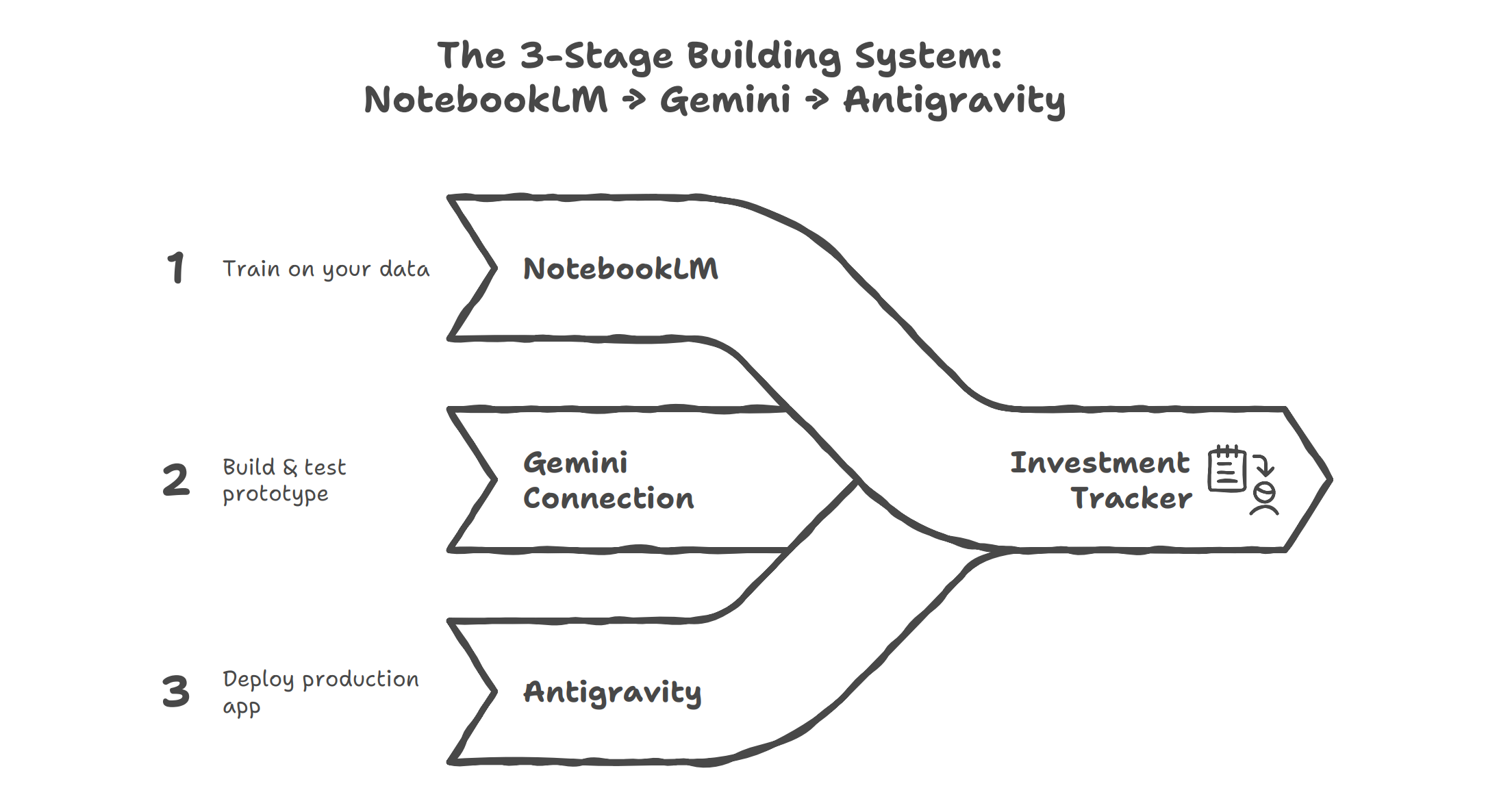
And let’s discover them.
1. What is NotebookLM?
NotebookLM is Google’s greatest AI tool.
You can train Notebook, using your own documents.
Or adding YT Videos.
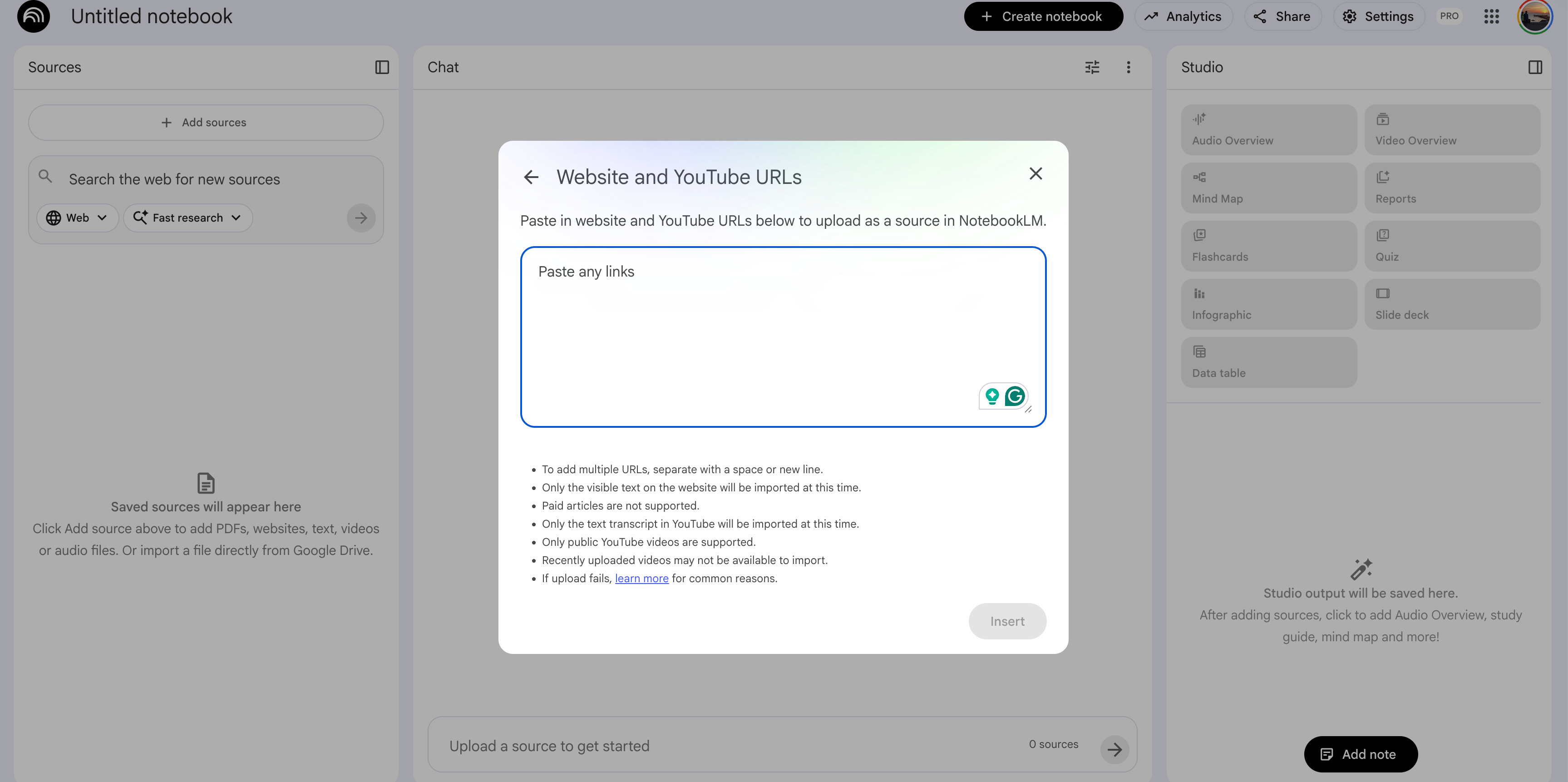
You can even do a deep search using Gemini models.
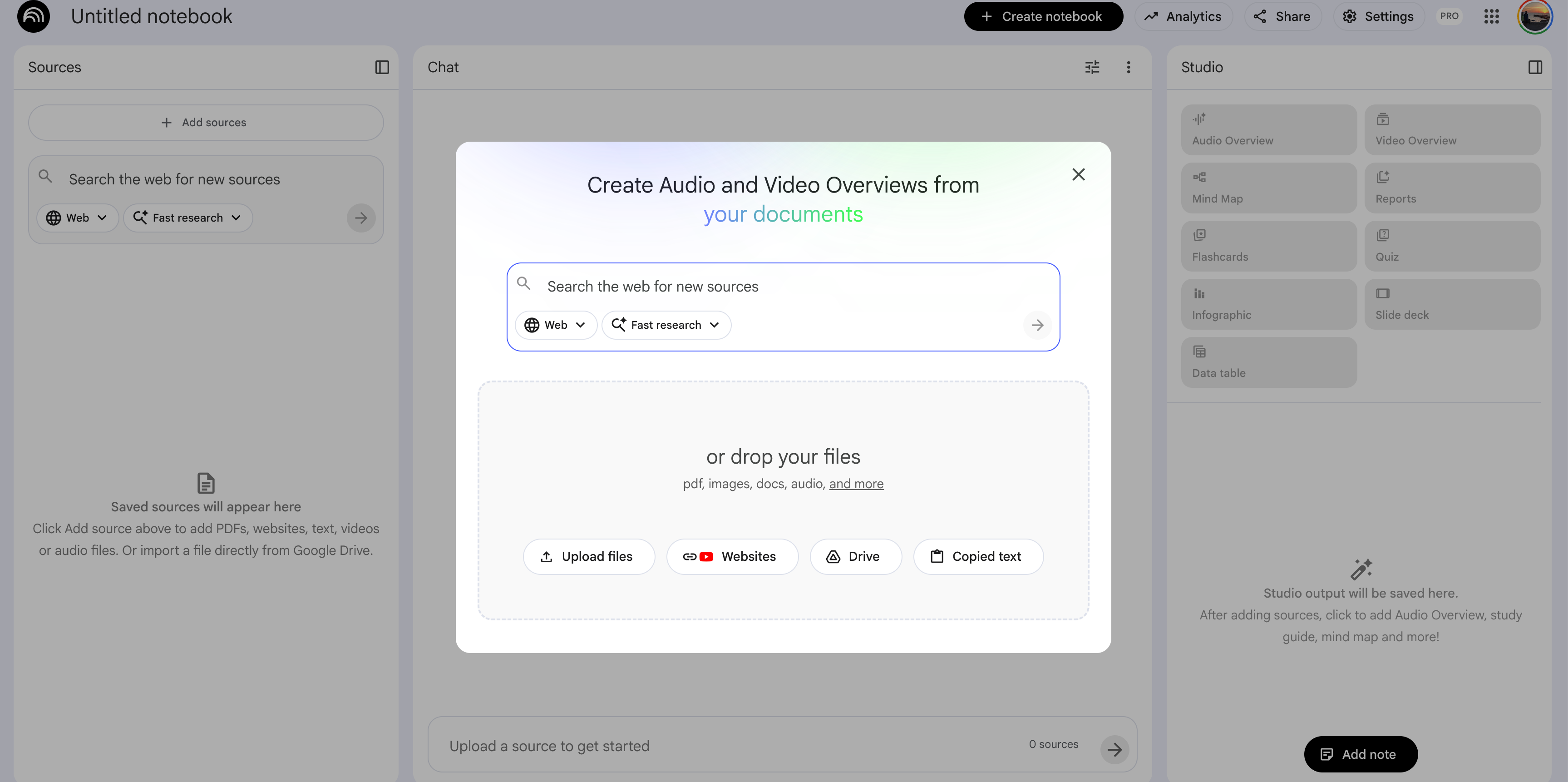
And upload them as source.
Up to 300 sources.
Let’s see how you can do this.
a) How to train NotebookLM?
Visit notebooklm.google.com.
Click “Try”
Next, click on “Create New.”
Add your sources.
Name your notebook
That’s it.
NotebookLM now knows your data.
For NotebookLM tips and tricks, read this one.
b) How to connect NotebookLM with Gemini?
Let’s see how you can connect NotebookLM with Gemini in 5 steps.
Go to the Gemini: https://gemini.google.com/
Click on “+” and add your NotebookLM as a source.
Use this prompt.
“Develop app from attached Notebook.”
Select Canvas as a tool.
Click on Submit
In a couple of minutes, you’ll see your app ready.
2. What is Antigravity?
Antigravity is Google’s AI IDE.
a) Claude Code inside Antigravity
You can also use Claude Code inside it, using an extension.
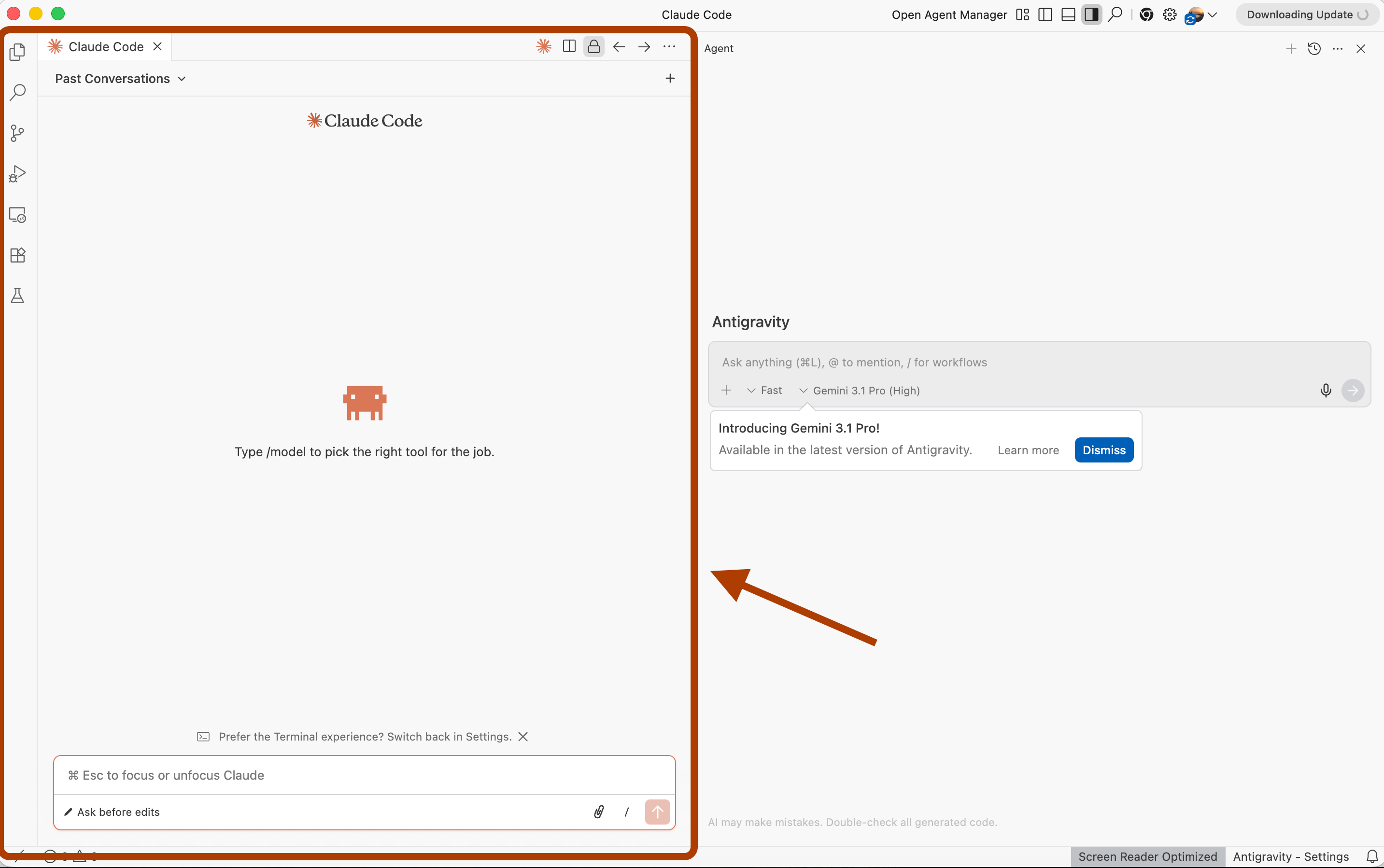
This way, you can combine Claude’s power on the left and Gemini models on the right.
To explore how to install the Claude extension, read this one.
b) Agent Manager
Click here.
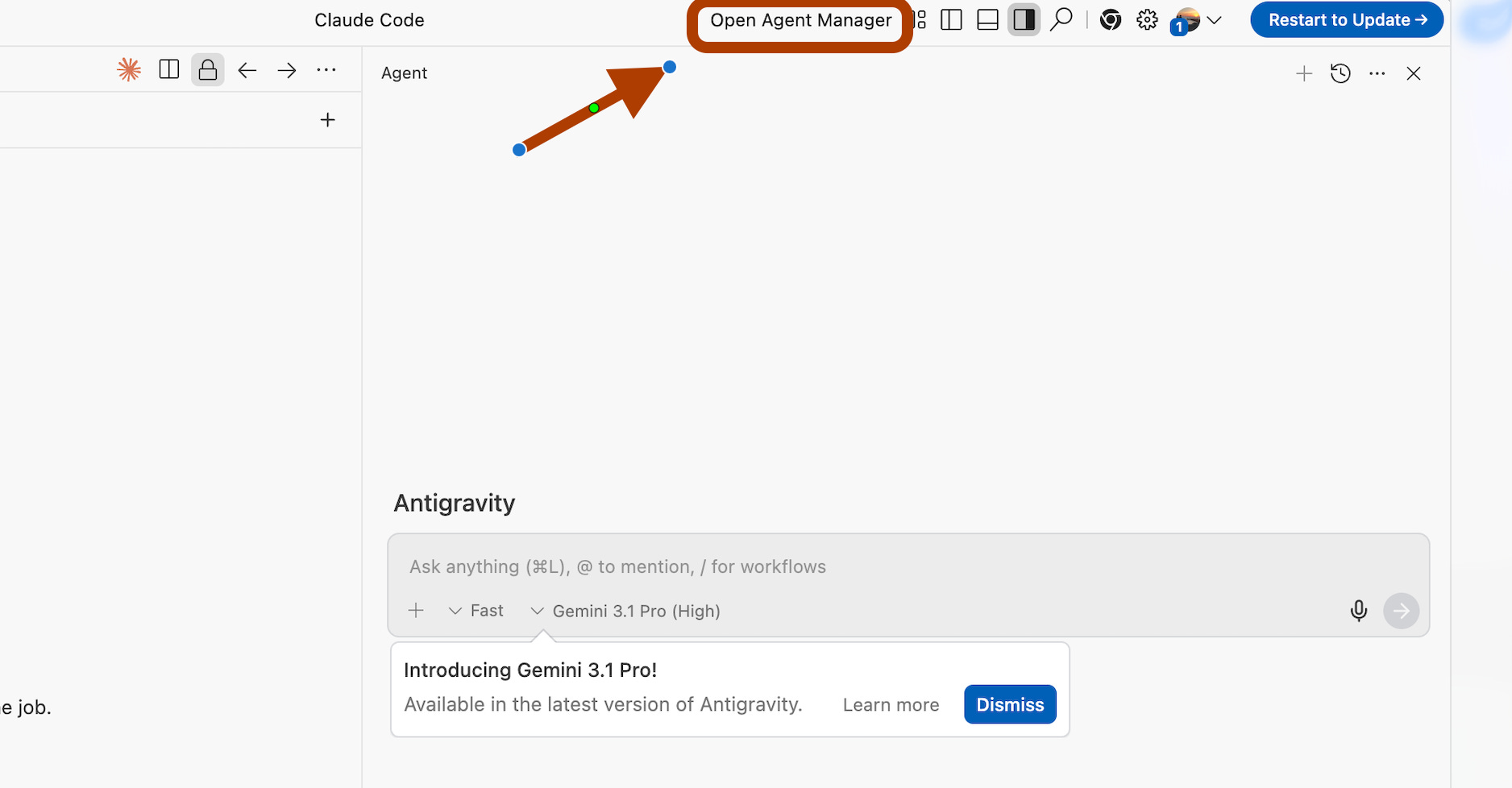
You can run agents in parallel, so they handle multiple tasks at the same time.
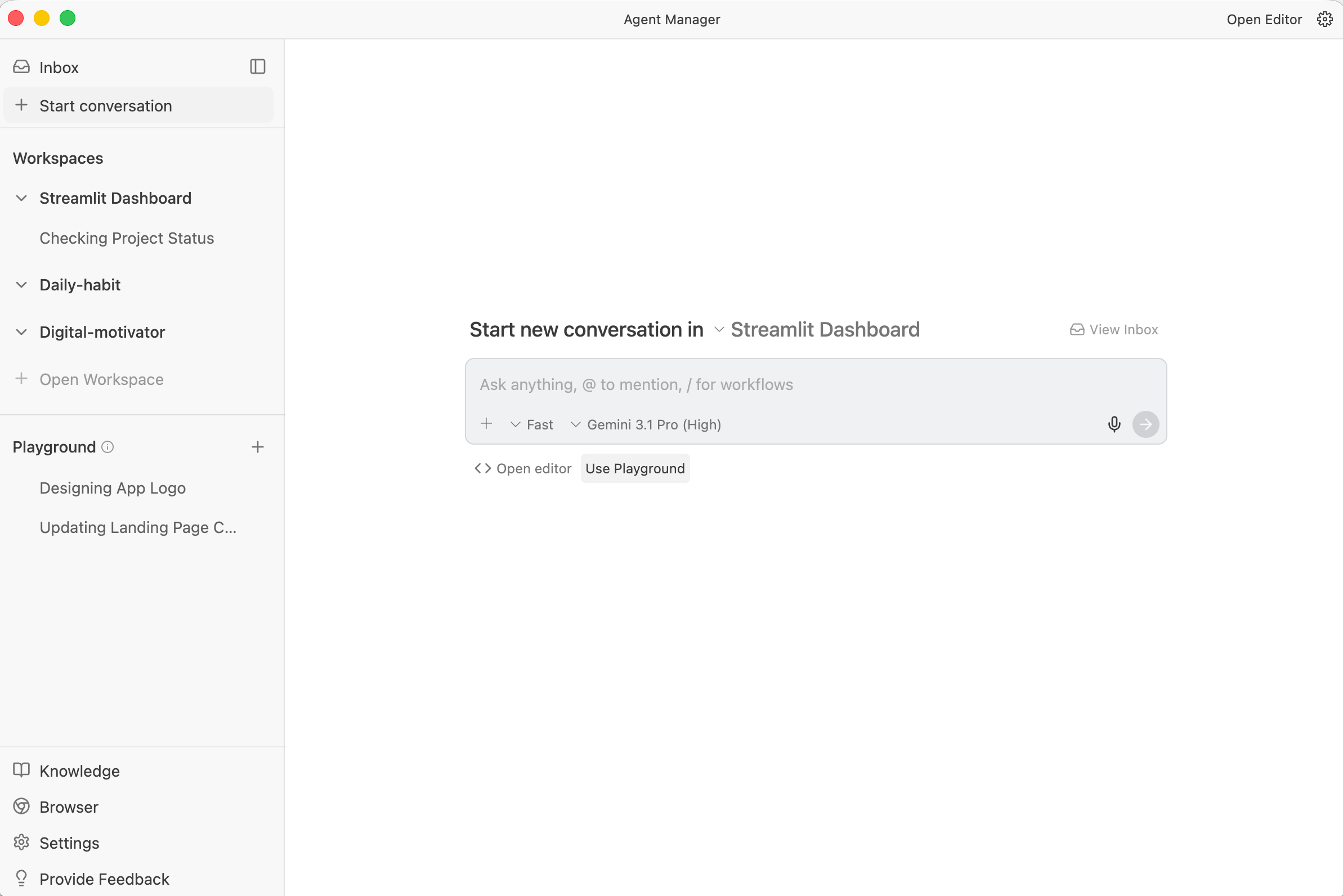
Antigravity can turn your Gemini prototypes into production apps.
We’ll discover this in three steps.
3. The 3-Stage Building System
I previously connected NotebookLM with Gemini to build apps.
Next, I connected NotebookLM with Antigravity.
Now I’ll connect each three.
Here’s the system I use:
Stage 1: Research (NotebookLM) → Do I need this?
Stage 2: Test (Gemini mock) → Does the UX work?
Stage 3: Build (Antigravity prototype) → Will people use it?
Let me show you how to build our investment tracker.