
Claude Code MasterClass For Everyone (Part 1): Installation & Build Your First App
From zero to your first working AI agent, no coding experience needed.


Everyone thinks Claude Code is only for hardcore developers.
It’s not.
You don’t need to be technical to use the most powerful AI builder tool today.
But saying and doing are different things.
That’s why I’m starting a series.
In Part 1, we’ll install Claude Code and start building.
Zero coding.
Too much promise?
Scroll down and see the app we built.
Or better, let me show you.
Fast-Forward: What We’re Building
I love Notion.
So let’s build ours.
Of course, there are a few features, but this is just Part 1 of the masterclass.
For more, you need to go deeper.
But if you do not yet know what Claude Code is, let’s start with the fundamentals.
1. What is Claude Code?

Claude Code is a terminal-based AI agent.
It can read, edit, generate, and run code directly on your machine.
It comes in 3 forms:
CLI tool
Extensions
VS Code & Antigravity or different IDE’s.
You talk to it. It builds anything for you.
Not just apps.
Save all your articles to it.
Let it be written in your tone.
2. How to Install Claude Code?
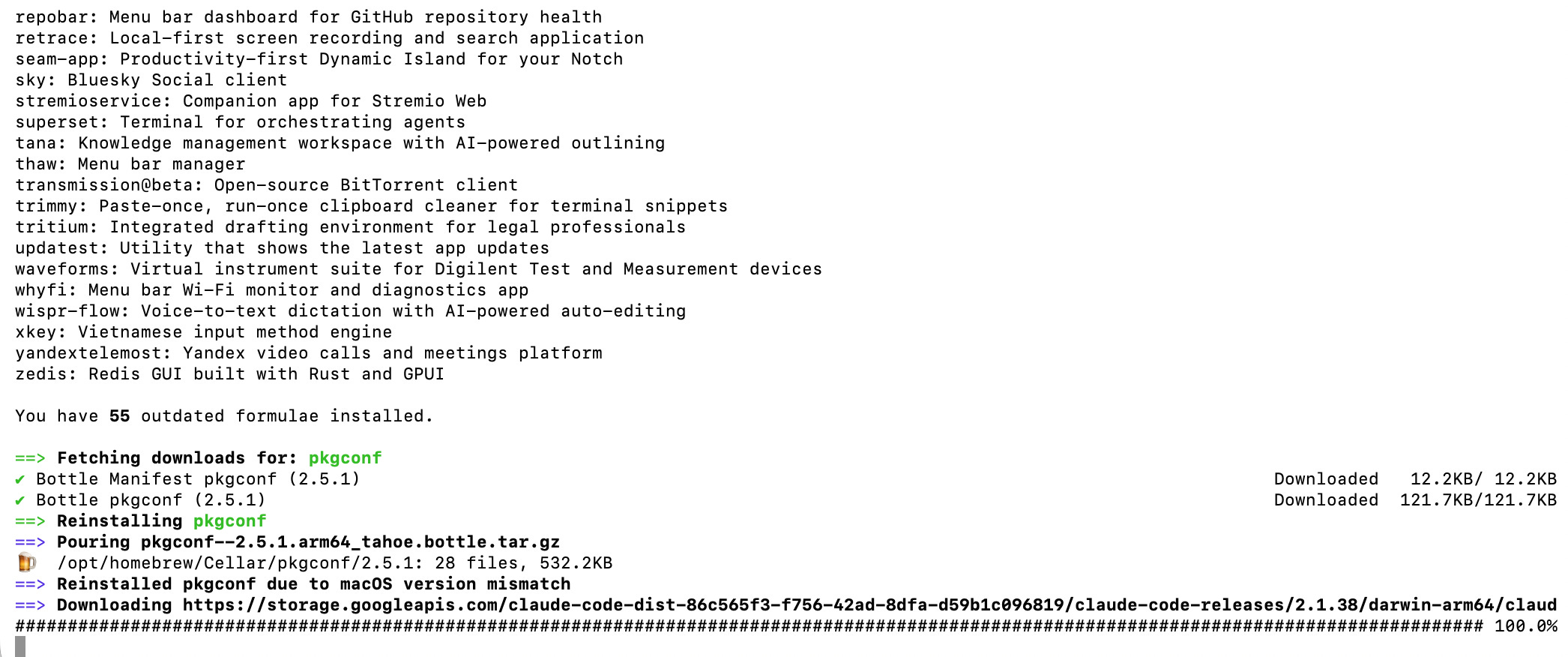
Claude Code works on Windows, Mac, and inside coding tools.
Pick your method.
If you don’t like building on Terminal like me, skip to C) or D).
A) Windows
Open PowerShell and paste this:
irm https://claude.ai/install.ps1 | iexTakes 2 minutes.
Alternative
winget install Anthropic.ClaudeCodeIt wants your sign-in after pasting the code, sign-in and you are ready.
B) Mac
Open Terminal and paste this:
curl -fsSL https://claude.ai/install.sh | bashTakes 2 minutes.
Alternative
brew install --cask claude-codeC) VS Code Extension (Preferred)
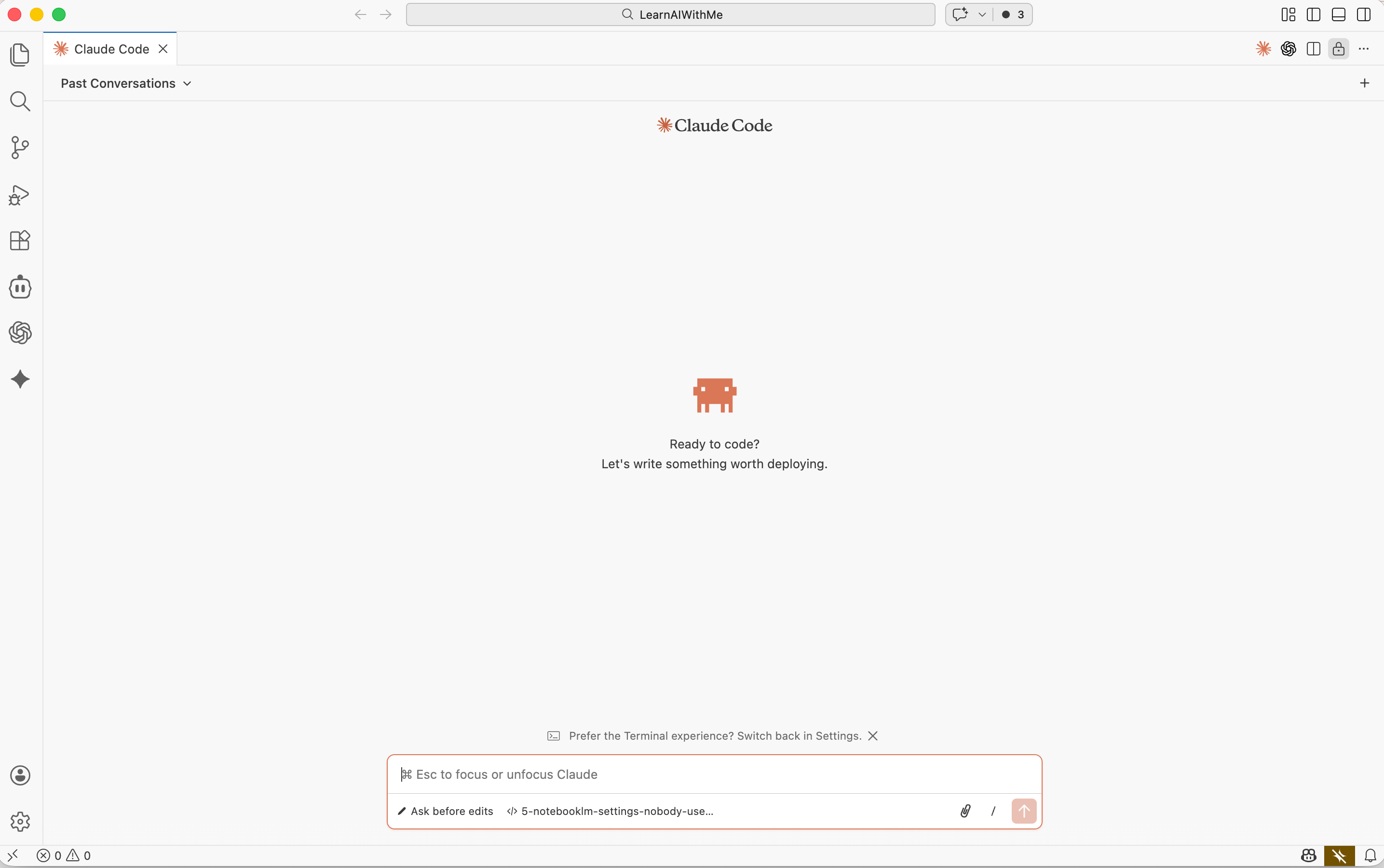
This is the easiest method. (That’s what I use daily.)
Step 1: Download VS Code: Go here.
Step 2: Open VS Code
Step 3: Find Extensions: Click the Extensions icon on the left sidebar (or press Cmd+Shift+X on Mac, Ctrl+Shift+X on Windows)
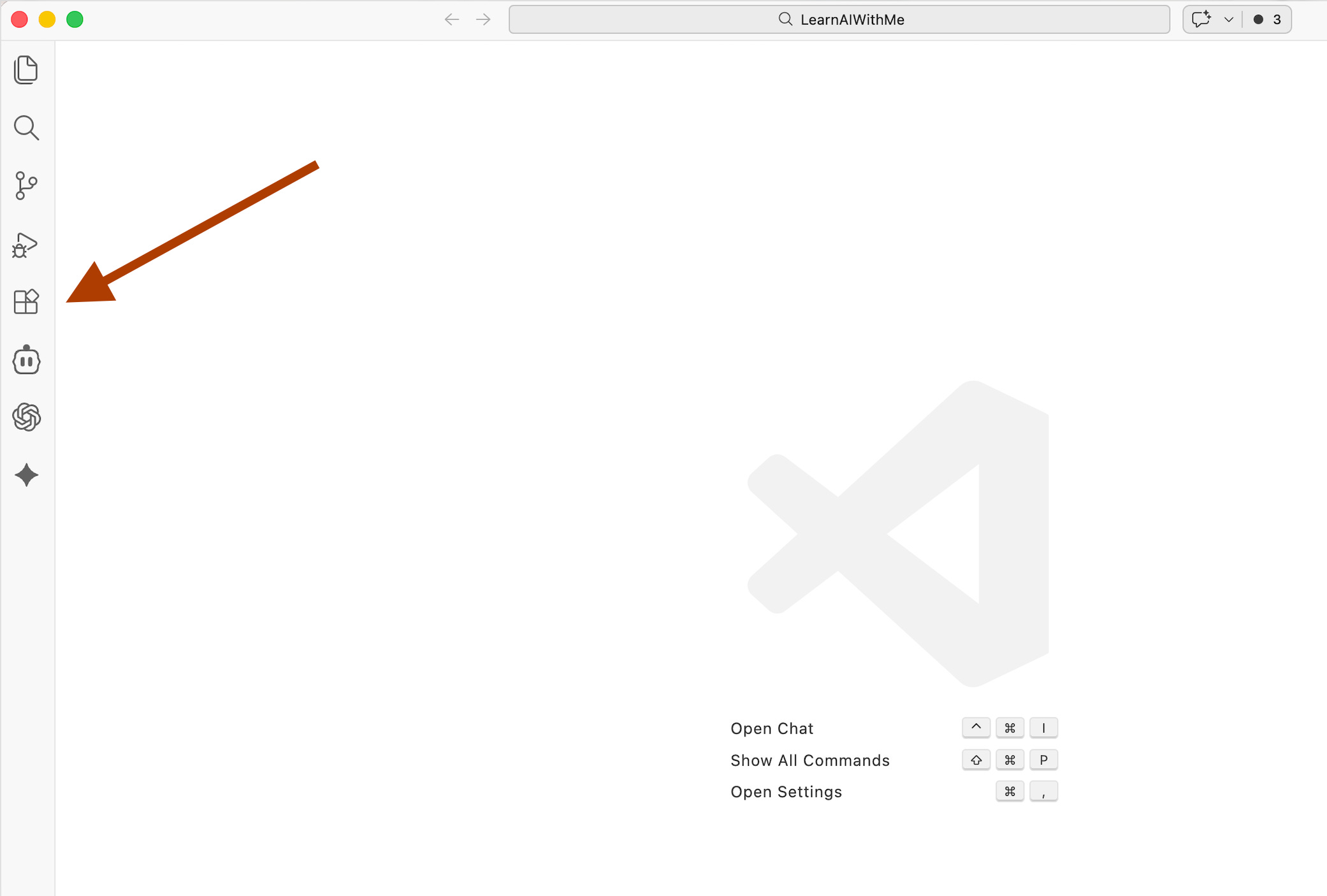
Step 4: Search Claude Code: Type “Claude Code” in the search bar
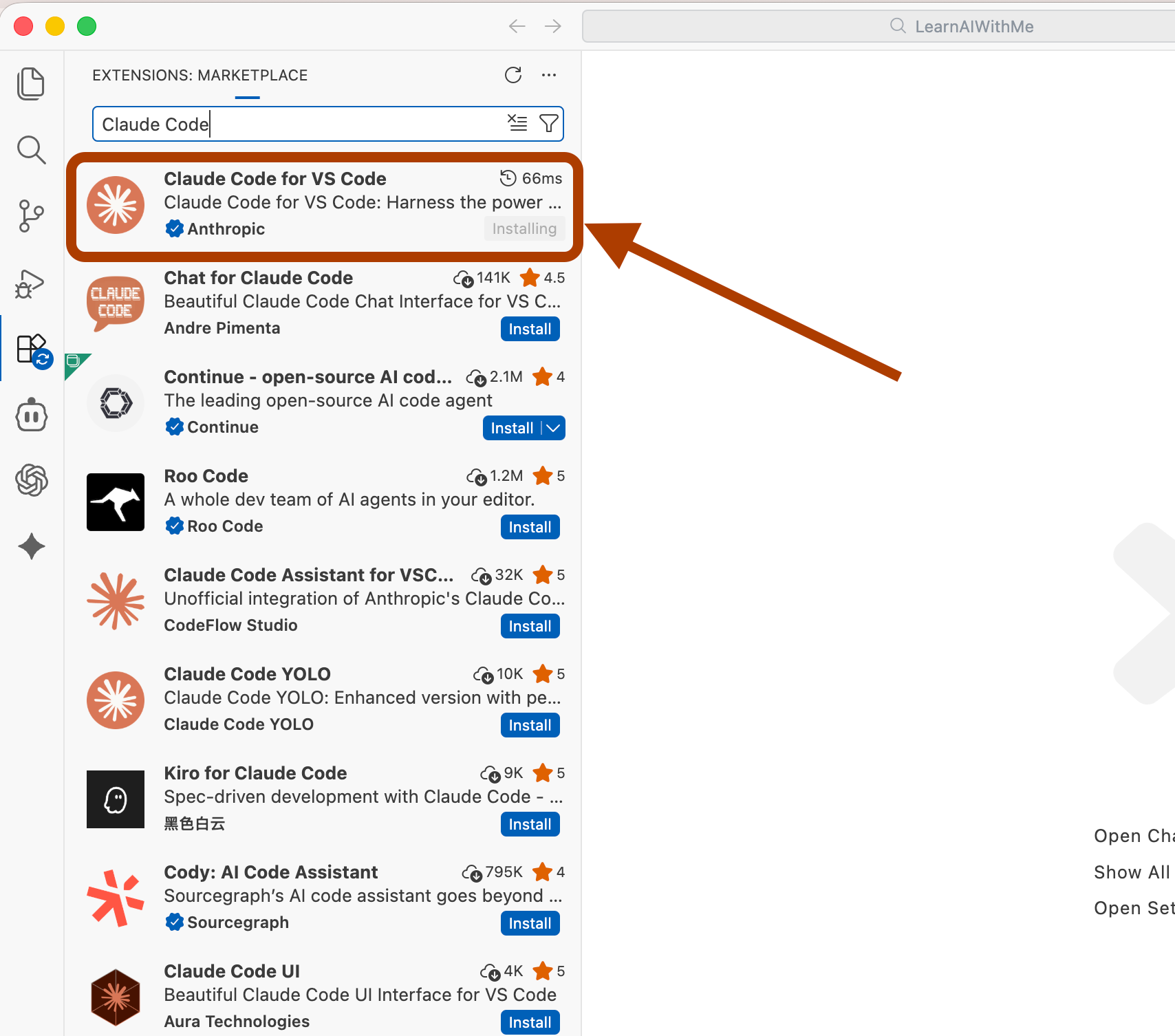
Step 5: Install: Click “Install” on the Claude Code extension by Anthropic.
Step 6: Initate: Click on the Claude Code extension, and click on the Claude symbol.
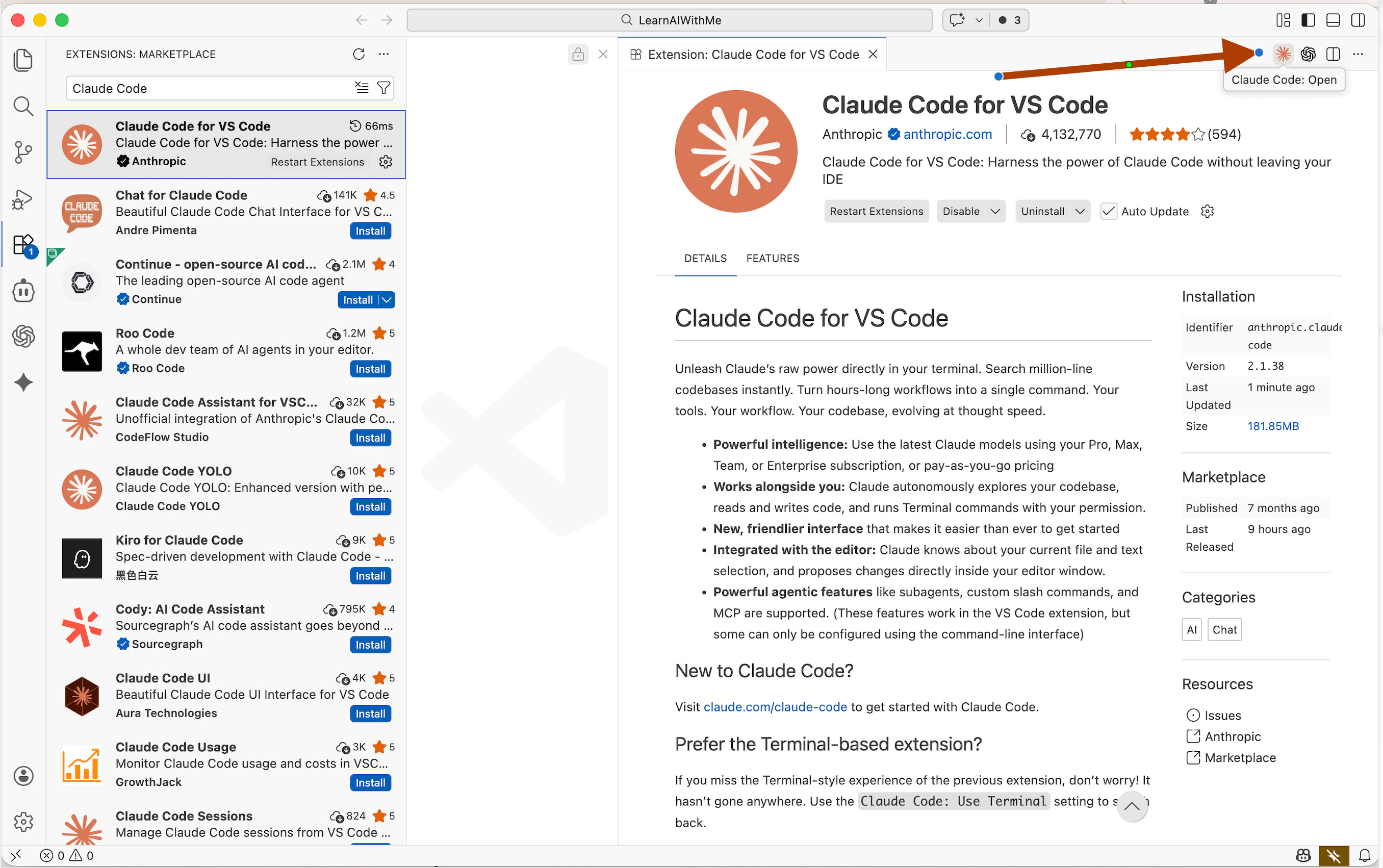
After sending the message, it will ask you to sign in through your browser.
Complete the sign-in process, authenticate your app, and you’re good to go.
D) Antigravity (Power Users)
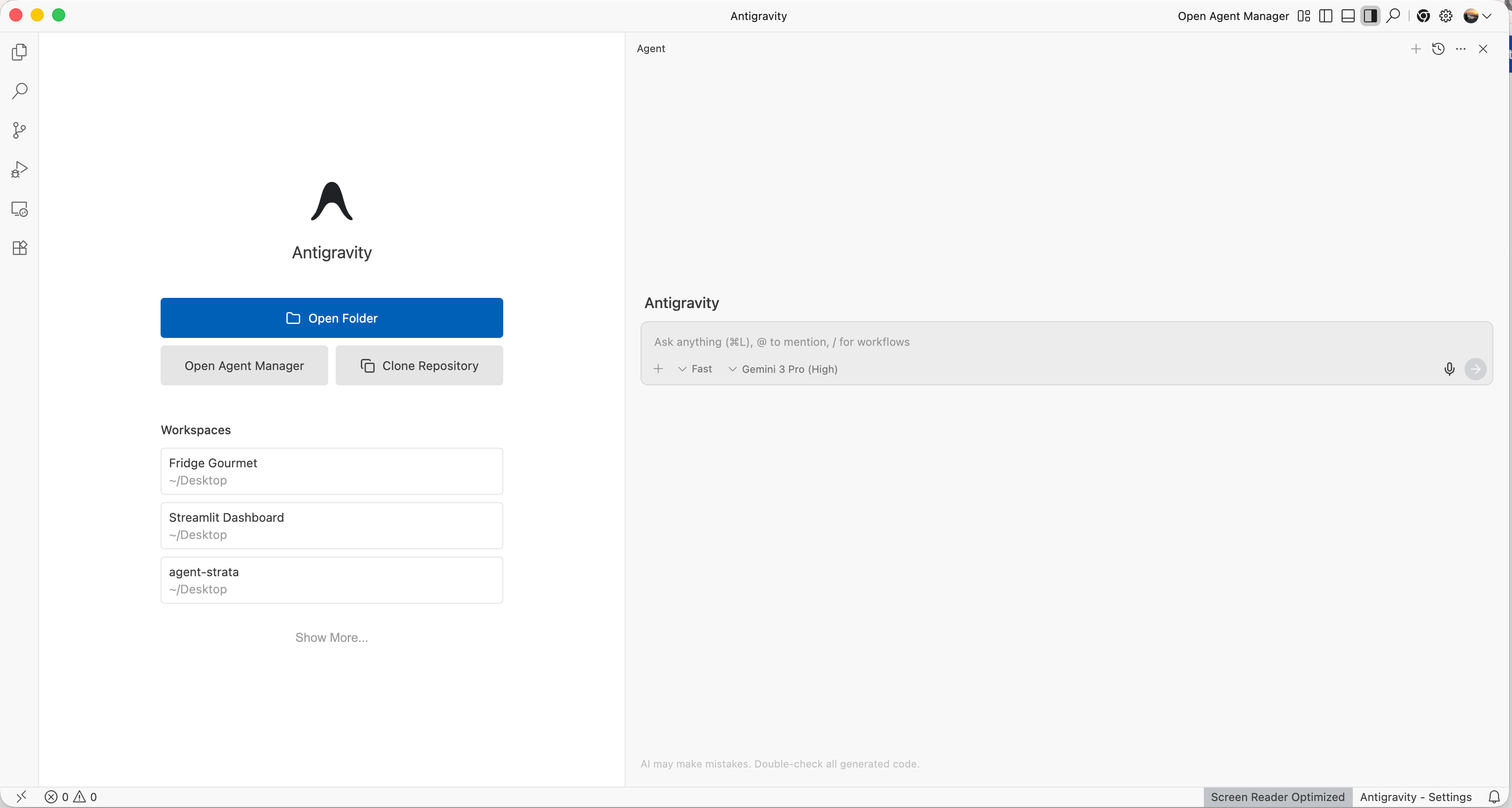
If you already used Claude Code before, try this.
I am using it for complex tasks.
Step 1: Download Antigravity
Go to here and → Download
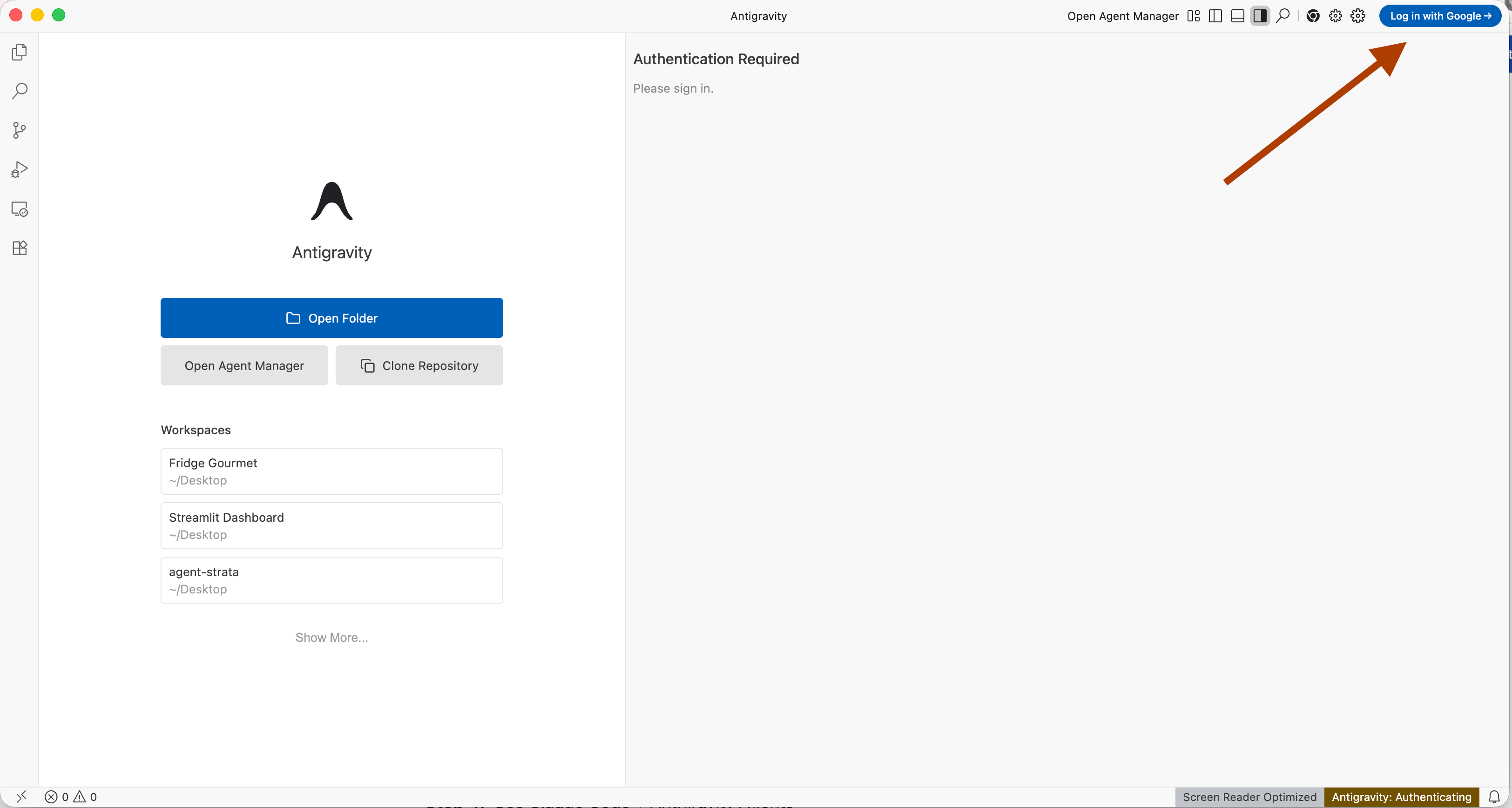
Step 2: Sign in with a Google Account
Open Antigravity → Sign in with Google
Step 3: Download Claude Code Extension
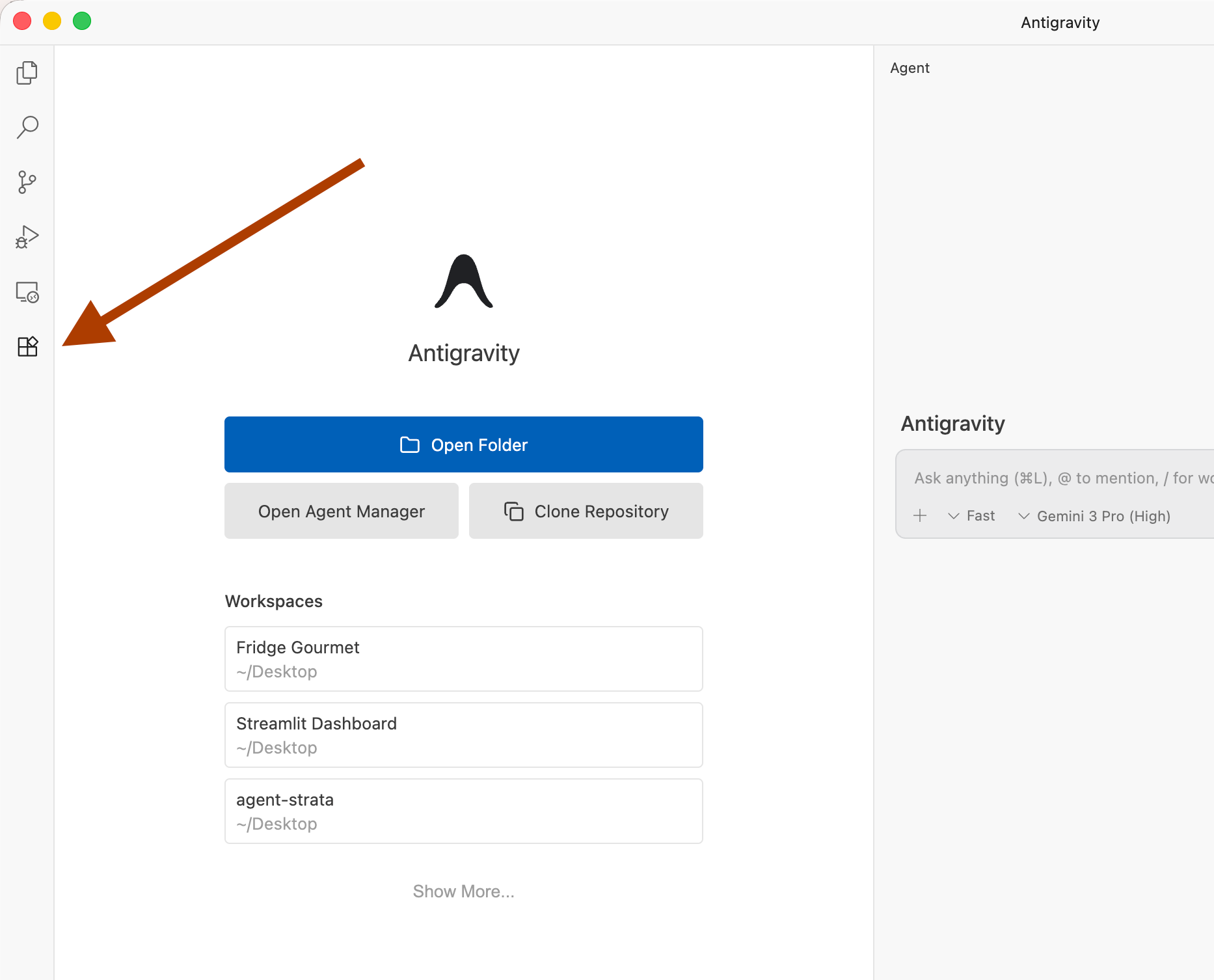
Inside Antigravity: Extensions → Search “Claude Code” → Install
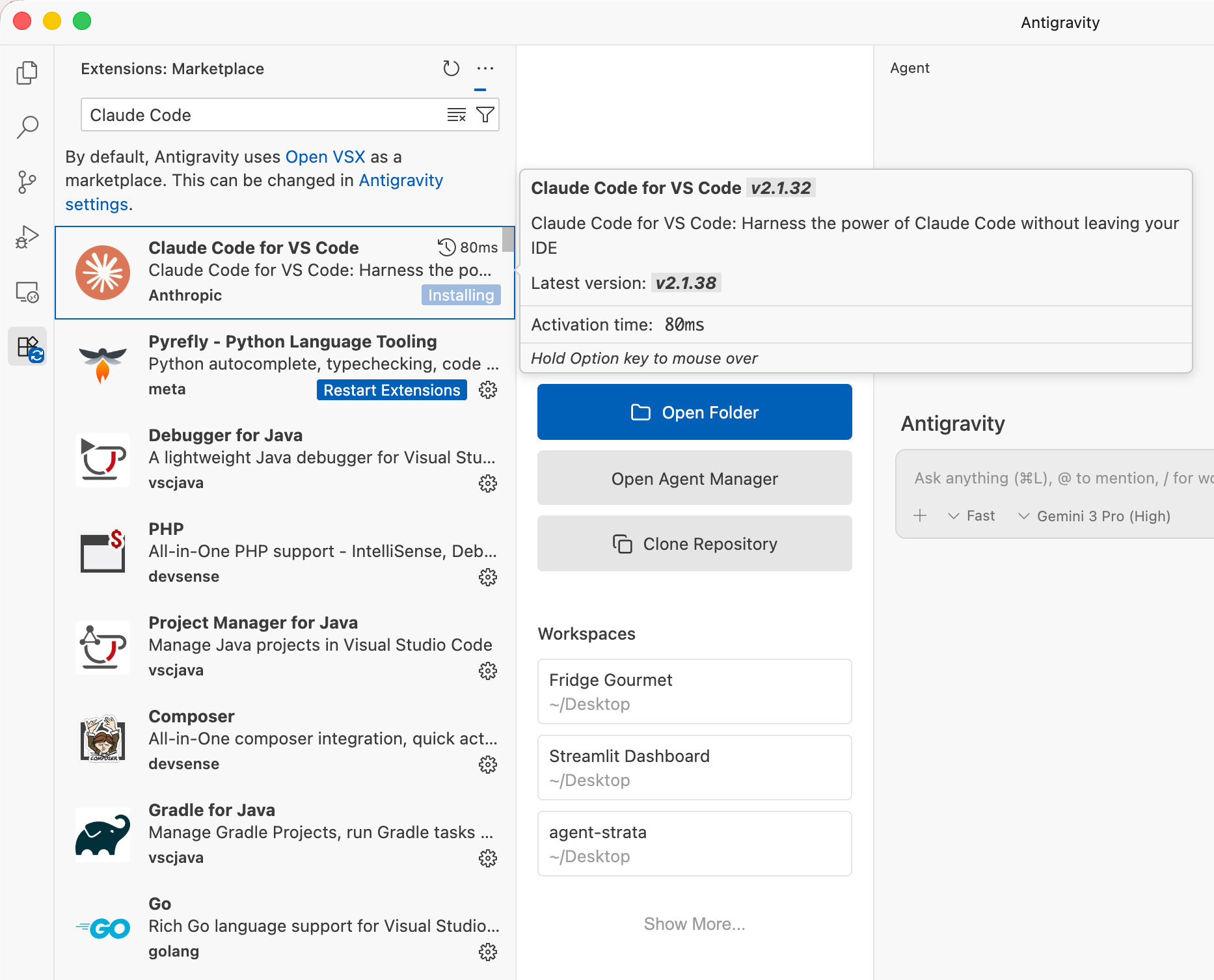
Step 4: Use Claude Code + Antigravity Agents. Now you have both:
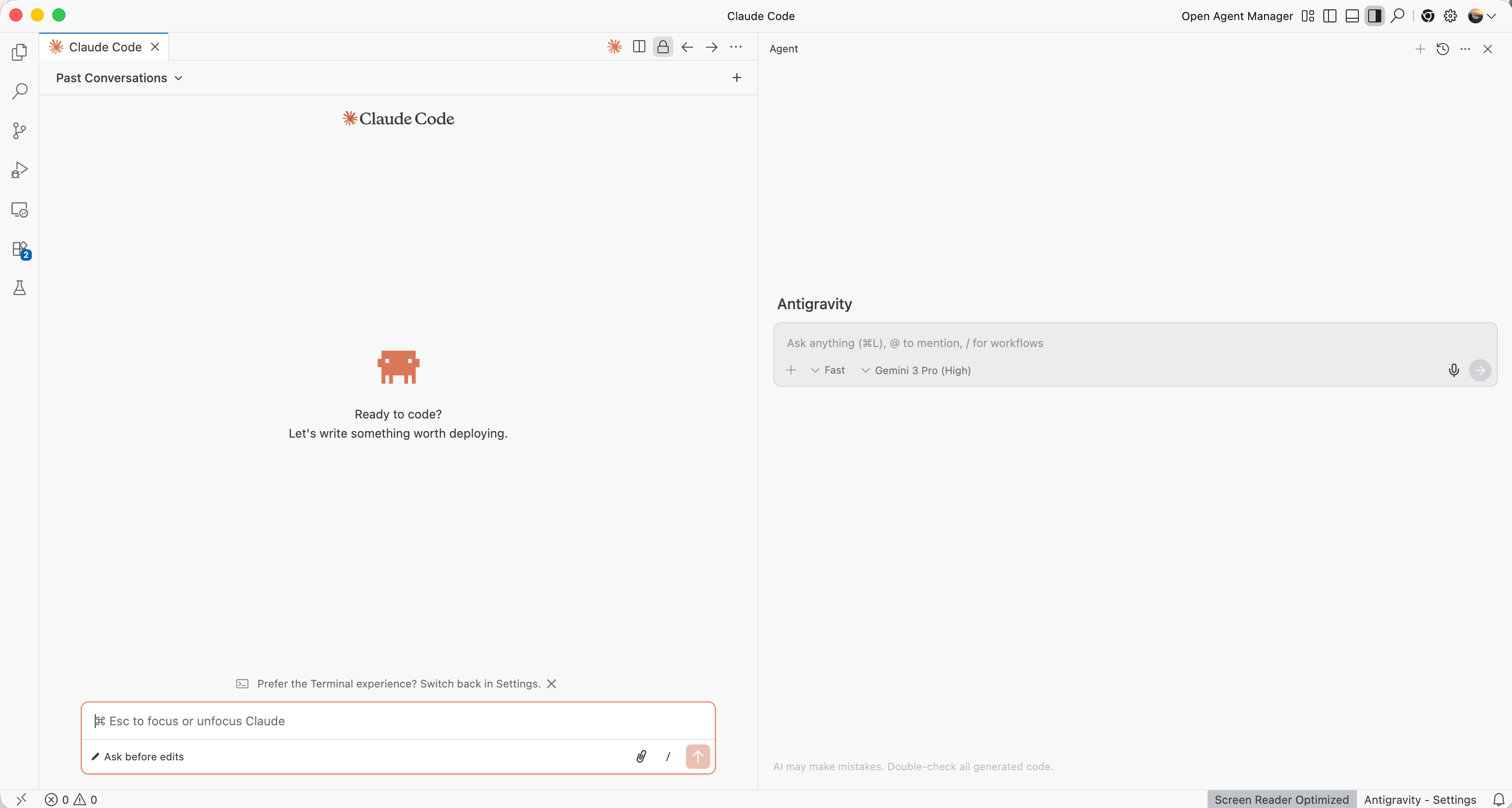
- Claude Code for building
- Antigravity Agents for advanced workflows
(We’ll cover Antigravity deep-dive in the next parts.)
3. Your First AI Agent
This will be your first win.
a. Create a Project in Your Folder

You can do it manually.
Go to your desktop and create a new folder.
b. Open Your Coding Tool
Let’s say you are using VS Code.
Open Vs Code.
Click on “Open”
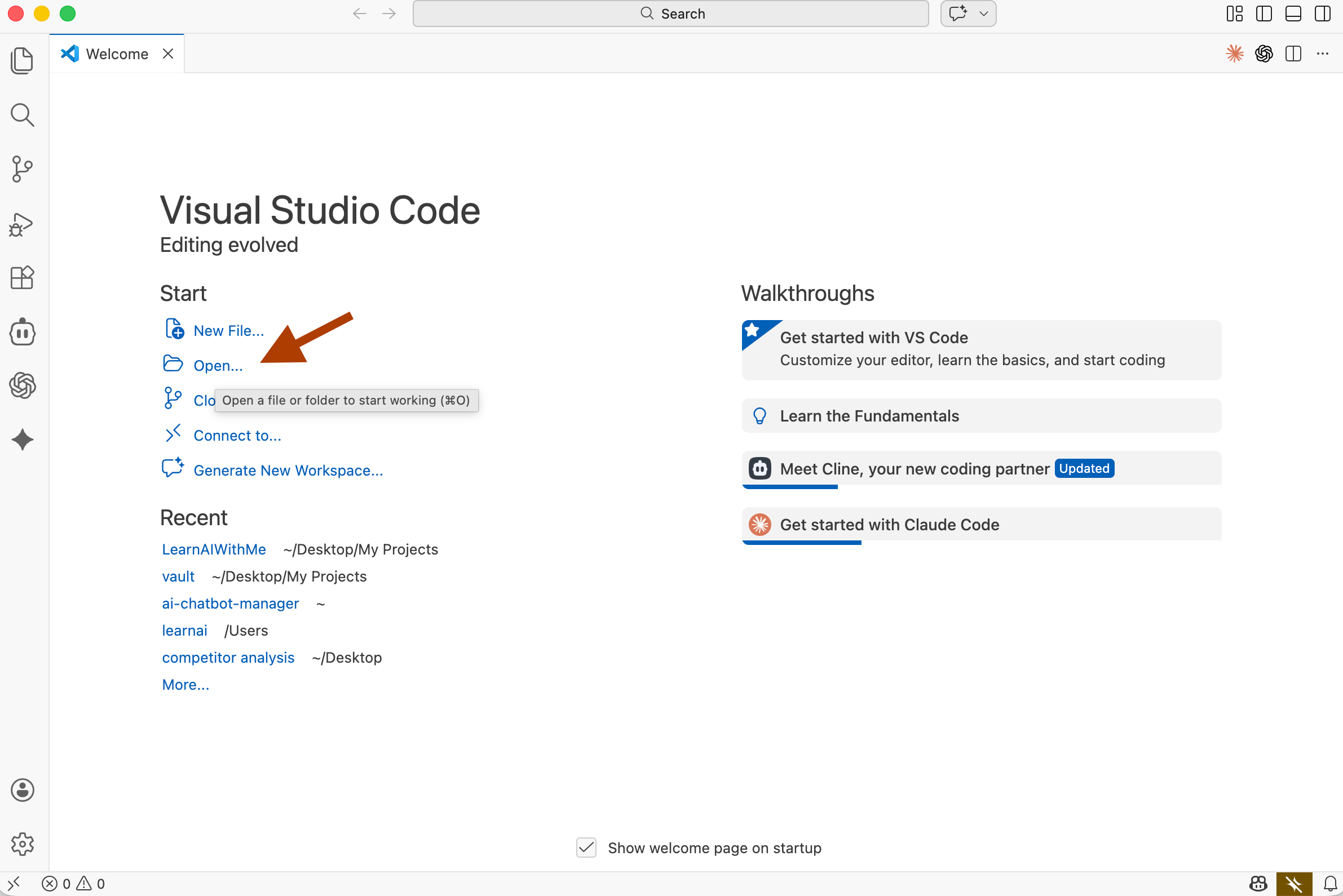
Select your folder.
Go to extensions, click Claude Code, and open it.
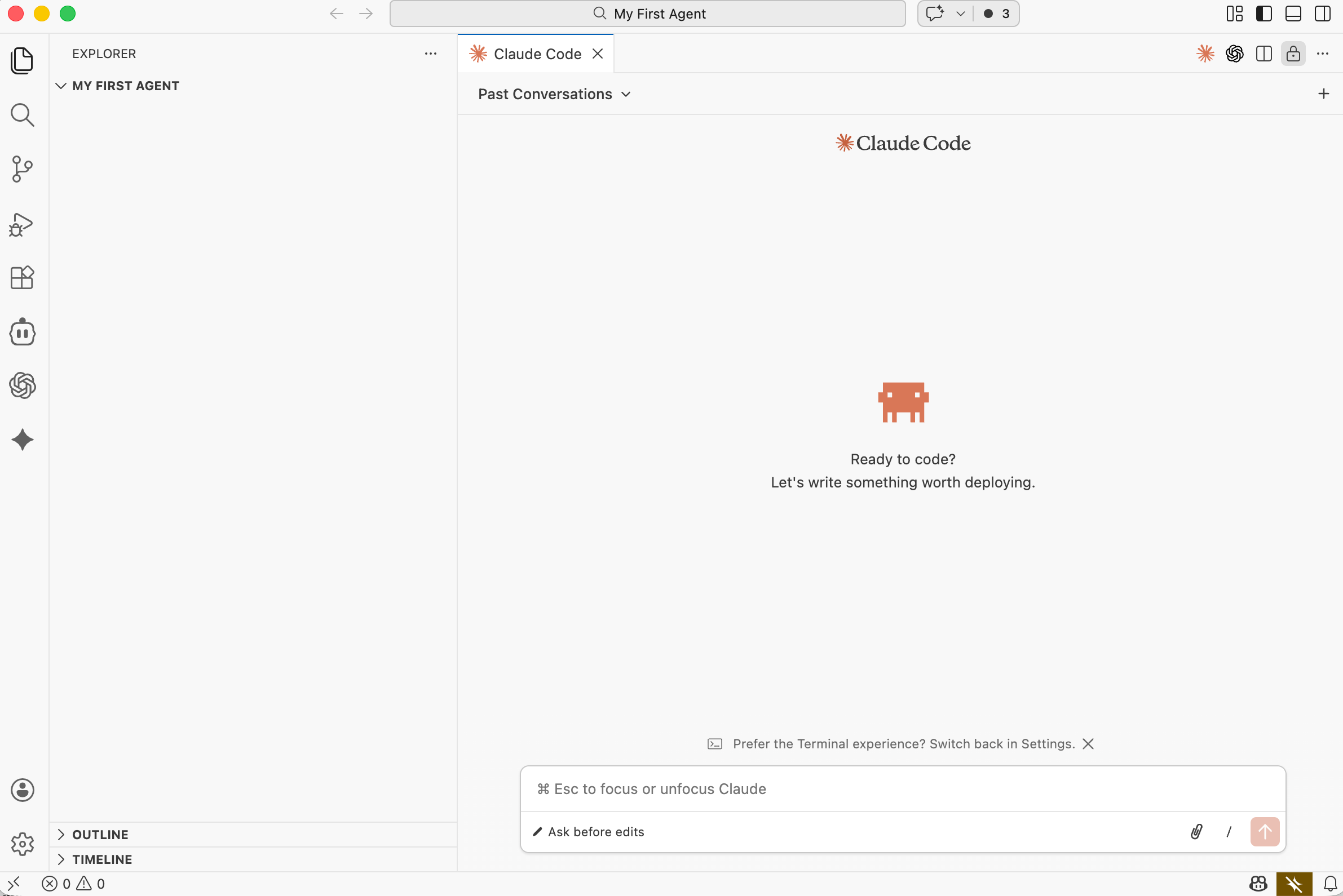
Everything is ready!
Now, let’s start building.
c. Copy/Paste This Prompt
Now here’s where the magic happens.
I’m giving you a prompt from my Vault.
(800+ prompts, including 70+ Claude Code-specific ones.)
This single prompt builds your “agent.
Note: The vault is available only to the inner circle subscriptions or paid subs before Jan 20. For more, read this.
The Vault Prompt
Paste this prompt.
Pour yourself a coffee.
Open Netflix.
You’ll build your first app while sipping your coffee and watching your favorite TV series.