
Claude Code MasterClass For Everyone (Part 6): 2 Ways to Connect Claude with the Outside World
How to Connect Claude Code to External Tools: MCP Servers and CLI Integration Guide

The best tools are invisible until you need them.
You’ve been using Claude Code wrong.
Not because you’re bad at it. Because you’re limiting it to what’s inside your editor.
Claude can write code. But what if it could also:
Edit your Canva presentation while writing the pitch deck code?
Update your Notion roadmap while generating the feature?
Send Slack updates while deploying?
MCP (Model Context Protocol) is Anthropic's answer. Released November 2024.
CLI lets you connect them easily
They are like USB-C for AI, one protocol, infinite connections.
I spent hundreds of hours testing MCP servers and CLIs.
I’ll show you the ones that survived real work and the exact commands to install them.
Previously in Claude Code MasterClass For Everyone
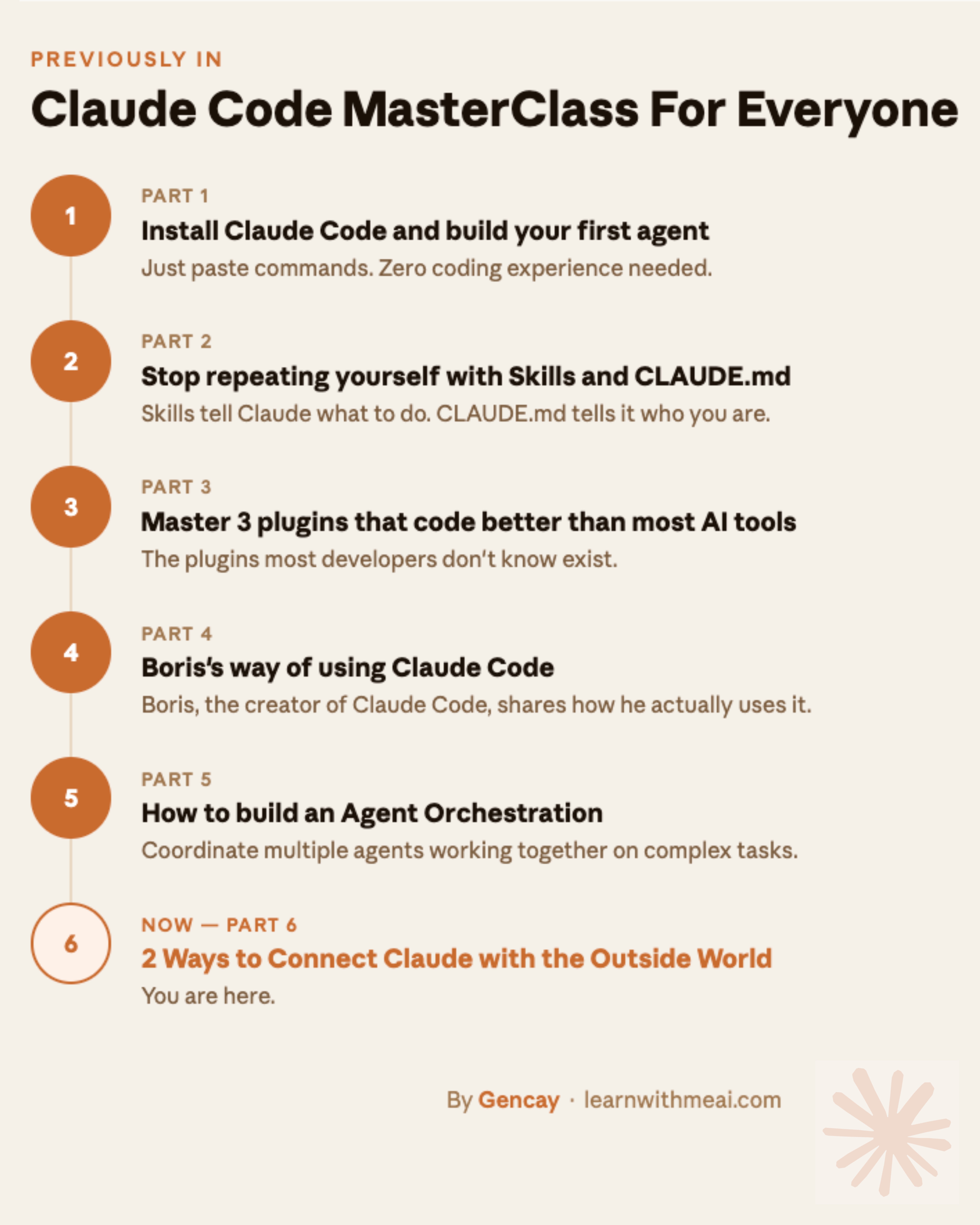
Part 1: Install Claude Code (just paste commands) and build your first agent, zero coding.
Part 2: Stop repeating yourself with Skills (what to do) and CLAUDE.md (who you are).
Part 3: Master 3 plugins that code better than most AI tools.
Part 4: We explored Boris’s way of using Claude Code(Boris, the creator of Claude Code)
Part 5: We explored how to build an Agent Orchestration.
You are at Part 6.
What is MCP?
Anthropic’s open standard that lets Claude Code connect to external tools and data sources through conversation.
Anthropic released MCP in November 2024.
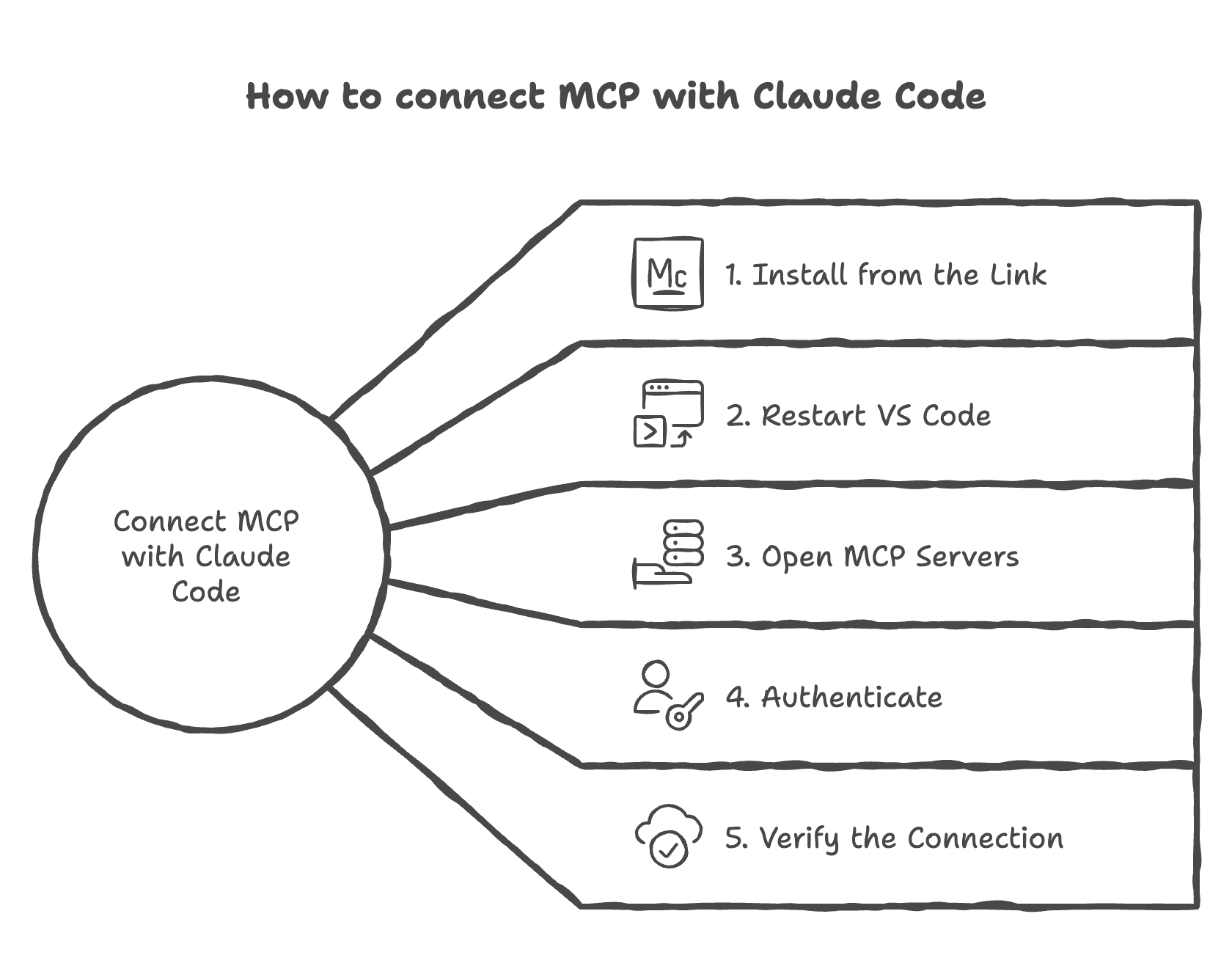
How does it work?
You find all available MCPs here.
Step 1: Install from the link
Pick one, install it, and Claude can talk to it directly from your editor.
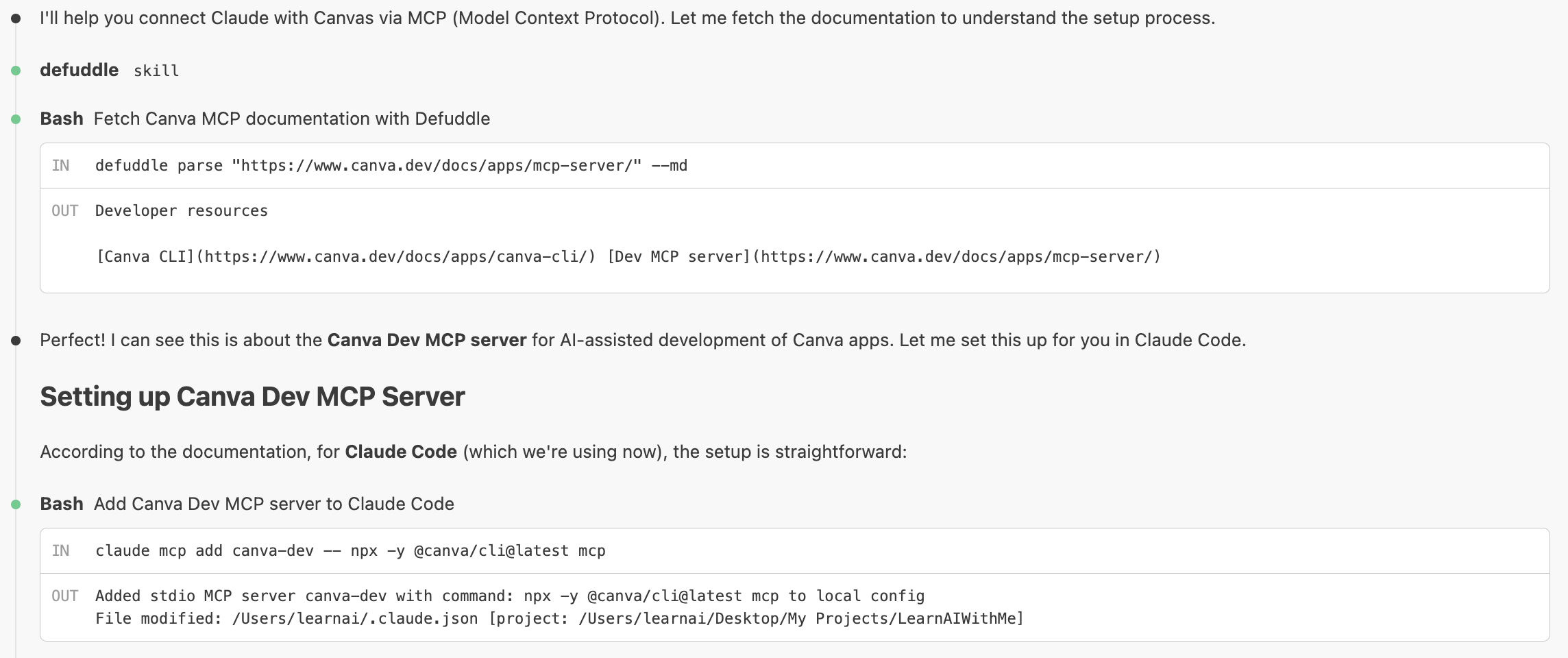
Let’s install one of them.
Let's connect Claude with Canvas.
Here is the link : https://www.canva.dev/docs/apps/mcp-server/
The settings are done now.
Step 2: Restart VS Code
Now, let’s connect this MCP with Claude Code. Close VS Code and reopen it.
Step 3: Open MCP Servers
Then click the “/” button and click on “MCP Servers”.
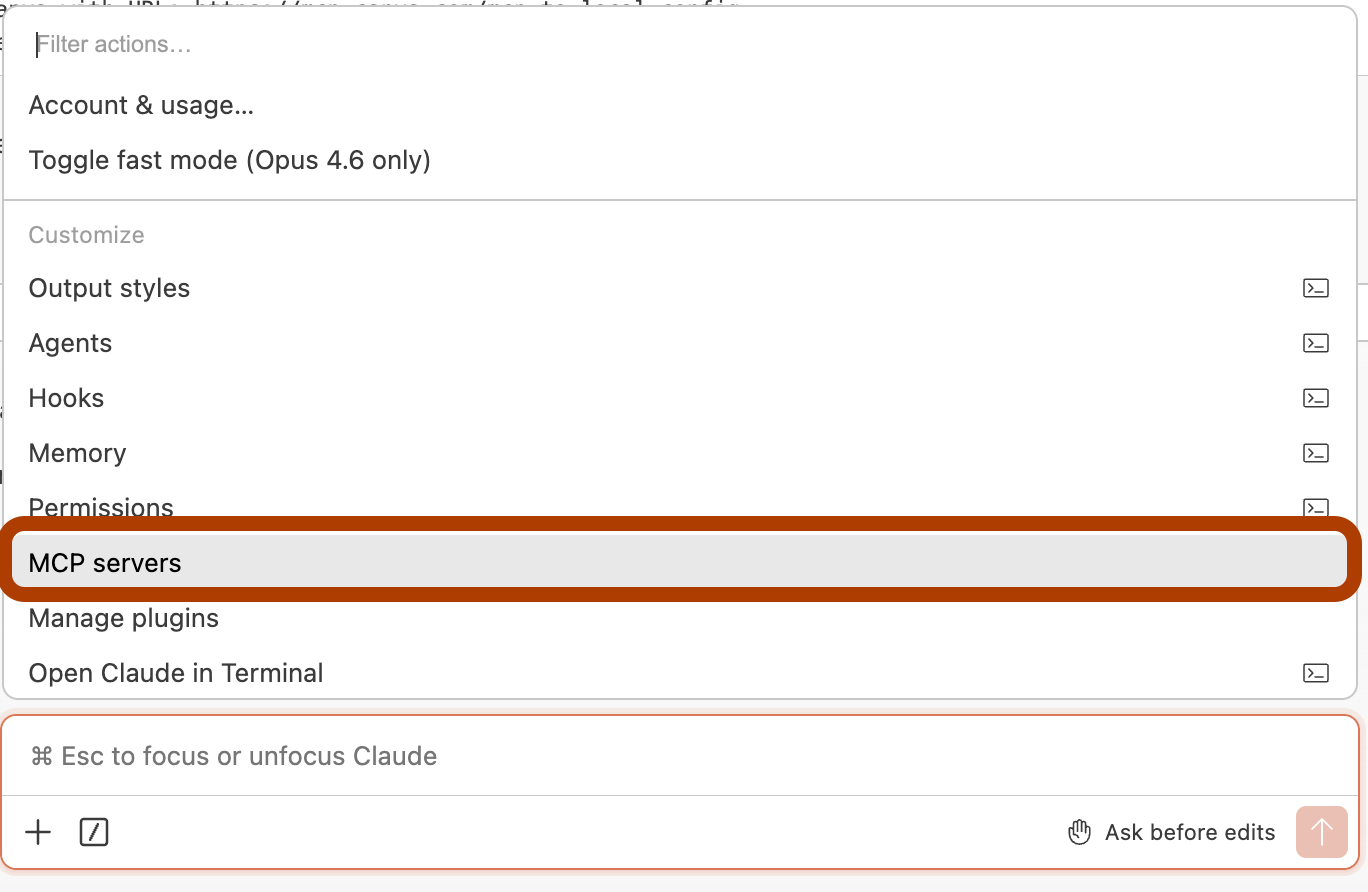
All installed MCP servers appear in one place.
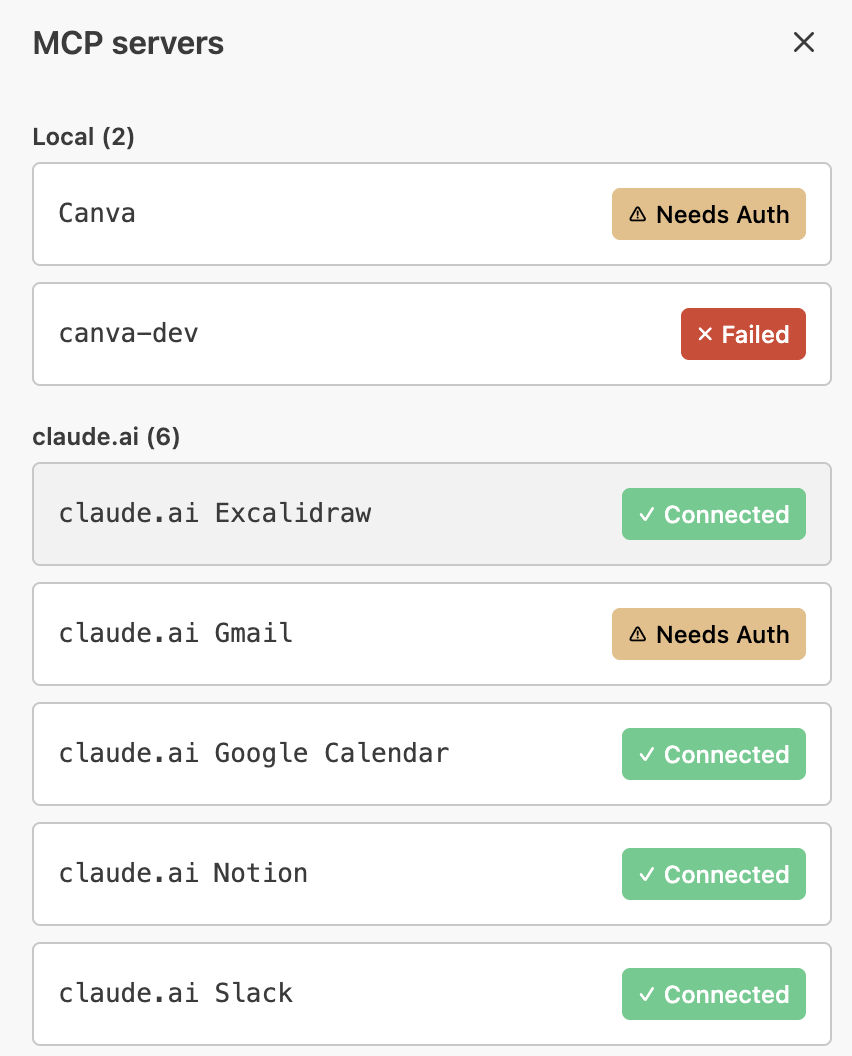
Step 4: Authenticate
Now, click ‘Needs Auth” and allow Claude Code to connect to this MCP.
And there we go.
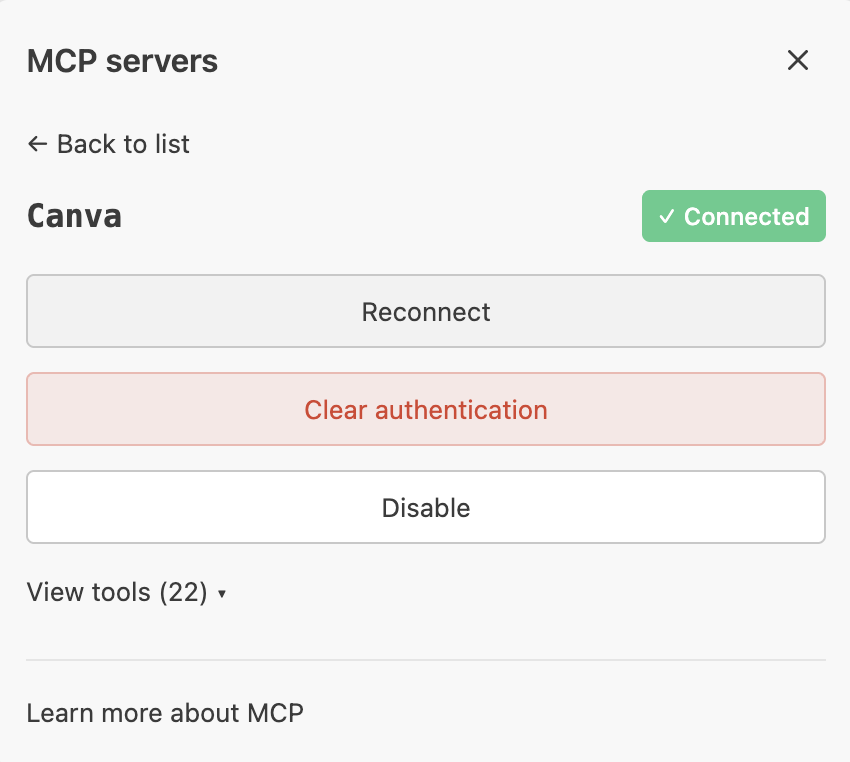
Step 5: Verify the connection
Ask Claude one more time to see the status.
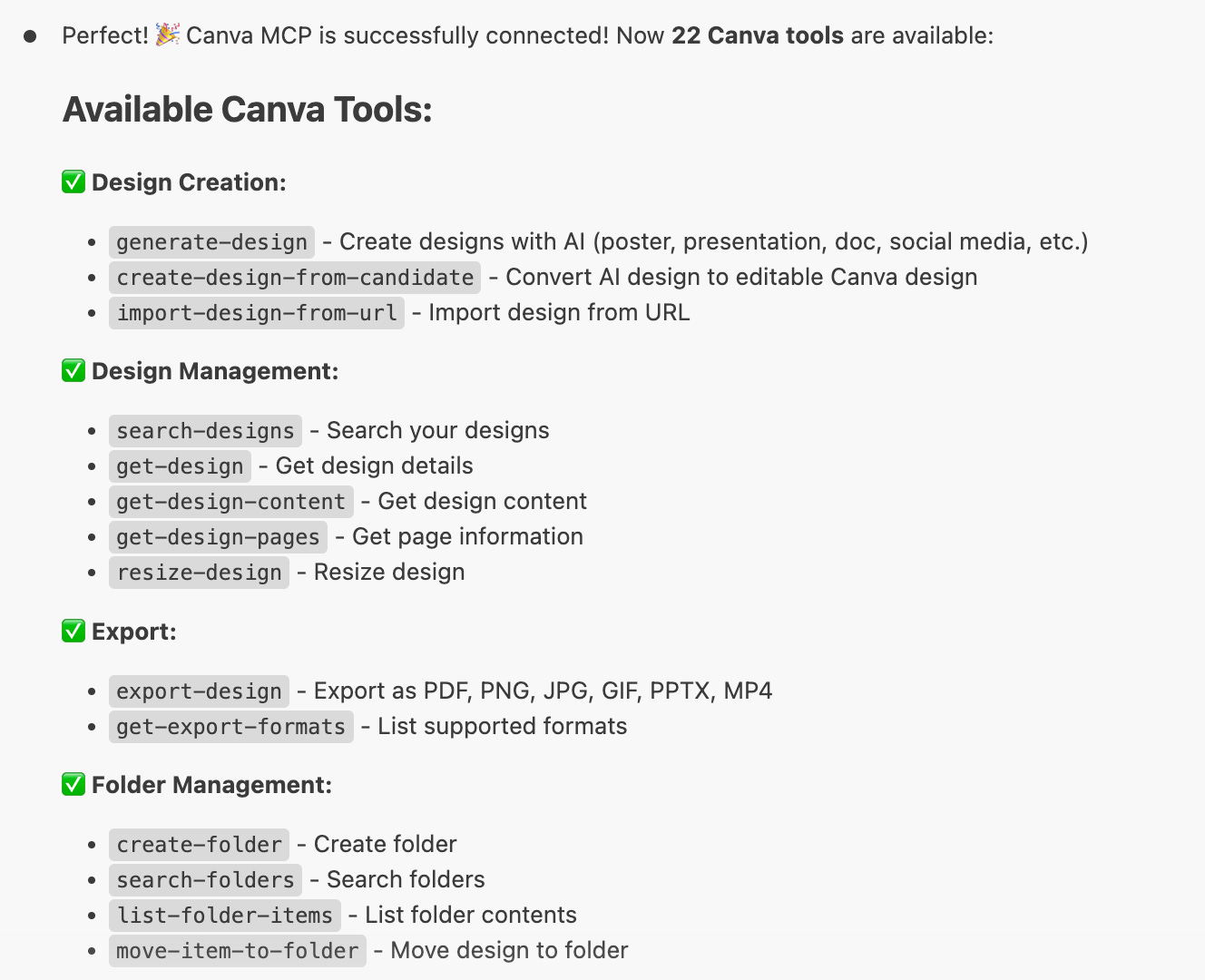
You can connect Canva with Claude Code to edit images, export designs, and do everything listed above.
What is CLI?
CLI means you connect to an app through the terminal.
Now, let’s connect Canvas via CLI and turn it into a skill.
This skill will use the CLI.
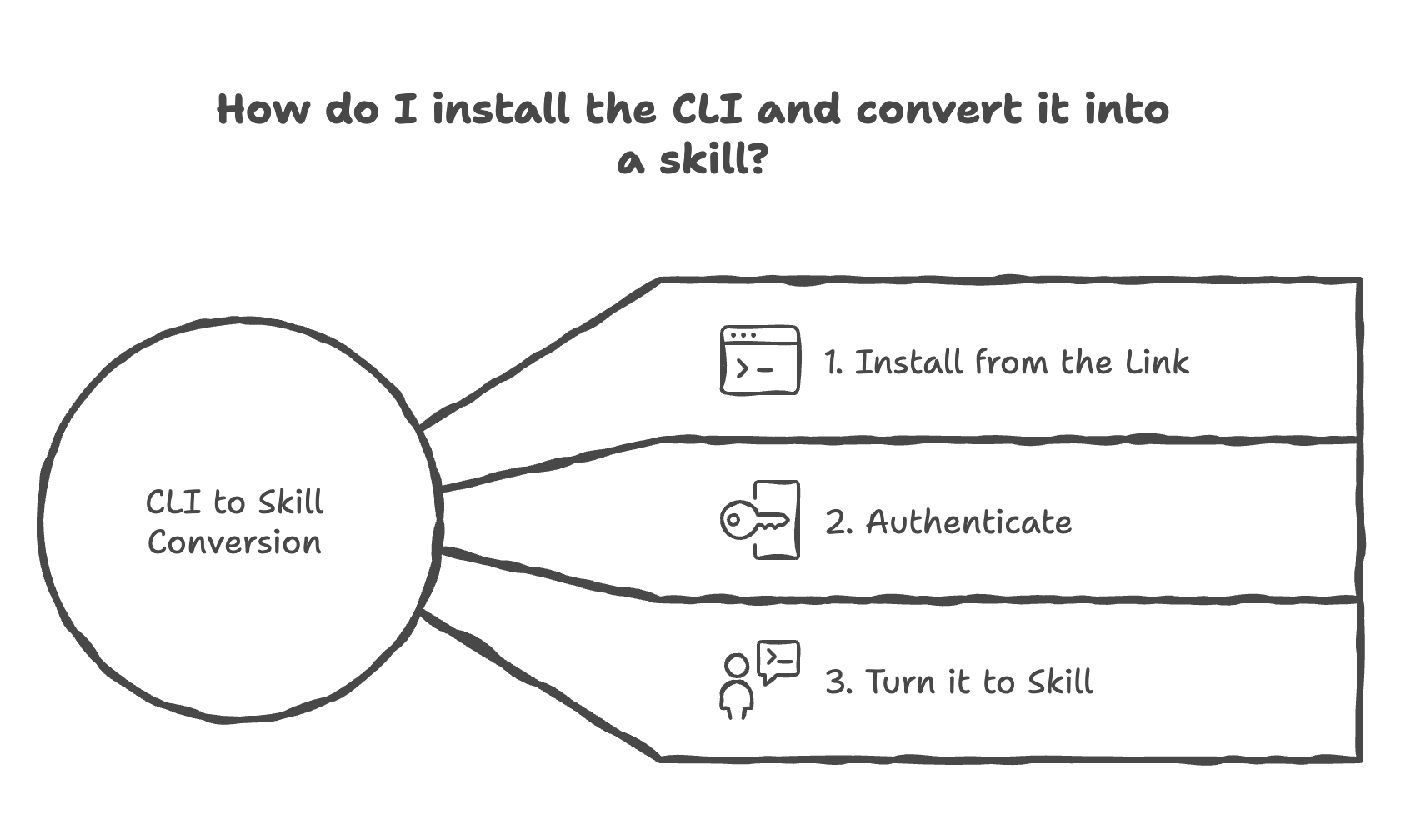
Step 1: Install from the link
To set up, use this prompt:
Now let's install the same thing using CLI

Here is the setup guide : https://www.canva.dev/docs/apps/canva-cli/
And wait for Claude’s answer.
Step 2: Authenticate
Now this screen will pop up.
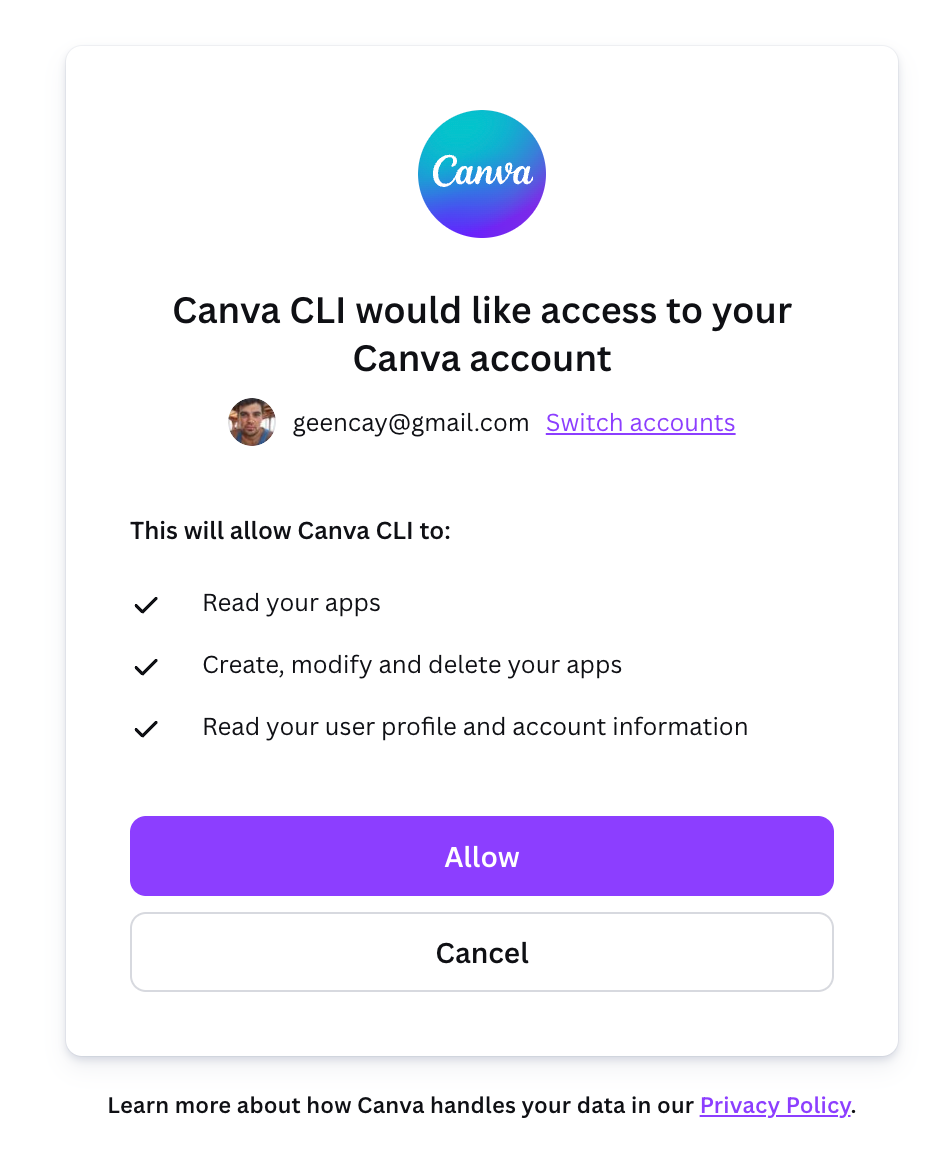
Allow it.
And it is done.
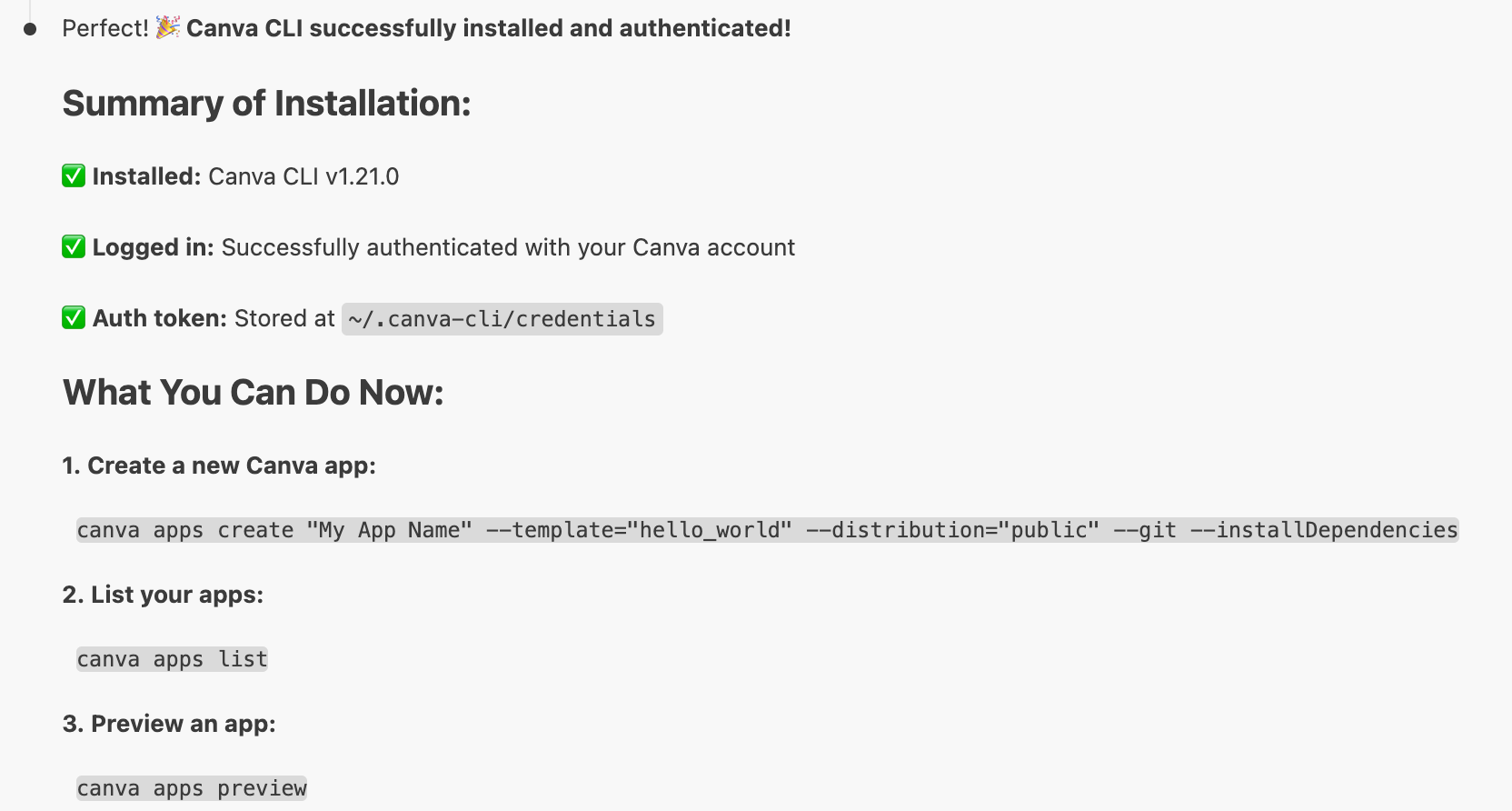
Step 3: Turn it to Skill
Now let’s turn to the Skill.
Use this prompt.
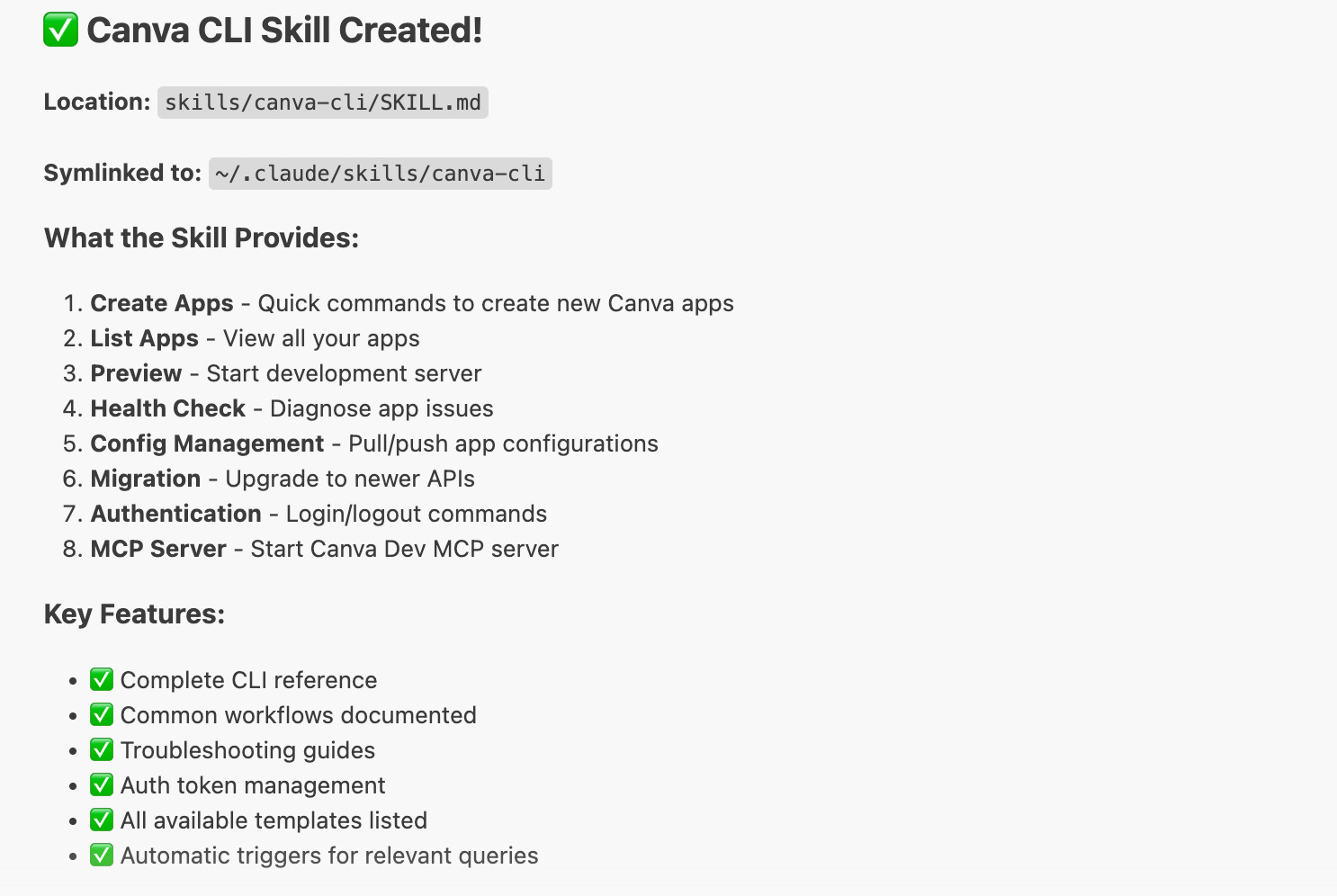
lets turn this Canva CLI as a canvas skillHere how it looks like.
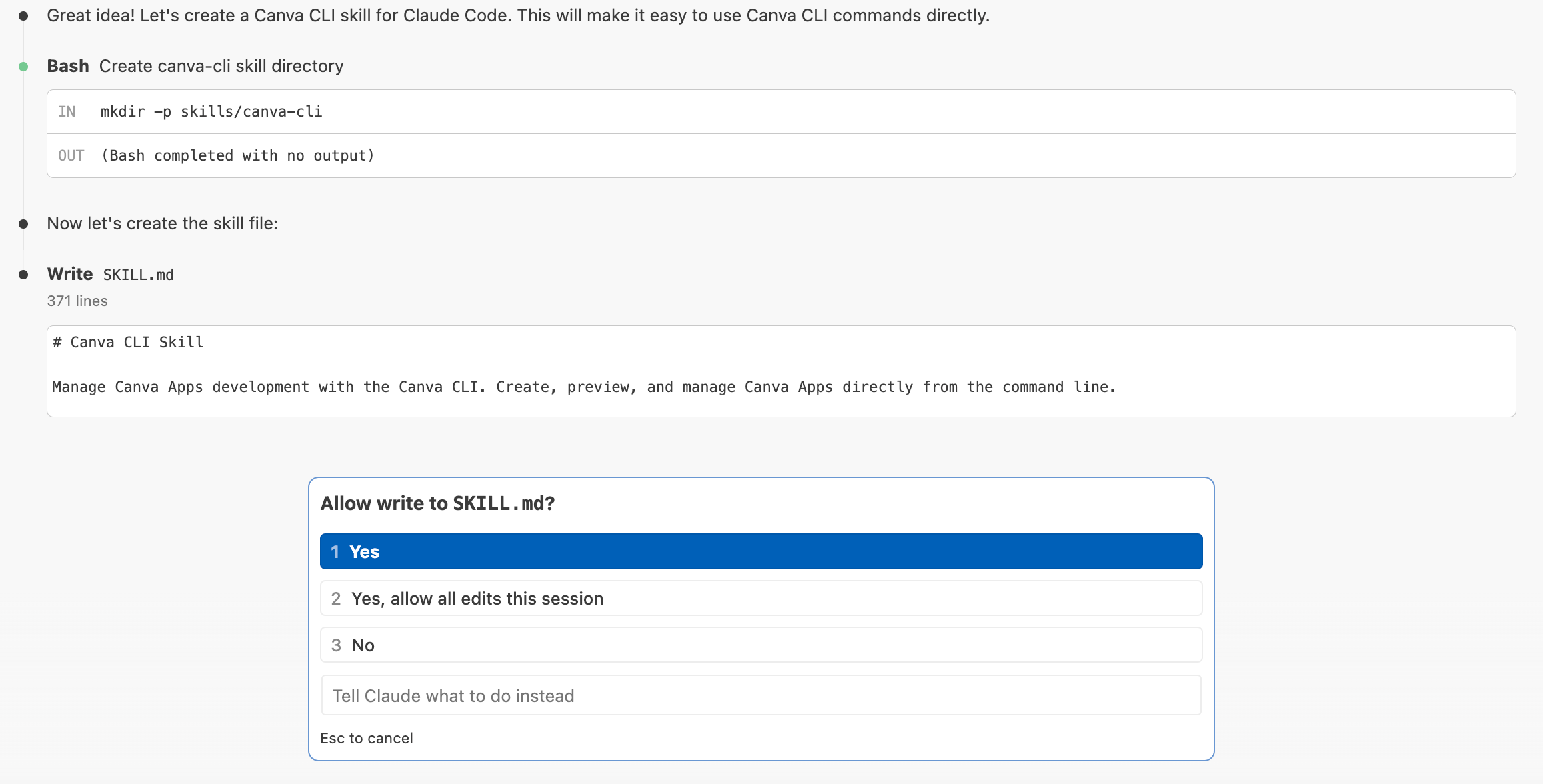
Allow this skill, and let it turn the entire thing into skills.
And here we go.
Pro tip: Don’t forget to restart your app after installing the MCP or skills.
MCPs & CLIs I use + No-Code Setup
I tested over 100 of them and spent a lot of time.
Now I will show you the best ones, so you don’t waste time as I did.
LearnAIWithMe Paid Perks
The Vault is now live, with 800+ prompts you can adjust, test (with Claude API, no extra cost), and customize.
Annual ($100/yr) → Vault access (only Prompt Hub)
Founding Member ($200/yr) → Vault + AI labs + all AI tools
Monthly ($12/mo) → Full Substack content, no extras
Pick your tier. 👇
Here are the MCPs and CLI’s that I am using.