
Claude Can Design Now
How to use Claude Design to build prototypes, slide decks, and animated videos in one prompt.

Claude Design was launched 6 days ago.

60M impressions. 148K likes. 25K reposts.
Anthropic’s new AI design tool sits at claude.ai/design and builds prototypes, slide decks, and one-pagers from a single prompt.
And the global effect can be seen.
Look at Figma and Adobe stocks during this time.
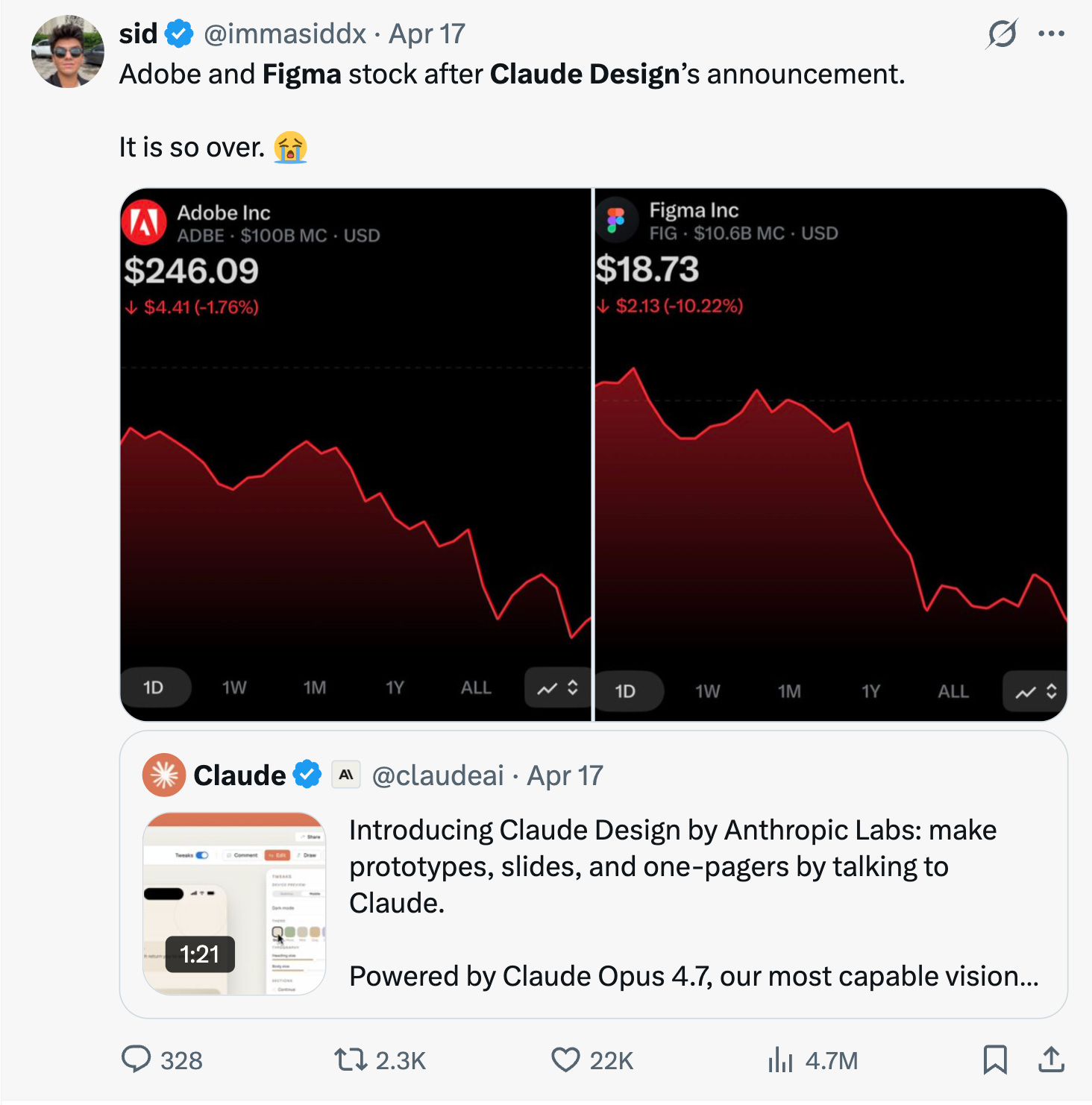
We’re living in a crazy era, where AI is growing at an unprecedented speed.
Six days ago, this did not exist. Today it sits at claude.ai/design, waiting for a prompt.
So let’s discover it together.
How does Claude Design work?
It sits at claude.ai/design.
Four options on the homepage.
Prototype
Slide deck
Select (from template)
Other
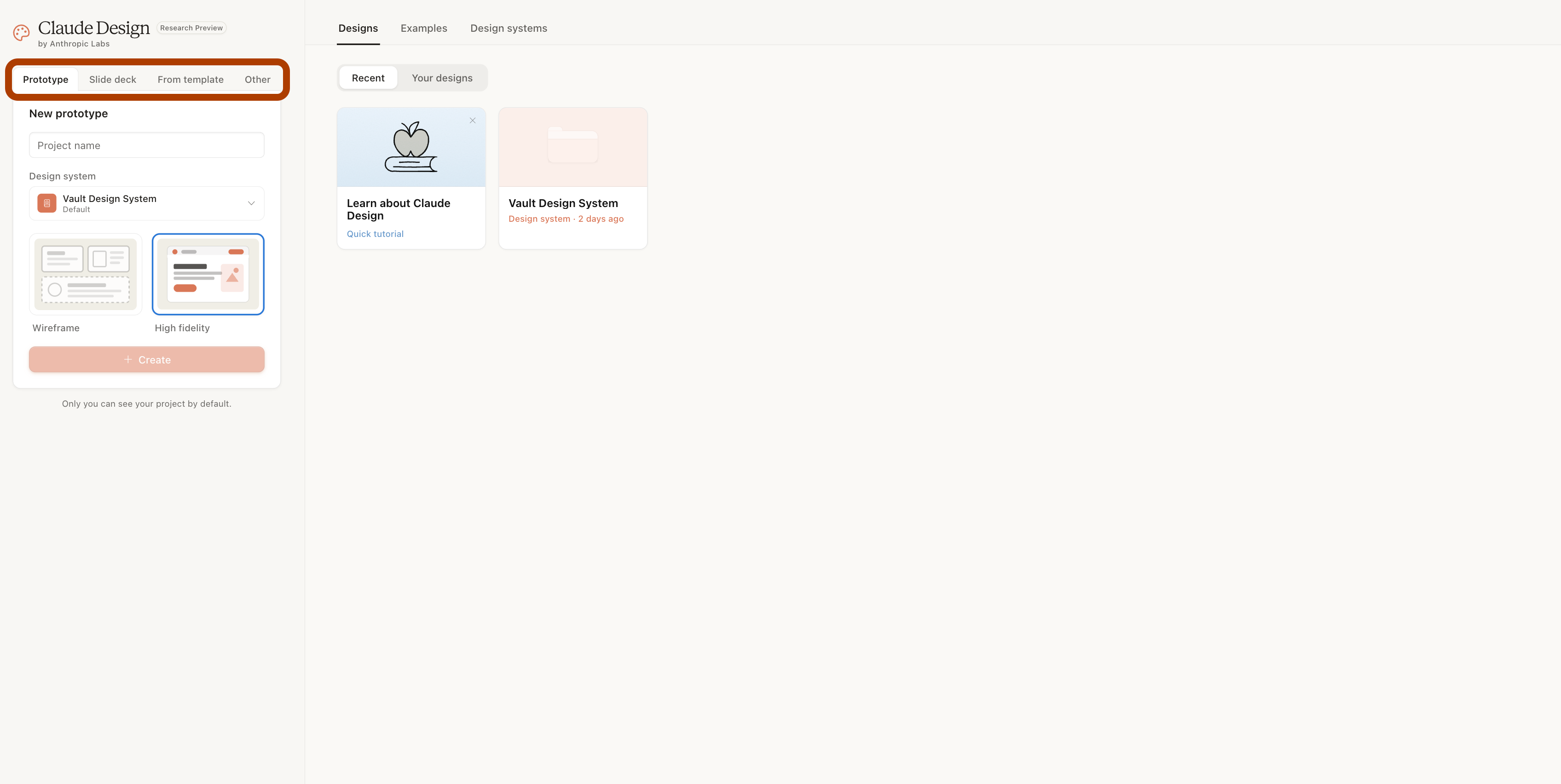
Let’s discover Prototype first.
I named the project “LearnAIWithMe”, picked high fidelity, and clicked create.
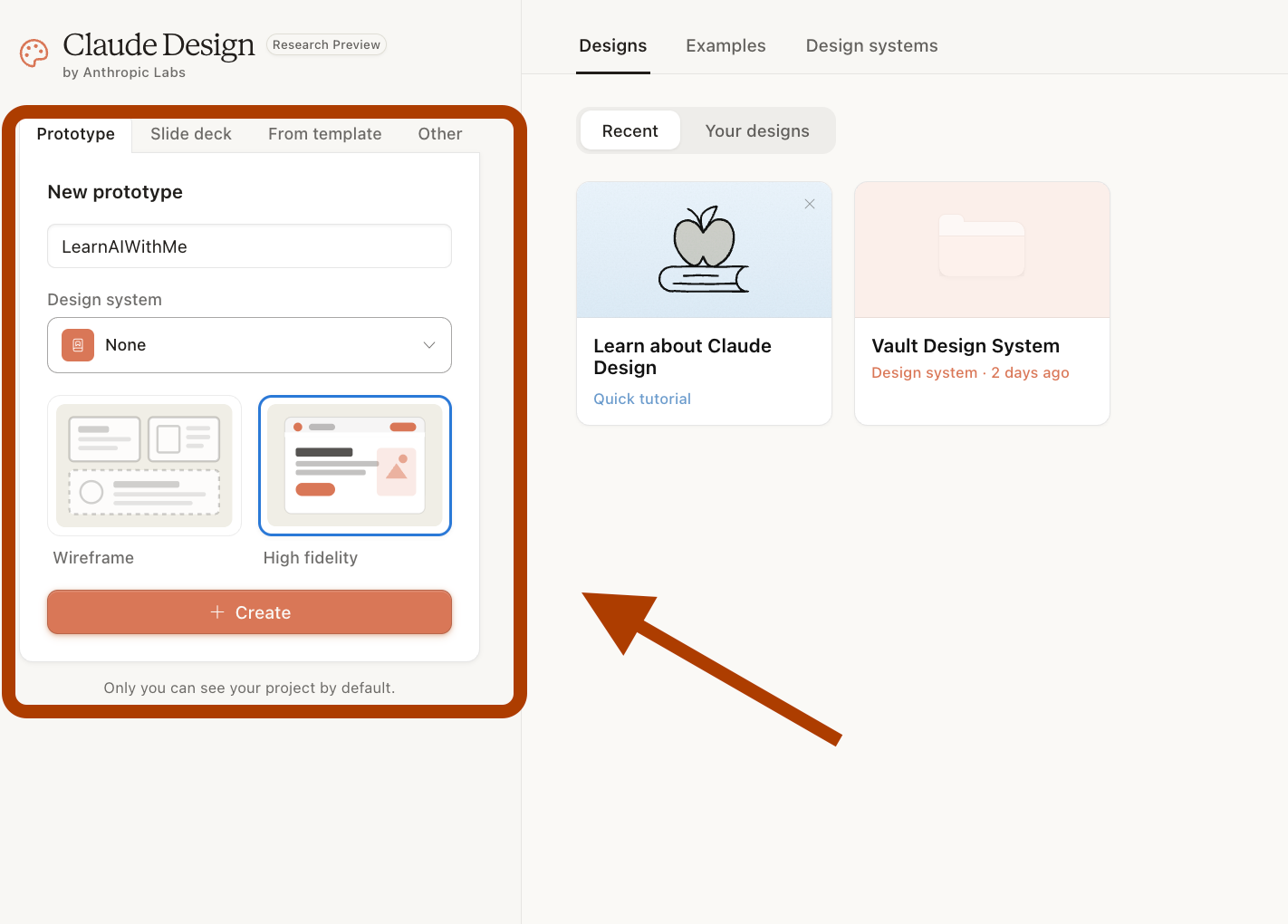
1. How to Build a Prototype with Claude Design?
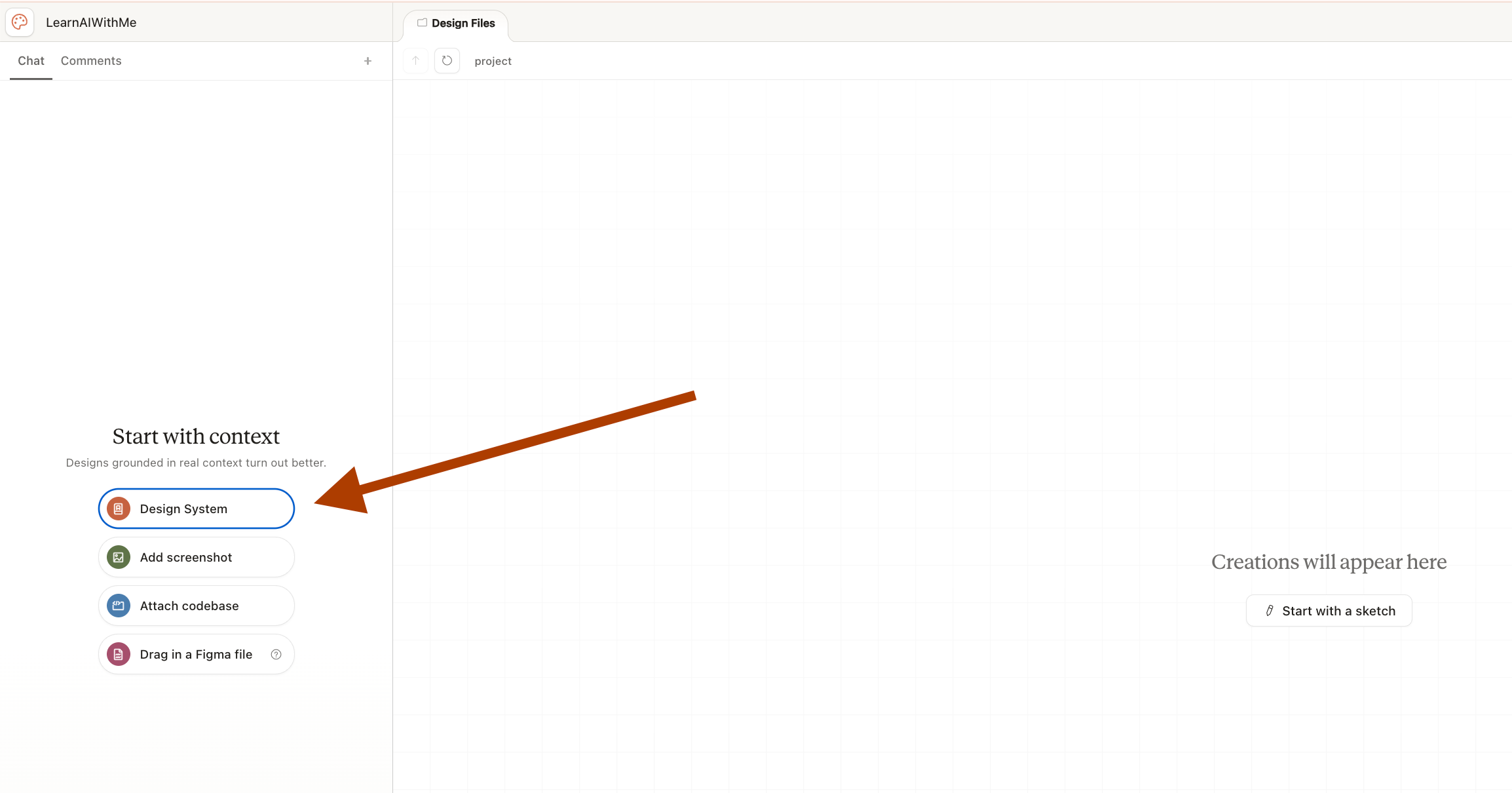
Four context options to start with.
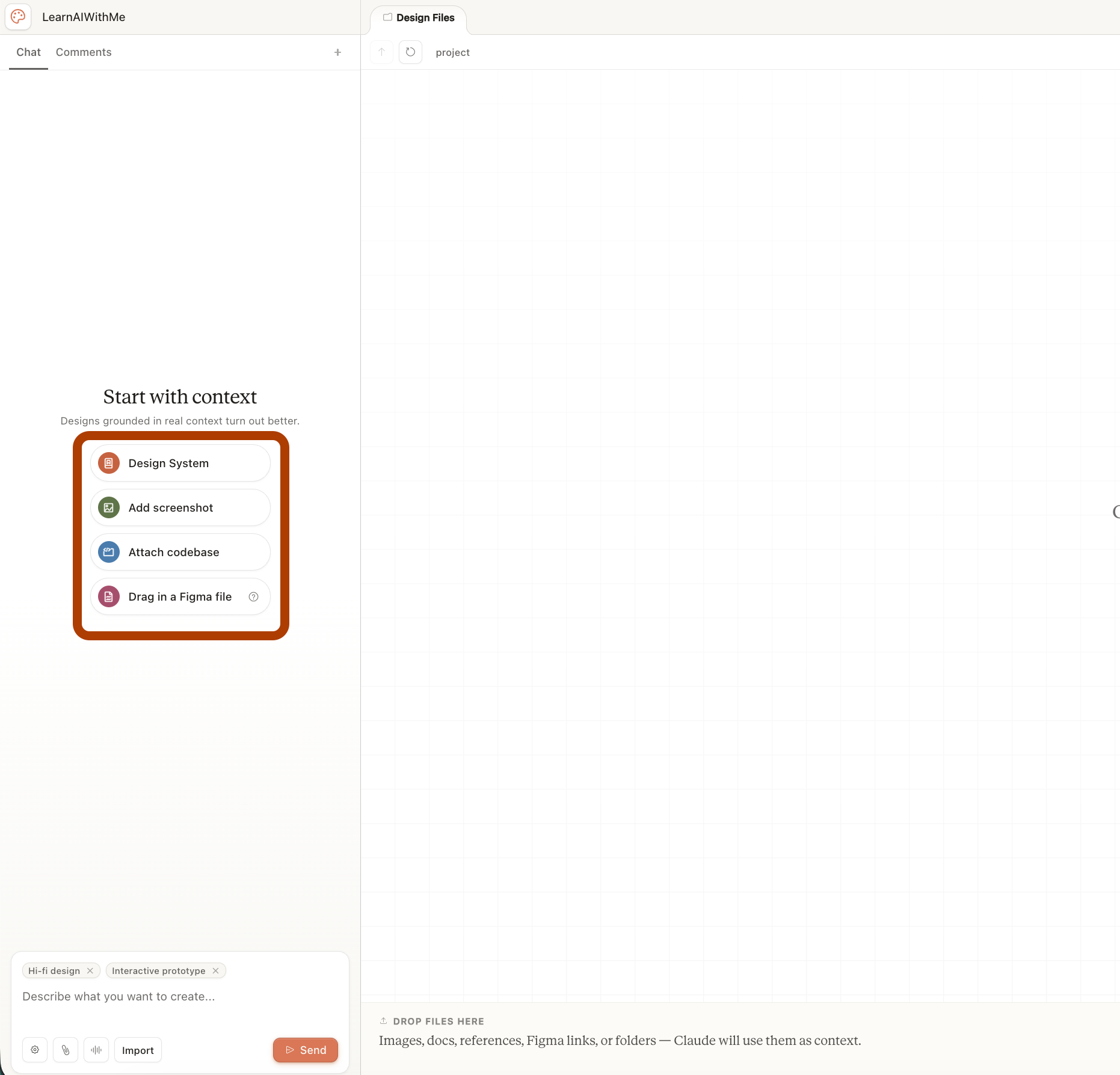
Each one opens a different path. I started with a prompt.
I used the same one Claude shipped in the demo.
Prompt
Let's design an interactive, dark themed graphic showing how culture flows between cities.
A rotating globe with the cities connected by glowing paths.
After pasting, the options panel appeared.
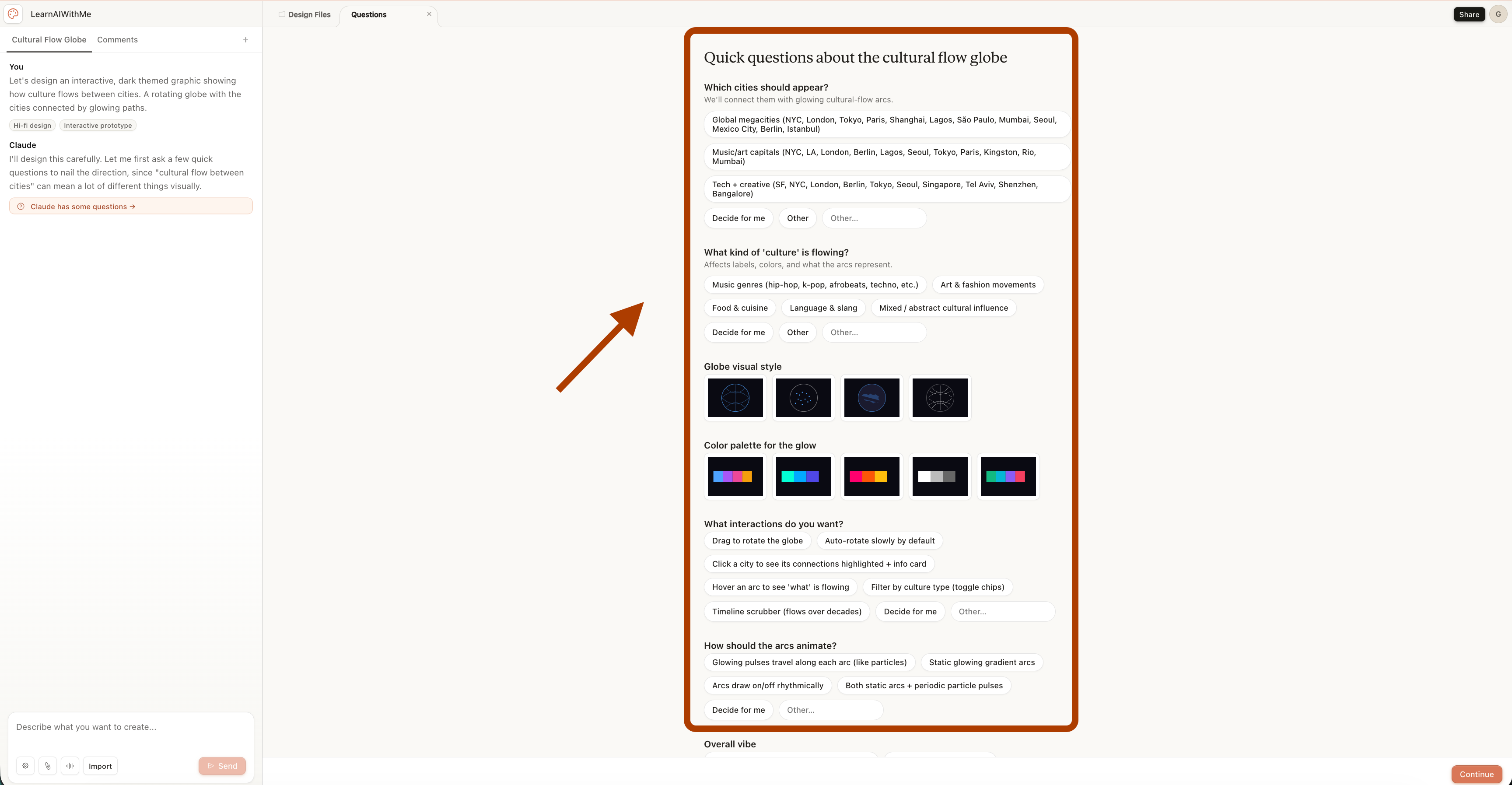
I answered the questions.
(You can also pick “decide for me” or add your own from “others”. That last part is where the tool gets interesting.)

Once submitted, Claude builds a to-do list immediately.
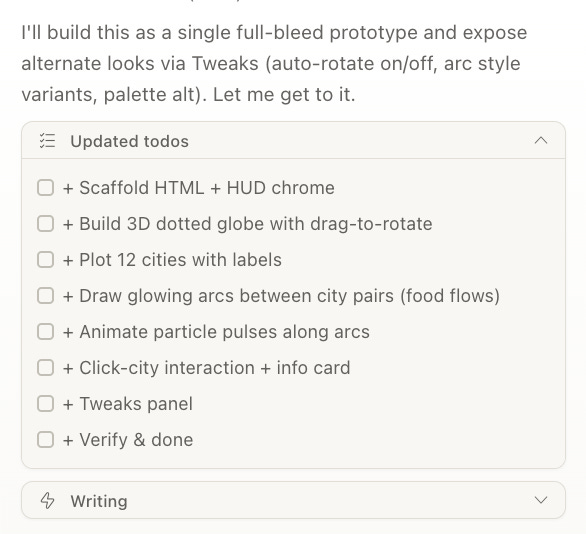
Then this.
So we wait.
While we wait, one thing is worth knowing. Claude Design has limits right now.
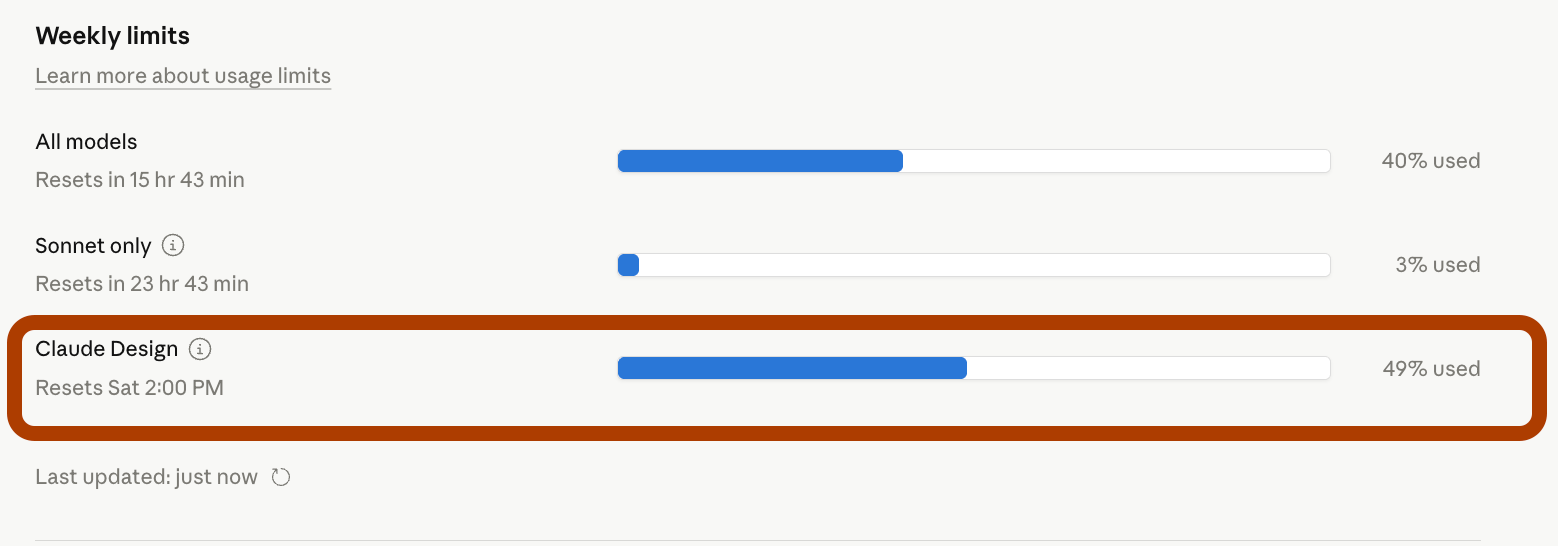
Check the usage limit before you start.
The error messages might be upsetting.
And here is the design.

It works. It looks good. But “good” is not the goal.
The goal is “right”.
So here are the four ways to push it further.
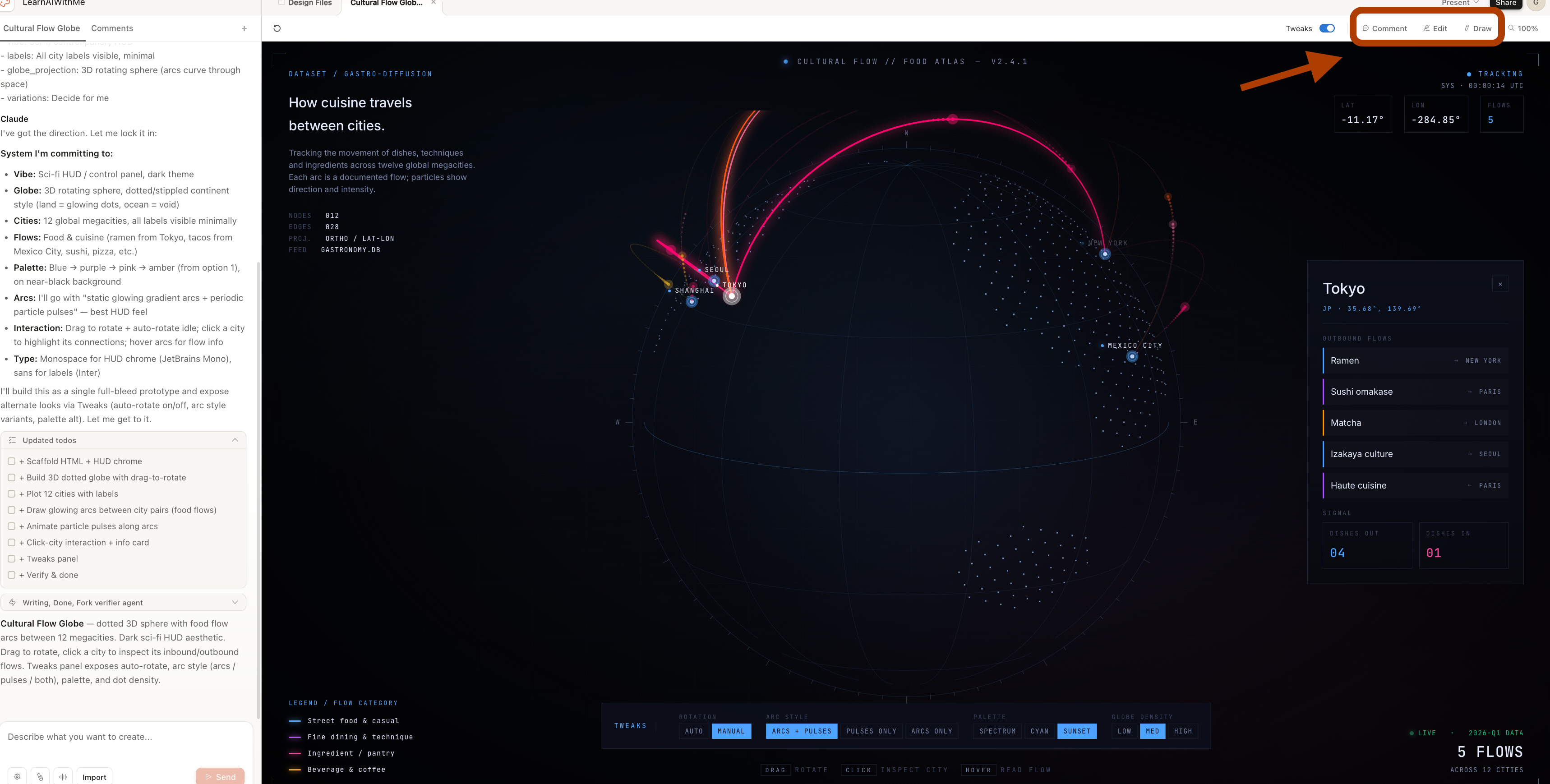
Edit Mode in Claude Design
Click Edit, and a panel opens on the right.
Background color, font, size. Standard controls, fast access.
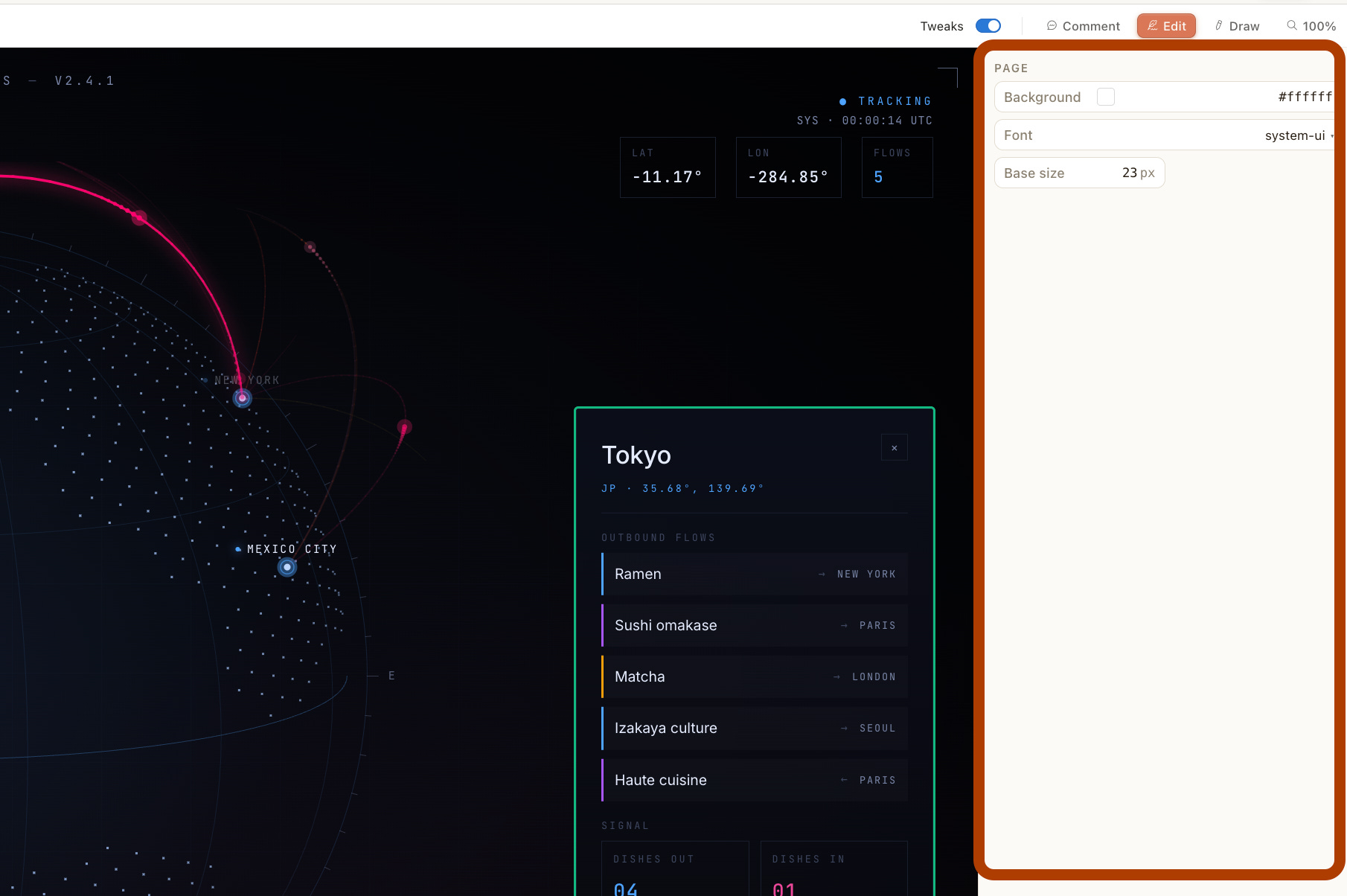
Draw Mode in Claude Design
Click Draw, and you point to the exact spot you want changed.
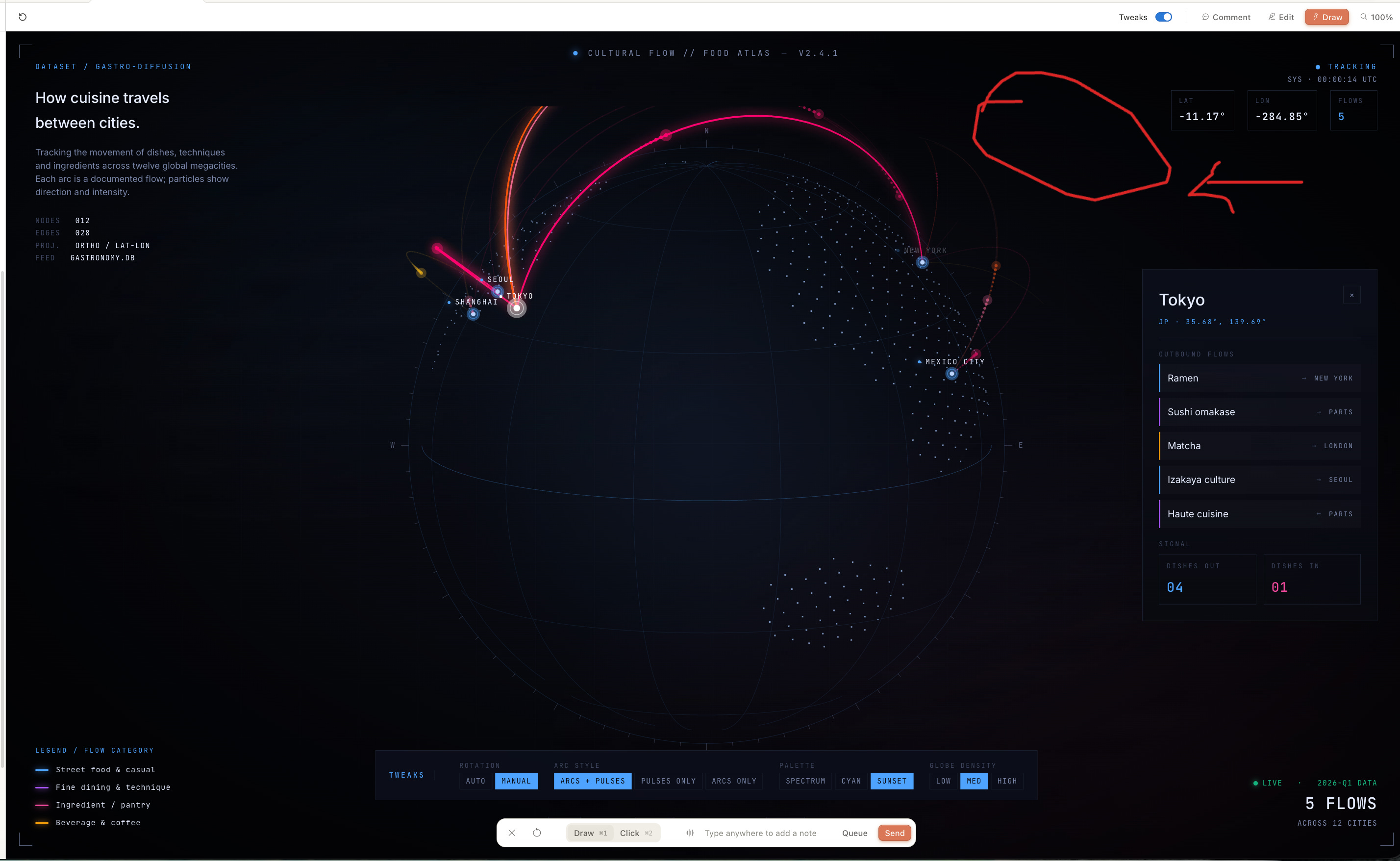
Tweaks for Instant Design Changes
Tweaks run instant changes. One click, the design updates. Useful for quick iteration without writing a new prompt.
Comments for Inline Feedback
Toggle Comments on. Click anywhere on the design, leave a note. Claude reads the note, makes the change.
2. How to Create a Slide Deck with Claude Design
Now the slide deck.
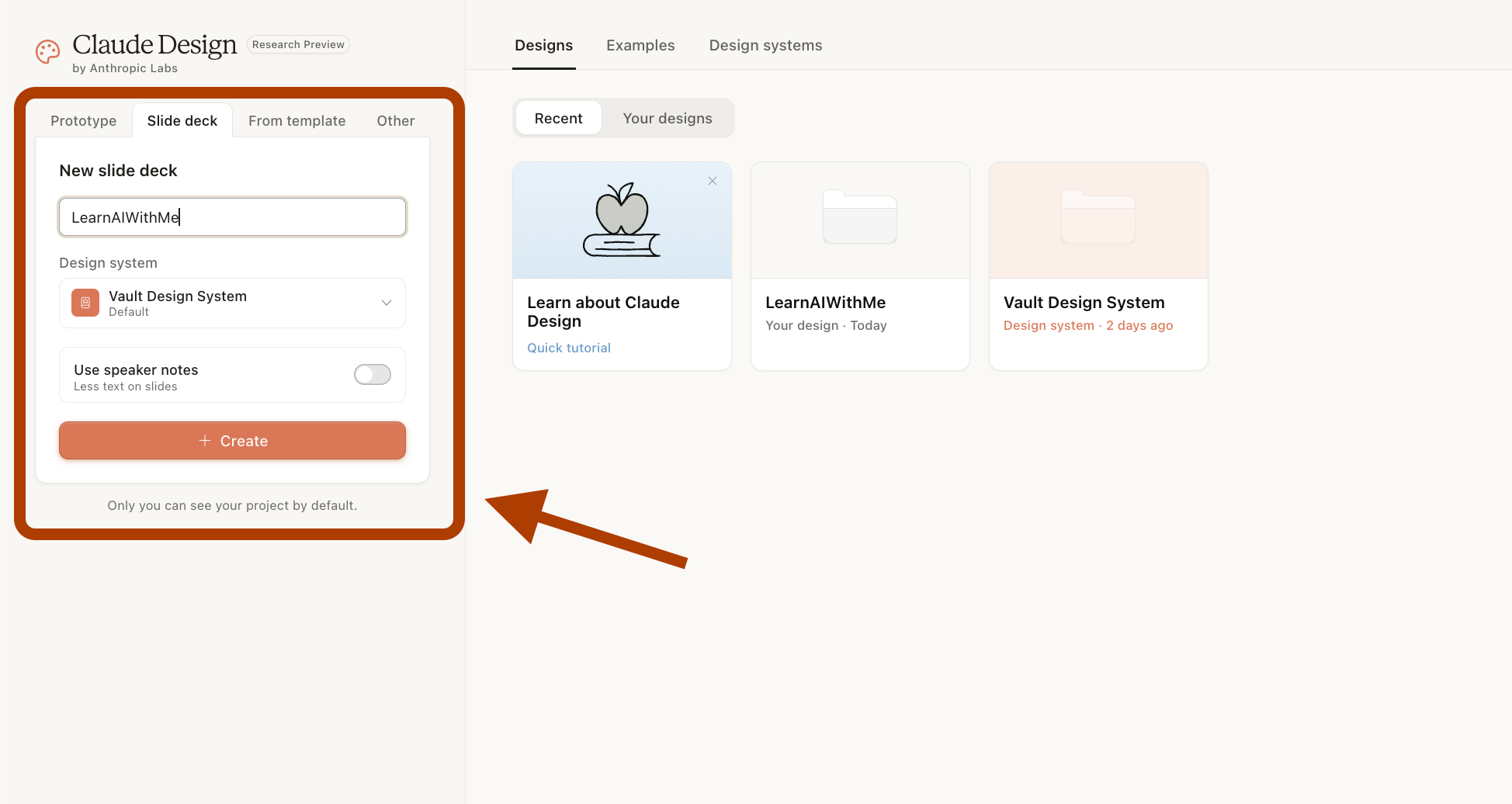
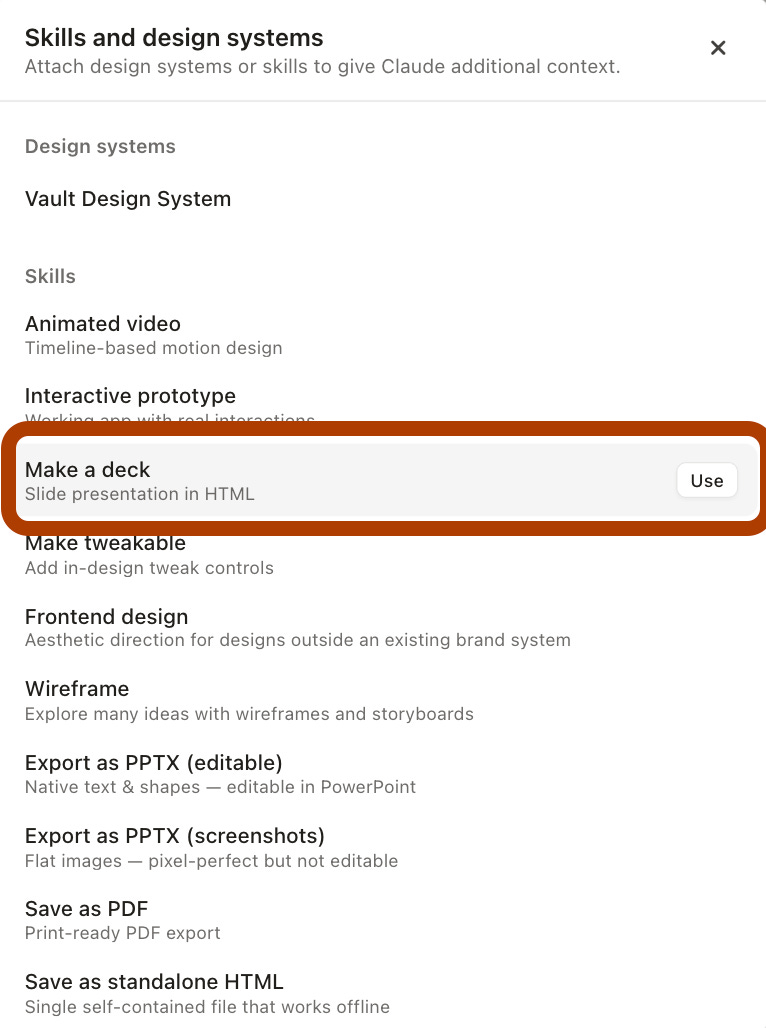
This time, I clicked Design Systems.
Then “Make a Deck”.
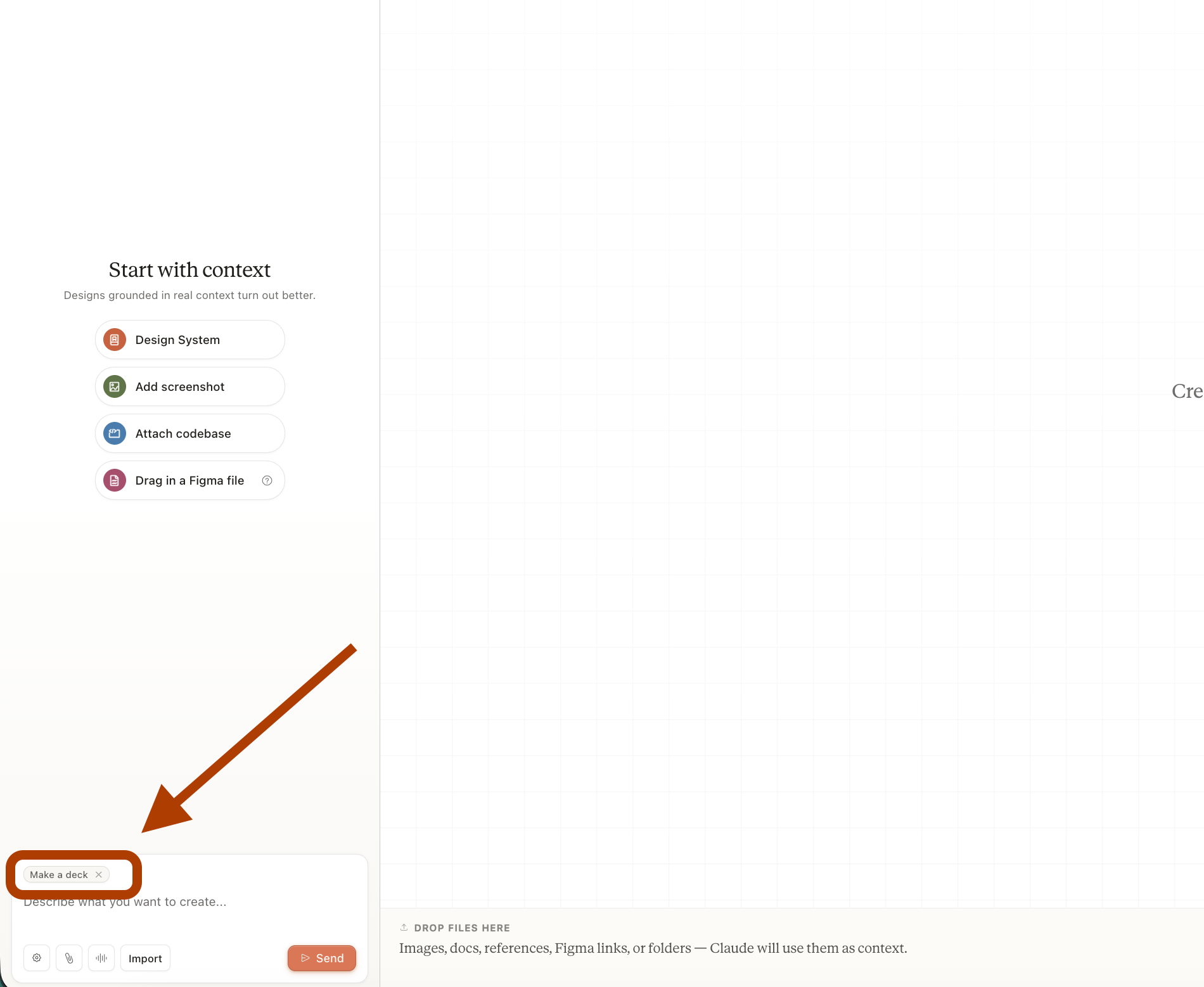
The little tag at the top confirms which mode you’re in. Small detail, but it matters when you have four options that look similar.
Here is the prompt I used.
Create a 5-slide minimalist presentation titled "How to Prompt: A Starter Guide for AI Learners".
Audience: People new to AI who want better results from Claude, ChatGPT, or Gemini.
Style: Minimalist. Cream and white background. Lots of whitespace. One idea per slide. Serif headlines, sans-serif body. No stock photos. Simple line accents only.
Slides:

Title slide. "How to Prompt" as the headline. Subtitle: "A starter guide for AI learners". One line hook at the bottom: "The model is not the problem. Your prompt is."
Give the AI a role. Show a bad example and a good example side by side. Bad: "Write about coffee." Good: "You are a barista with 20 years of experience. Write a guide to pour-over brewing for beginners."
Be specific about the output. Length, format, tone. Bad: "Summarize this article." Good: "Summarize this article in 3 bullet points. Each bullet under 15 words. Casual tone."
Show, do not tell. Give examples of what you want. One sentence of instruction beats three paragraphs of explanation. Include a small "before and after" visual.
Iterate, do not restart. The first answer is a draft. Ask for changes. "Make it shorter." "Add a counterexample." "Rewrite in a skeptical tone." Close with a callback: "Good prompting is a conversation, not a command."

Tone: Direct. Calm. No hype. No "unlock", "leverage", "empower", "game-changer". No em dashes. Short sentences.
Each slide: headline under 6 words, body under 35 words.
Here is the output.
Good but not perfect.
If you want to discover more about Slides with Claude, read this slide creation guide.
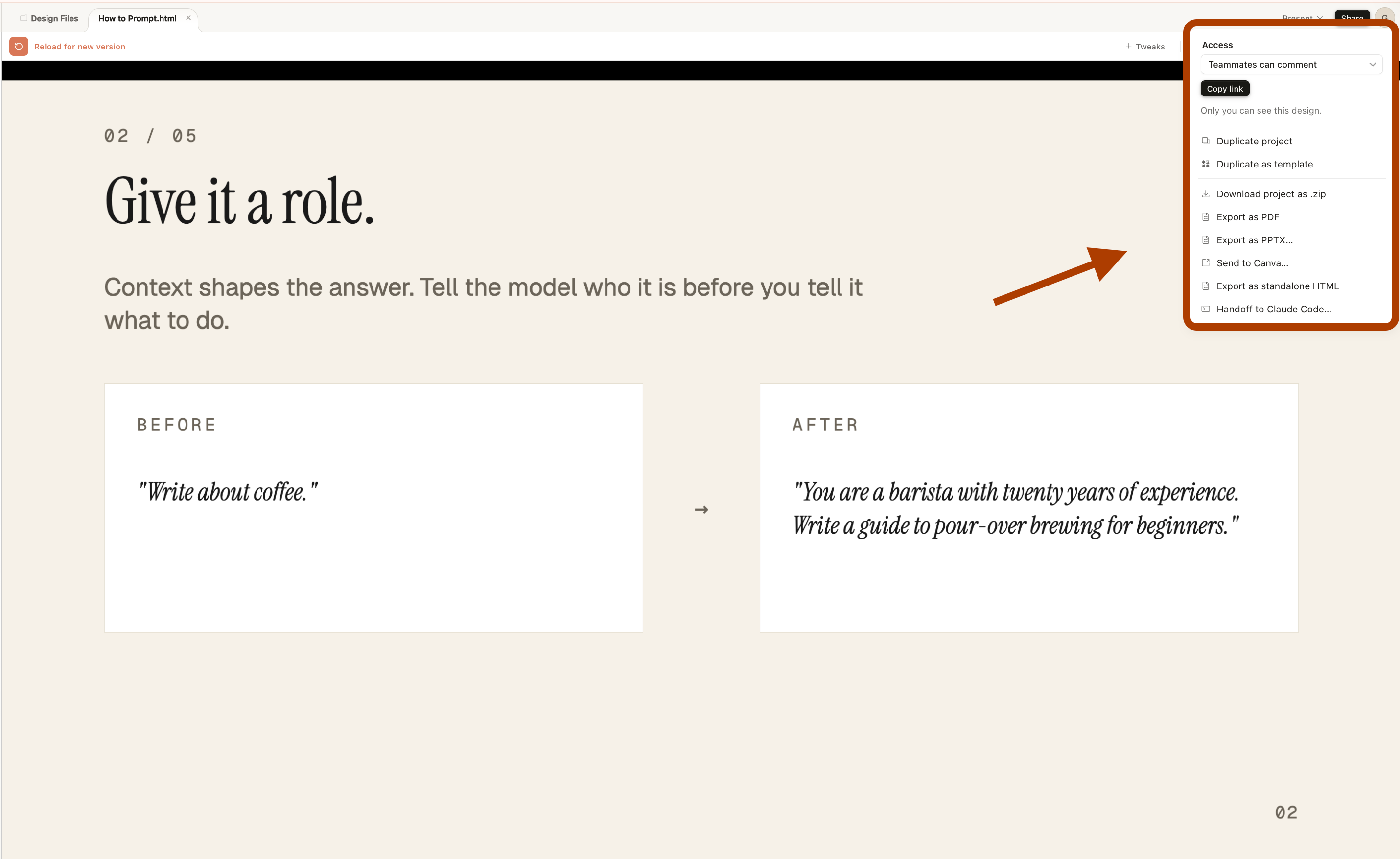
Click Share at the top right, and you get sharing and download options.
I liked the output enough to post it as a Substack note. Adding visual elements is the next step on my side.
The interesting move is the handoff. You can send the deck to Claude Code from here.
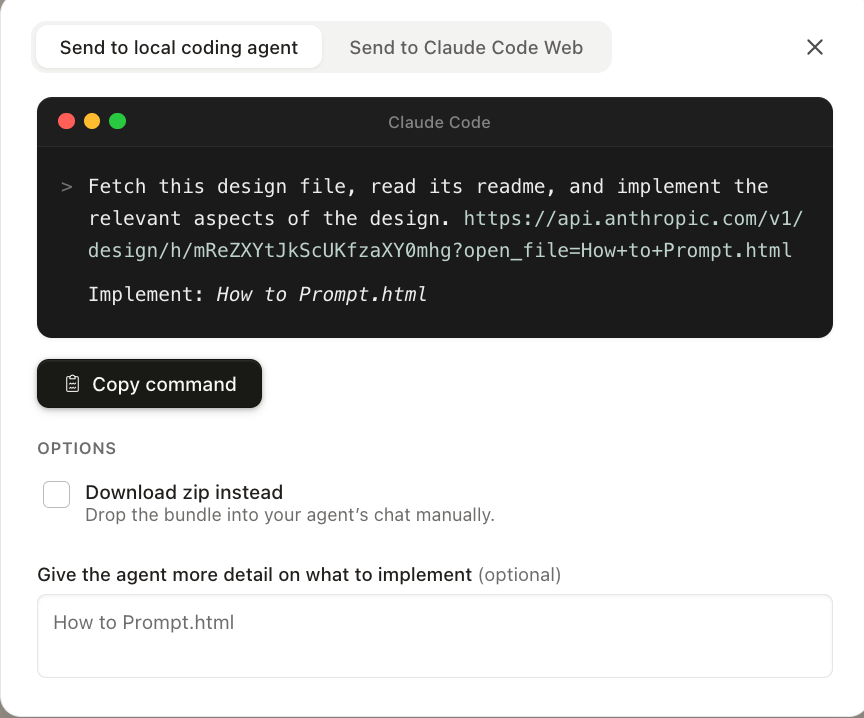
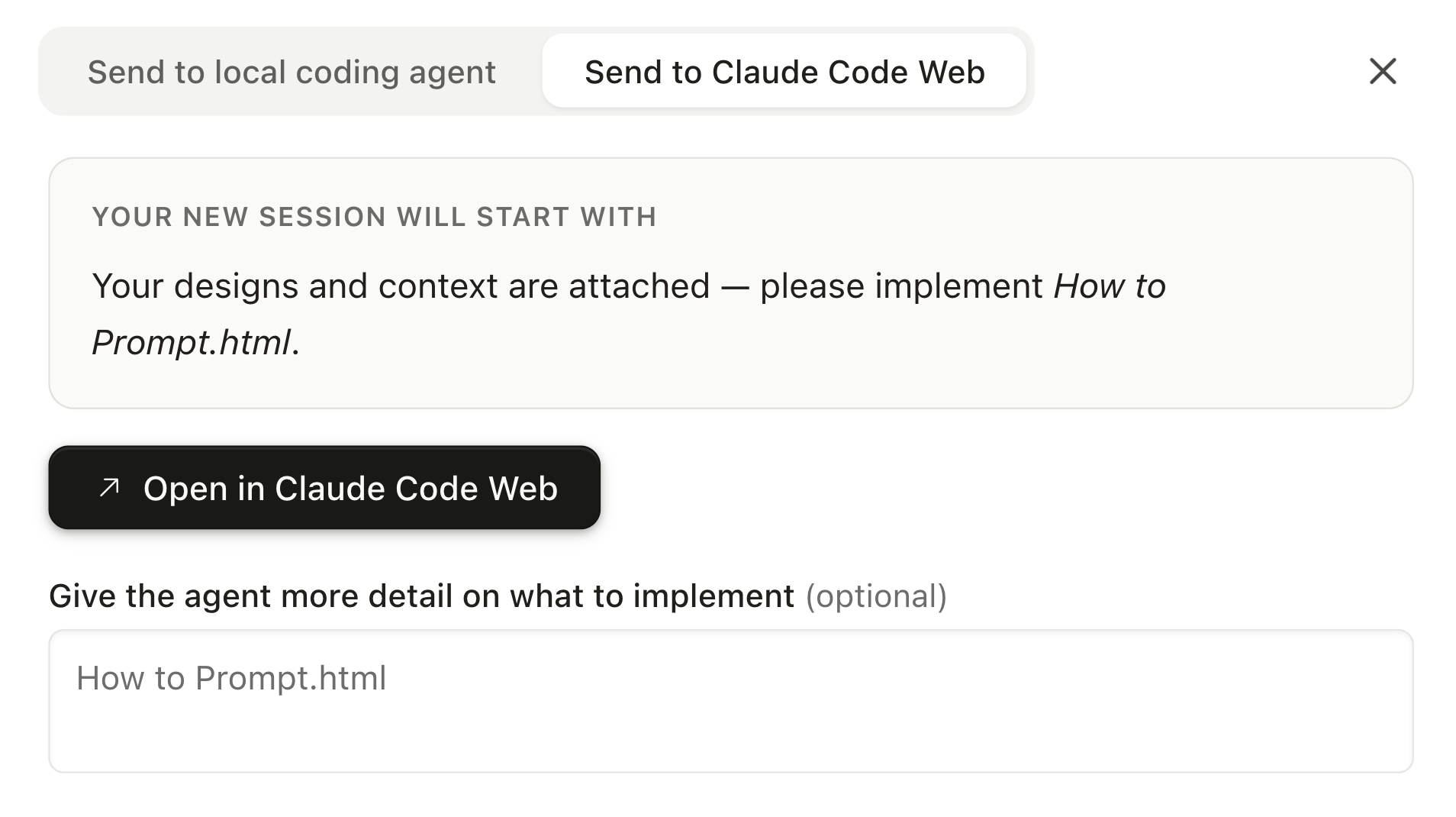
Two options. Claude Code Web is the faster one.
Here is the deck inside Claude Code Web.
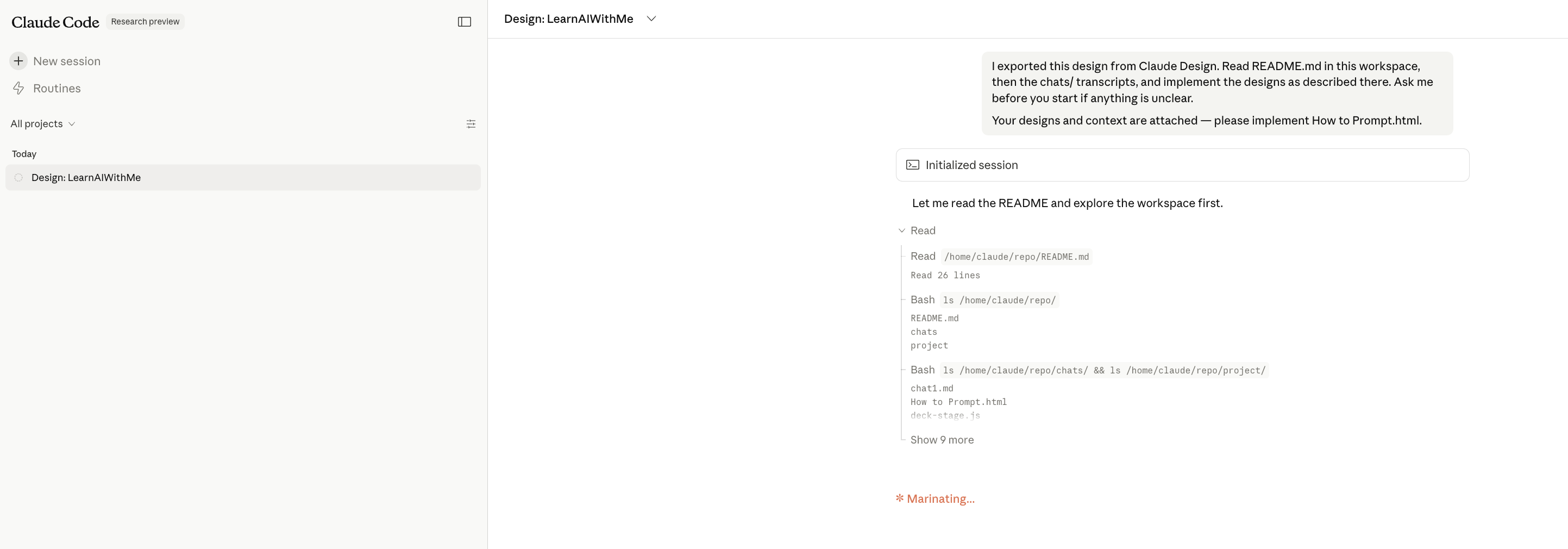
For slide decks, the handoff is fine but not life-changing. For prototypes, it changes everything.
You can take the design and build it out as a real website, in the same flow.
If you've never used Claude Code, here is the Claude Code masterclass.
3. How to Make a Video with Claude Design Templates
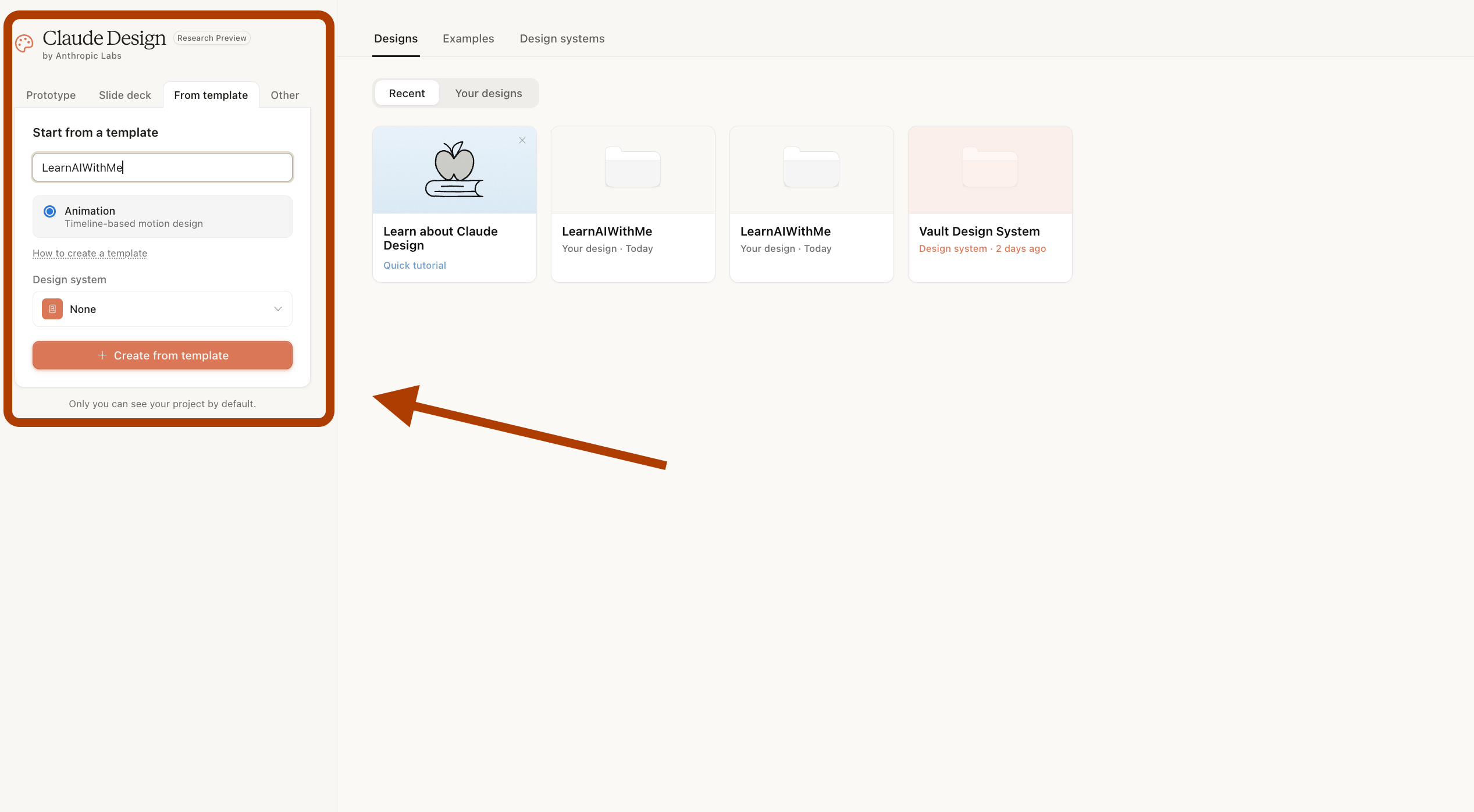
Now an animated video.
You can see the option from here.
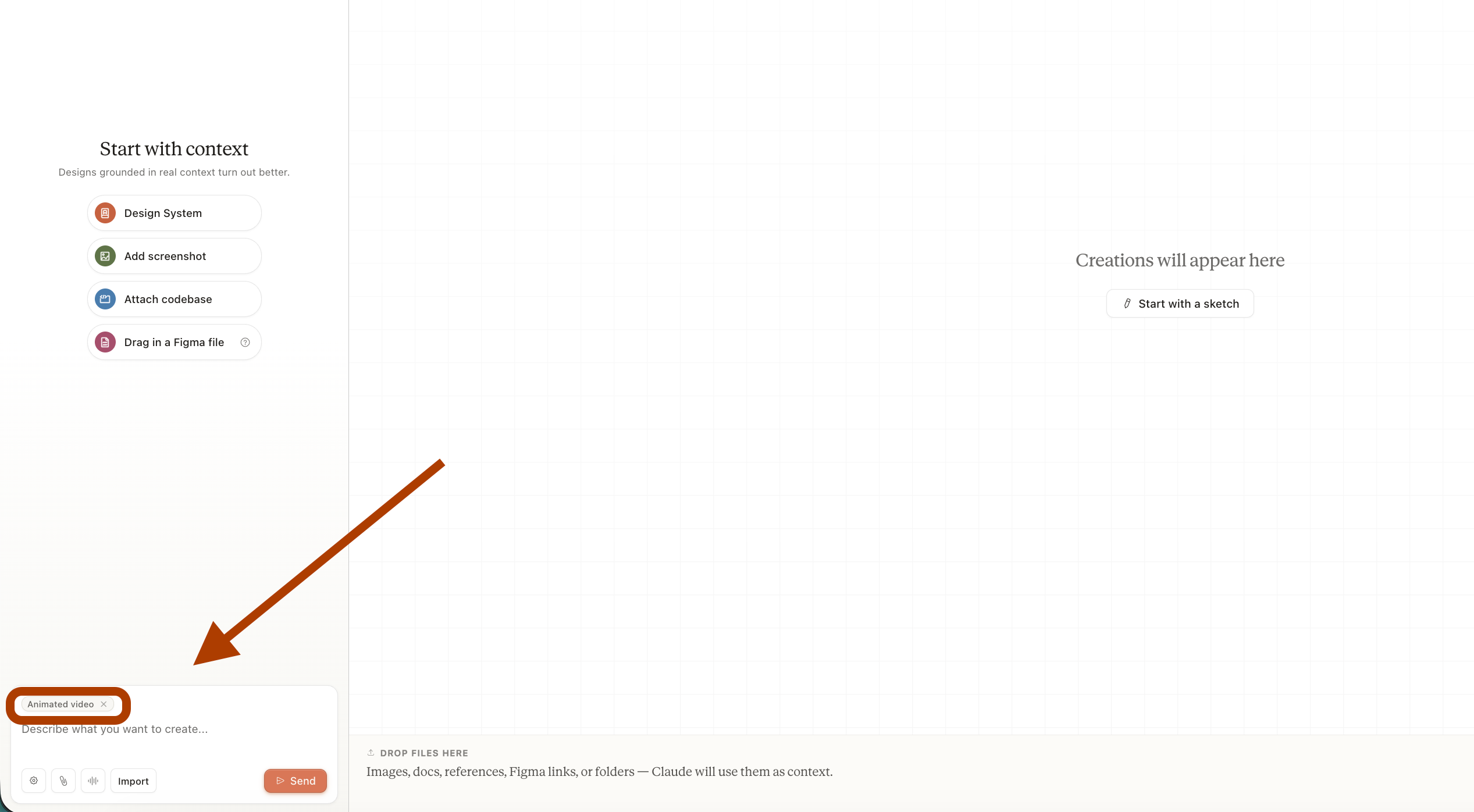
Here is the prompt.
Create a 20-second animated video explaining how to prompt an AI.
Minimalist style, cream background, single accent color, simple line animations with smooth fades between scenes.
Show a bad prompt on the left fading into a better, more specific prompt on the right, then end with the line "Good prompts are specific, not clever."
Calm pacing.
I still don’t believe Claude is going to make a video from this. But let’s see.
(I also composed a song with Suno AI and added it as background music.)
Is Claude Design Worth It?
Six days in. Three tools tried.
The prototype works. The slide deck needs polish. The video is great.
What Claude Design does is collapse the distance between an idea and a draft.
You type a sentence. You get a thing. The thing exists.
That used to be the expensive part.
Is it ready to replace your design stack? No.
Is it worth opening claude.ai/design today? Yes.
The gap between not using it and using it is large.
Six days ago, this did not exist.
In six months, somebody will ship a real product made entirely inside this tab.
Maybe it will be you.
For someone learning, this is super helpful. Thanks!