
NotebookLM's New Slide Editing Feature: Create and Edit Presentations in Minutes (No Design Skills)
Create meeting summaries, performance reviews, and pitch decks in minutes then edit them with a single prompt. No design skills required


Your presentation is due in 2 hours.
You have the data.
You have the story.
But you’re stuck picking fonts.
What if you could describe what you want and get it in minutes?
And be able to edit each of them by just prompting.
NotebookLM just changed the game.
What Is NotebookLM?
NotebookLM is Google’s research & thinking partner.
Sources
On the left of the screen, you can see the sources. These are NotebookLM’s memory.
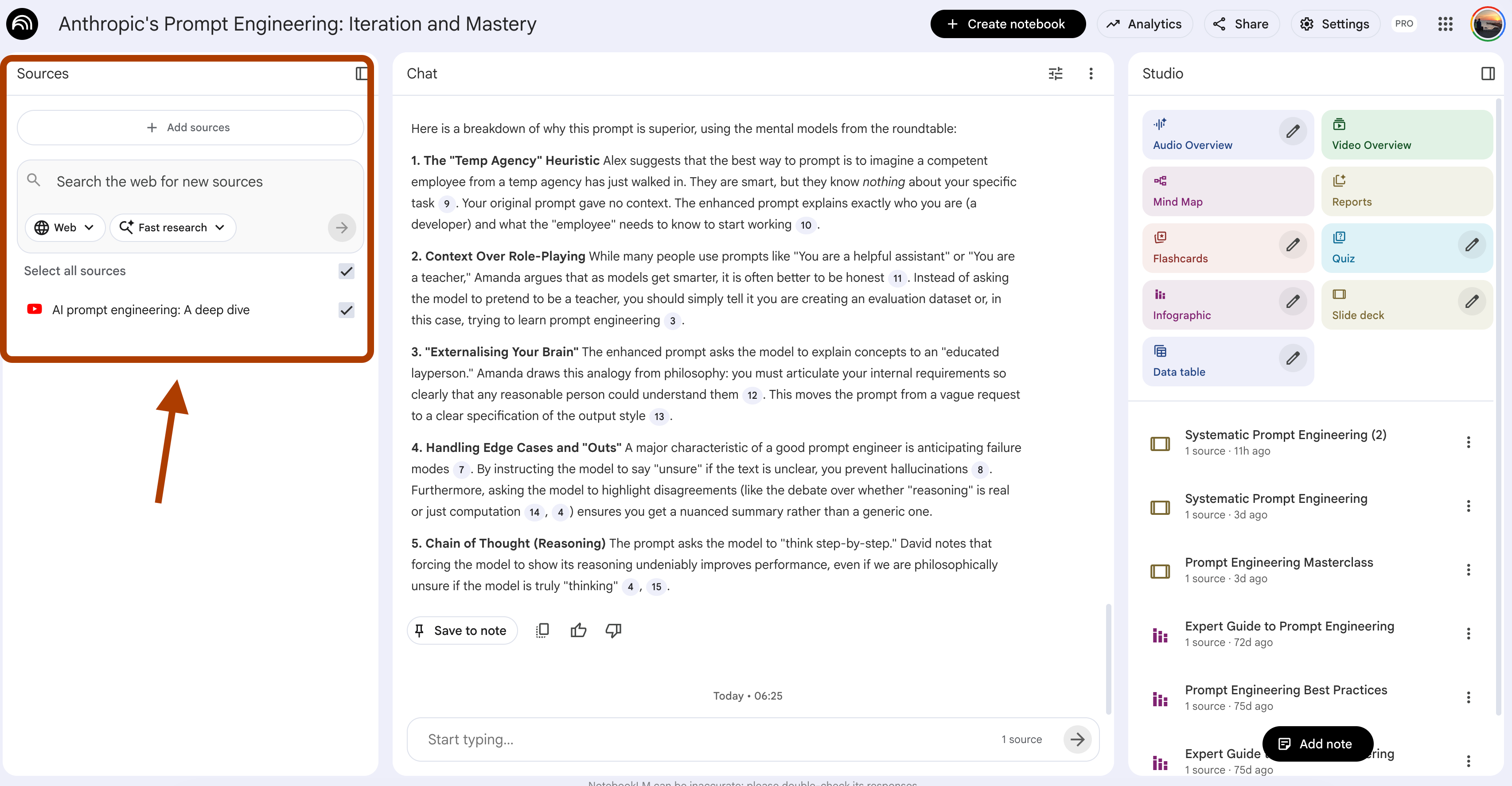
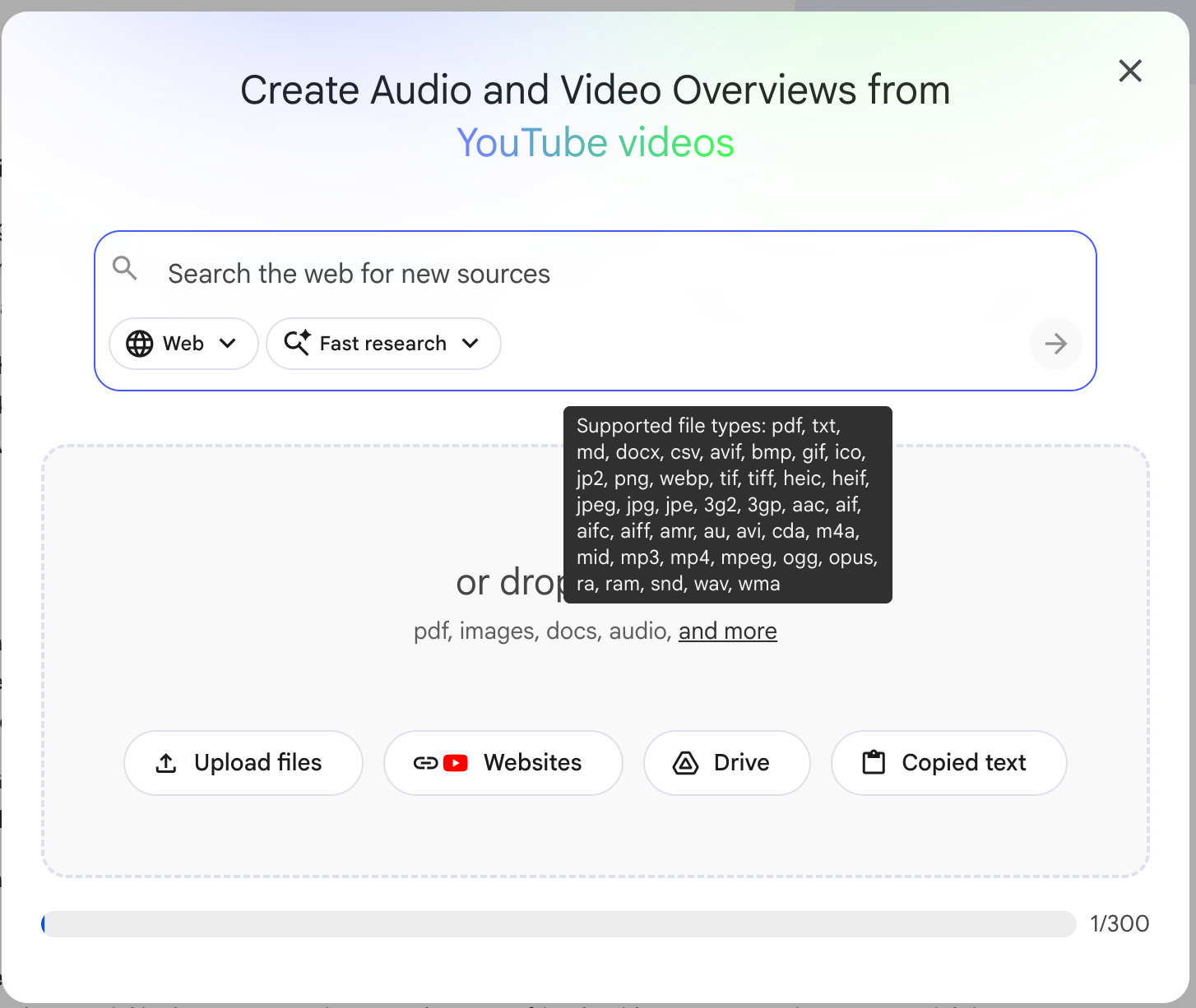
You can add different kinds of files (see the screenshot below), and also do deep research using Gemini, then export the sources.
Chat
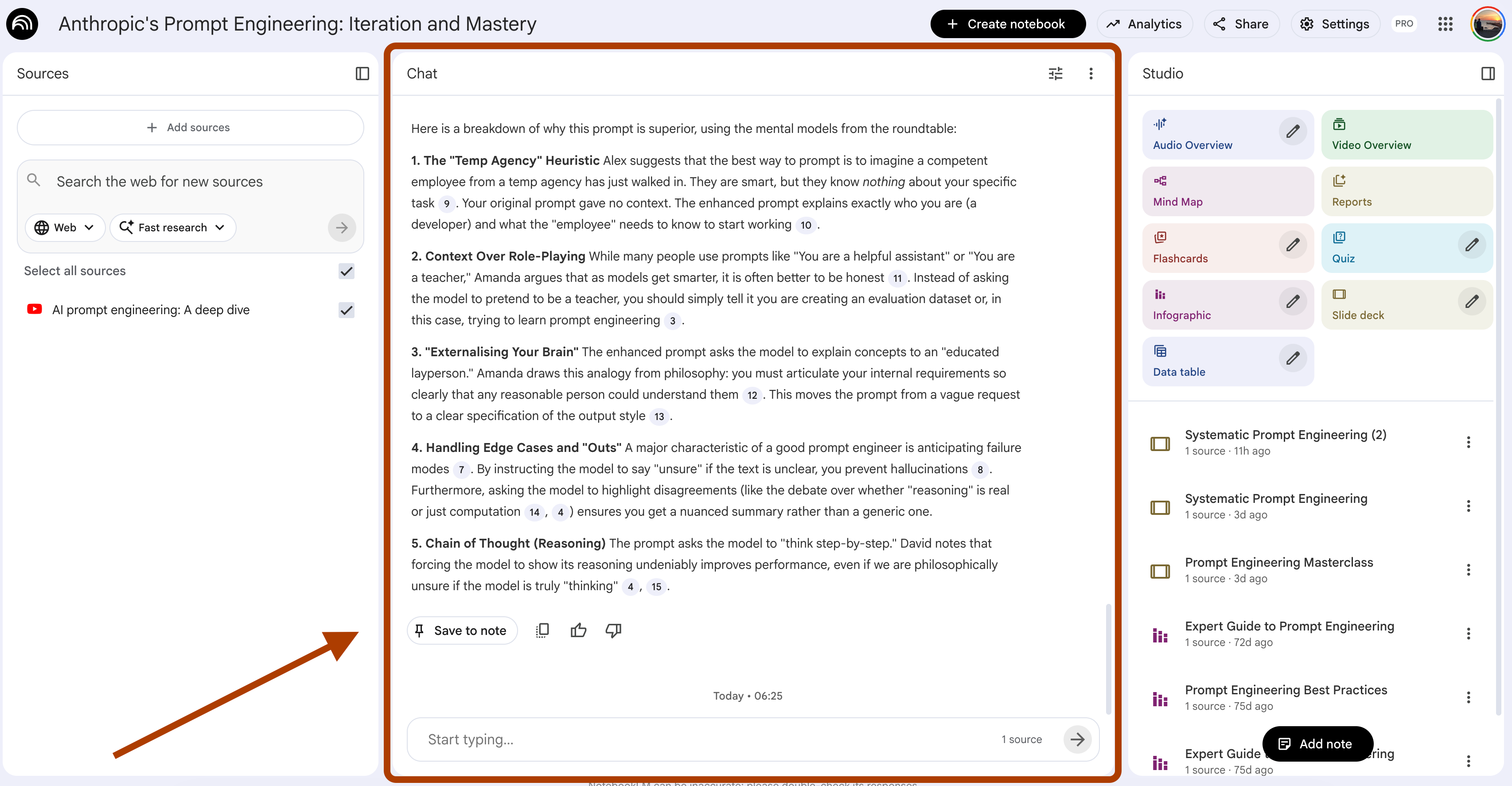
In the middle, you can see the “Chat” part, where you can talk with the NotebookLM.
Here, you can also customize it by clicking here.
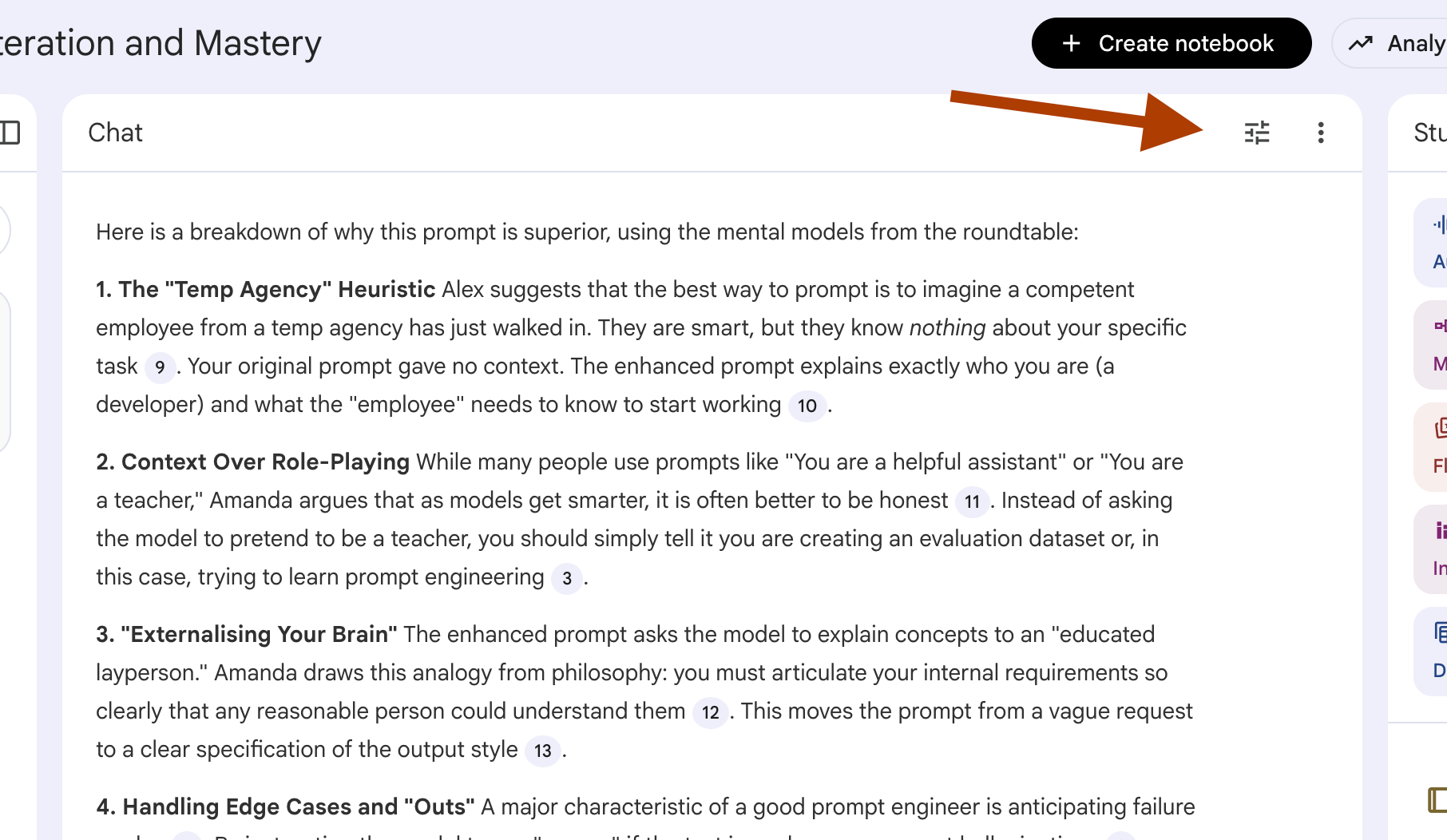
Here is the customization screen.
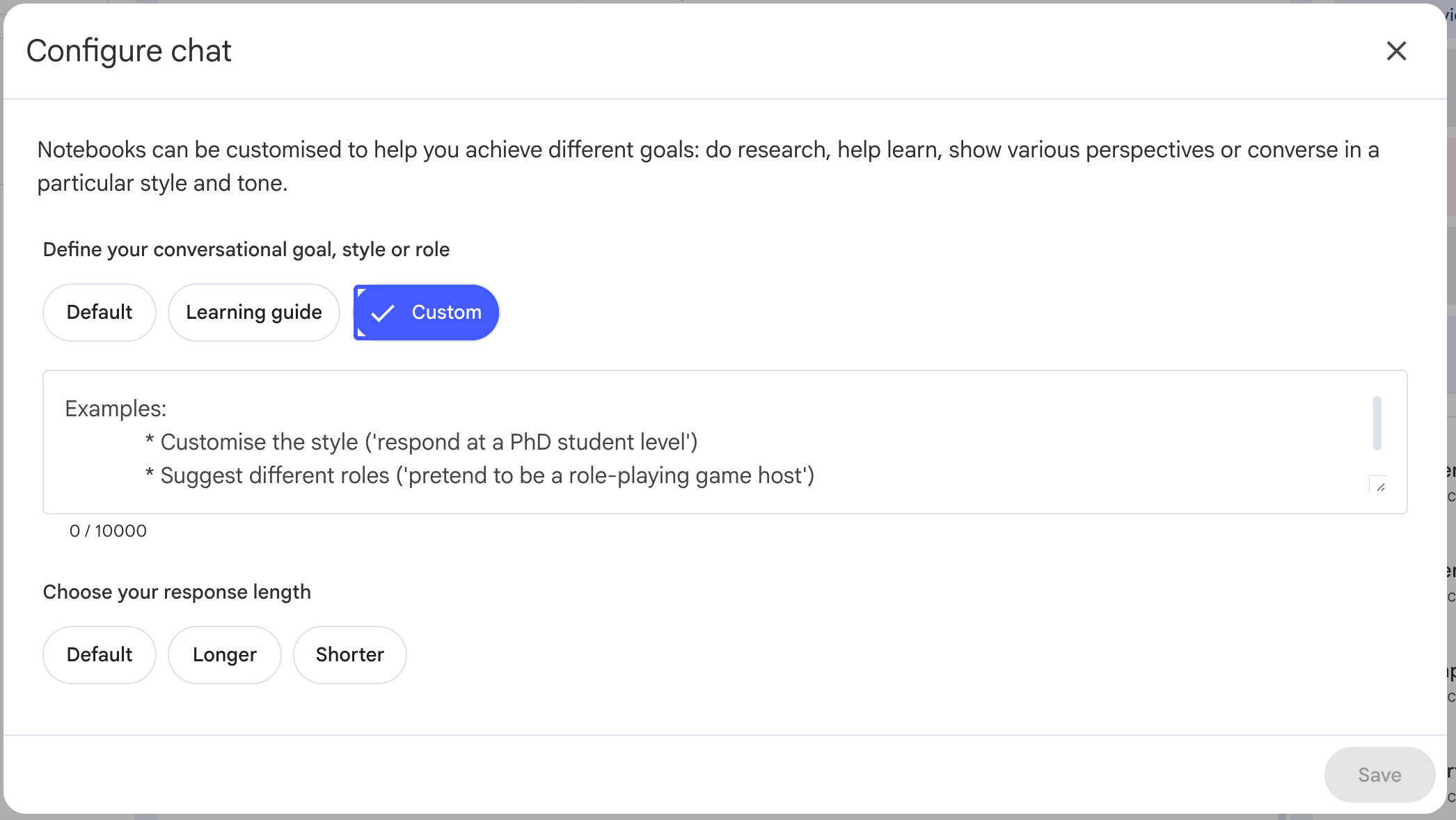
Options? You can make it speak like a teacher you love learning from by clearly describing that teacher’s tone.
Act like Ms. Nilüfer, who is always passionate and patient with my questions,
and explains everything visually so I can learn clearly.
And when you interact with it, you can detect the tone, feel better and keep learning!
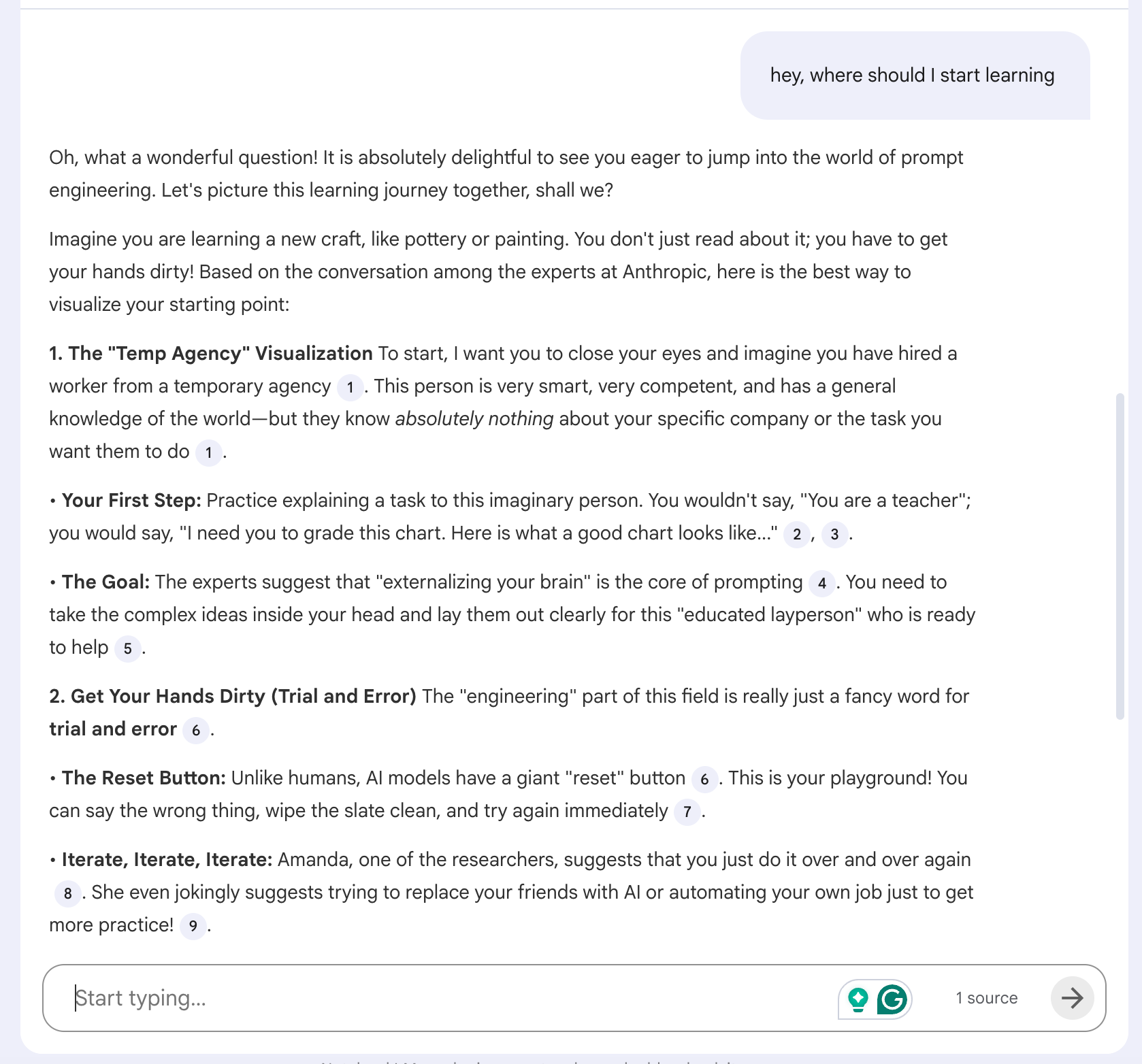
Studio
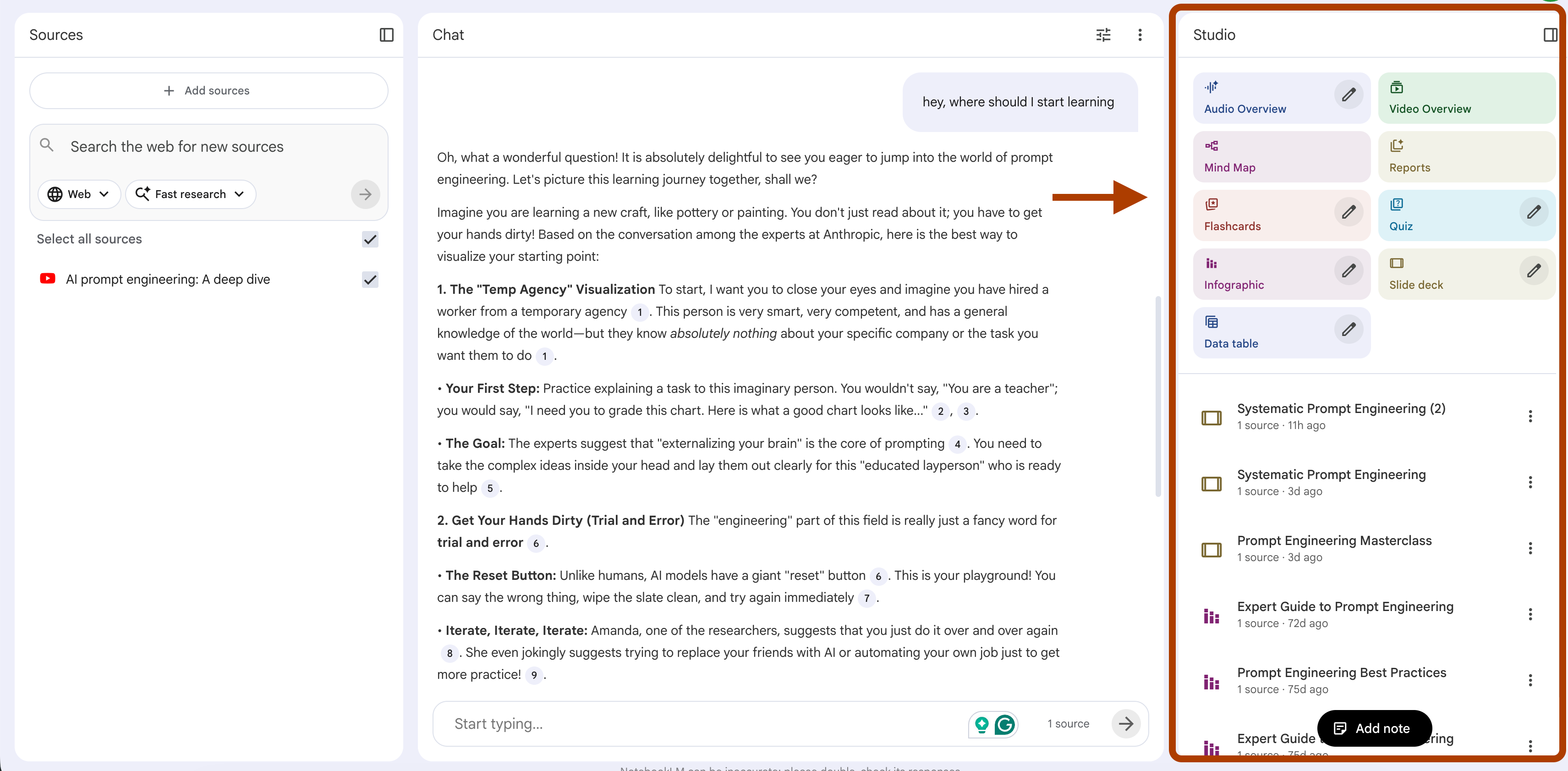
There are 9 different features for now. I am saying for now because they are expanding so fast.
Audio Overview: Creates a podcast-style summary using your sources.
Mind Map: Generates a visual mind map of the topic.
Flashcards: Create flashcards to help you learn key concepts.
Infographic: Generates an infographic using Nano Banan Pro.
Data Table: Converts your data into a structured table.
Video Overview: Creates a video summary from your sources.
Reports: Generates a blog post, document, story guide, or custom report.
Quiz: Creates a quiz based on your documents.
Slide Deck: Generates presentation slides from your document.
We’ll get into detail with the slide deck. But first, let me show you how to train NotebookLM.
How to train NotebookLM?
Let me show in steps.
Visit NotebookLM from here.
Click on “Try NotebookLM”.
Next, click on “Create new”.
Add any source you want, your options.
Deep search using Gemini
YT videos
Website
Drive
Copy/paste
Click, add your sources.
And after a couple of minutes, your NotebookLM is trained and waiting for you.
How to create Slides in NotebookLM?
Let’s create NotebookLM, using Andrew NG’s Stanford course on Machine Learning, this video.
Steps You Should Follow
Go to NotebookLM.
Click Try to start a new notebook.
Add a source to train it.
Link: youtube.com/watch?v=jGwO_UgTS7I&t=2s
Click the Slide Deck to generate slides automatically.
In the next step, we’ll edit slides by just prompting.
This is the newest feature of NotebookLM.
How to edit Slides in NotebookLM?
Open the generated deck and review the slides.
Select the specific slide you want to improve.
Paste a clear prompt to edit that slide and refine it.
What will be next? - 10 Powerful Slide Prompts (And How to Edit Them)
Now you know how to create and edit slides.
But what should you create?
That’s where these 10 prompts come in.
Each one solves a real problem:
Meeting notes → Stakeholder deck (2 minutes)
Messy journal → Year in review (shareable on LinkedIn)
Job research → Interview cheat sheet (10 minutes before the call)
You’ll get:
1. What to train NotebookLM with (sources)
2. The generation prompt (creates the slides)
3. The editing prompt (customizes instantly)
Let’s start with the most common one.
1. Meeting Summary to Stakeholders
Meeting ends.
You have 5 bullet points in Google Docs.
Half are incomplete sentences.
Your boss needs an update in 30 minutes.