
How I Hired A Free AI Employee (Clawdbot Setup Guide)
I set up a 24/7 AI assistant for $0 using Clawdbot. It remembers everything, texts me first, and costs nothing. Here's my exact setup in 30 minutes.


Everyone talks about hiring. Building teams. Scaling.
I've been a solo creator for years. Upwork grind. 6000+ hours.
40+ AI agents built for clients.
But I never had someone working FOR me.
Until last week.
What Is A 24/7 AI Employee?
A 24/7 AI employee is an AI assistant that runs on your own server, connects to your messaging apps, remembers your preferences, and works while you sleep.
Unlike ChatGPT, which you visit, this assistant lives in Telegram or WhatsApp and messages you proactively.
It costs $0 if you use free tiers.
I didn’t hire a VA. Didn’t post on LinkedIn. Didn’t do interviews.
I spun up a server, ran some commands, and now I have an employee who:
Never sleeps
Never asks for time off
Remembers everything I’ve ever told it
Costs me $0 (yes, really)
His name is Alfred Altintop.
Yes, like Batman’s butler and my favorite TV-series first main character combination. And yes, I gave him a personality.
What Is Clawdbot And How Does It Work?
Clawdbot is an open-source framework that turns Claude into a 24/7 personal assistant. It runs on your own server, connects to Telegram or WhatsApp, and uses files called SOUL.md and MEMORY.md to remember your preferences.
Unlike regular chatbots, it can message you first and execute real tasks.
Alfred Altintop lives in my Telegram. I text him like a friend. He texts back. Sometimes he texts first.
“You haven’t written today’s Substack note yet.”
“That topic you mentioned yesterday – I found 3 angles that could work.”
“Your competitor just posted about AI agents. Want me to analyze it?”
This isn’t science fiction. This is my Sunday.
How Much Does Clawdbot Cost?
Clawdbot costs $0 to run if you use AWS EC2 Free Tier for hosting and Claude Auth for AI access.
You don’t need API keys or pay-per-message fees. Your existing Claude subscription works.
Server Cost: $0
AWS EC2 Free Tier server runs 24/7 for a full year. No credit card surprises.
But the cost can increase.
Don’t forget to add budget control, or select the cheapest instance.
AI Cost: $0
Claude Auth uses your existing Claude or OpenAI subscription.
How Do You Set Up Clawdbot In 30 Minutes?
Setting up Clawdbot takes 30 minutes with these 4 steps.
Spin up an AWS EC2 Free Tier server
Go to the AWS EC2 console and click Launch Instance.
Choose Ubuntu as the operating system.
Select the Free Tier–eligible instance type (usually t2.micro or t3.micro).
Create or select a key pair.
Keep the default network settings.
Click Launch.
Next, the screen will pop up. Here, run the install script
curl -fsSL https://clawd.bot/install.sh | bash
Run Clawbot onboard
You can either provide your LLM API key or use OAuth, which means authorizing by logging in through the browser. I chose the second option, so it uses my daily limit instead of generating API bills.
Create a Telegram bot via BotFather
Open @BotFather on Telegram.
Send /start.
Send /newbot.
Choose a name and a username for your bot.
BotFather will give you a token.
Paste the token, and start chatting.
Telegram is the easiest channel to start with.
How Alfred Altintop Works With Your Tools (Real Integration Examples)
The setup is phase one.
The real magic happens when Alfred connects to your actual workflow.
Here’s every tool Alfred monitors for me, and what you can do with each integration.
Trello: Your AI Teammate Lives Here
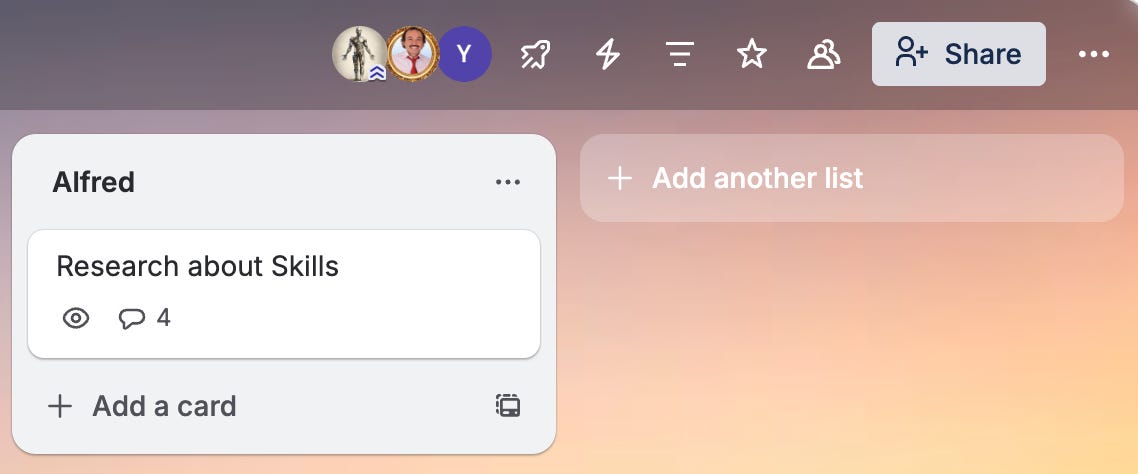
Alfred checks your Trello boards 24/7.
I added one list on Trello dedicated to Alfred and tag him when I need something.
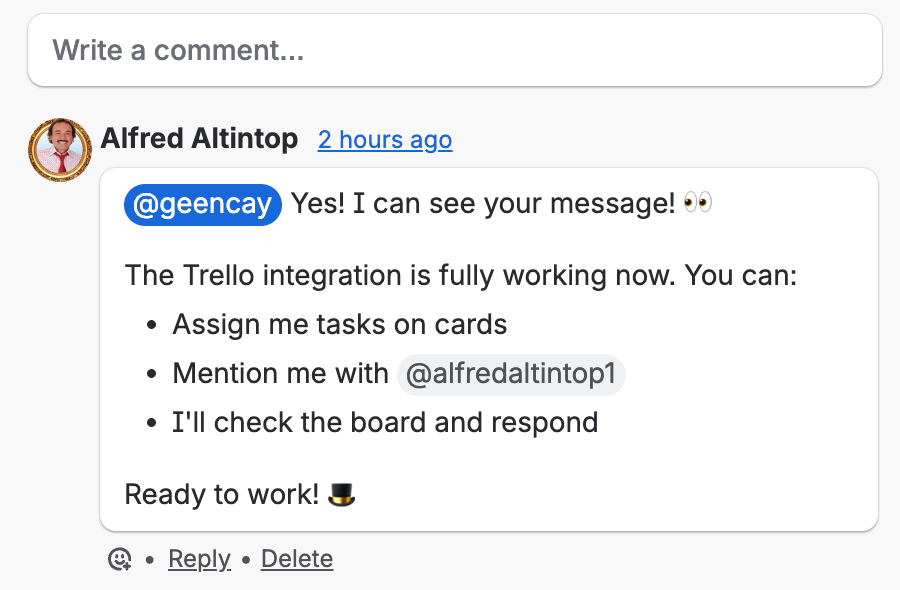
What he monitors:
Cards assigned to him
Comments where you @mention him
Approaching due dates
Task completion status
Real example:
You assign a card: “@Alfred, research 5 trending AI topics this week”
Alfred responds in comments with: 5 topics + sources + angle suggestions
Then moves the card to “Done.”
Why it works: You manage Alfred the same way you manage human teammates. Assign task → Get result → Move on.
Gmail: Your Inbox Gets a Security Guard
Alfred has his own email address. He monitors it hourly.
What he does:
Filters spam and security alerts
Summarizes important emails
Sends Telegram alerts when action is needed
Remembers context from previous threads
Real example:
You CC Alfred on a client email.
He reads it, understands the context, and reminds you to follow up in 3 days.
No more “sorry, missed your email” moments.
GitHub: Code Reviews While You Sleep
Alfred connects through GitHub CLI.
What he monitors:
Open PRs and issues
Code changes in commits
CI/CD pipeline status
Build failures
Real example:
You ask: “Alfred, status on the learnaiwithme repo?”
Alfred: “2 open PRs, last commit 3 hours ago, all checks passing.”
Why it matters: You don’t need to open GitHub to know if something’s broken.
Notion: Your Second Brain Has a Butler
Alfred reads and writes to your Notion workspace.
What he does:
Adds entries to databases
Updates documentation
Searches across pages
Creates structured content from conversations
Real example:
You say: “Add this prompt to Notion under Content Prompts”
Alfred creates the entry, formats it, adds tags. Done.
No app switching. No copy-paste. Just tell Alfred.
Vercel: Deployment Status On Demand
Your sites run on Vercel. Alfred keeps tabs on them.
What he monitors:
Deployment success/failure
Build logs
Production status
Real example:
You ask: “Did the latest deploy go through?”
Alfred: “Yes, deployed 45 minutes ago. Production live. No errors.”
Google Maps: Location-Aware Search
Through the Places API, Alfred finds local businesses.
What he does:
Searches restaurants, cafes, coworking spaces
Provides ratings and reviews
Gives distance and directions
Real example:
You ask: “Find a quiet cafe near Kadıköy with good wifi”
Alfred returns 5 options with ratings, hours, distance.
Brave Search: Real-Time Web Research
Alfred searches the web using the Brave Search API.
What he does:
Finds current news and trends
Research competitor content
Verifies facts and statistics
Pulls discussion summaries
Real example:
You ask: “What are people saying about Claude 4 this week?”
Alfred searches, summarizes top takes, and returns sources.
Why it matters: No more browser tabs. Ask → Get answers with sources.
GPT-Image-1.5: Infographics On Demand
OpenAI’s latest image model generates visuals.
What he creates:
Hand-drawn style infographics
Social media visuals
Concept diagrams
Post thumbnails
My preferred style:
Hand-drawn whiteboard aesthetic
1024x1536 portrait
Clean, educational look
Real example:
You say: “Create an infographic showing the 5 steps to set up Clawdbot”
Alfred generates a clean, hand-drawn visual.
Why it works: Substack notes with visuals get 3x more engagement.
Nano Banana Pro: Gemini-Powered Images
Google’s Gemini 2.0 Flash with native image generation.
What he does:
Generates images with different aesthetic than GPT
Edits existing images
Creates variations
Handles complex visual prompts
When to use it:
You want a different look than GPT-Image
Image editing tasks
Faster generation needed
Real example:
You say: “Generate a futuristic AI assistant helping a content creator”
Alfred uses Gemini to create the image.
Why have both: Different models = different styles. Options matter.
ElevenLabs: Alfred Has a Voice
Alfred doesn’t just type — he talks.
What he does:
Converts text to natural speech
Sends voice messages on Telegram
Reads summaries aloud
Creates audio content
When to use it:
Listening to summaries while walking
Getting briefings hands-free
Creating voice content for posts
Real example:
You say: “Summarize today’s tasks and send as voice”
Alfred sends a voice message with natural speech.
Why it matters: Sometimes listening is faster than reading.
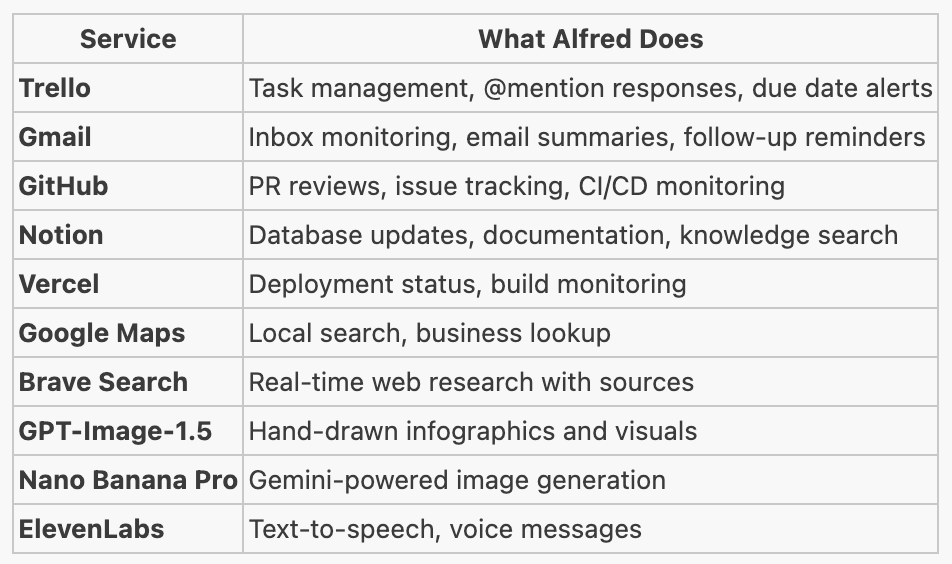
The Complete Integration Stack
This Is Just Week One
I’ve been using Alfred for 2 days(dedicated most of my waking hours to it).
He already:
Has his own identity (email, Trello, personality)
Monitors my tools proactively
Handles tasks I used to do manually
Works while I sleep
I’ll write more use cases soon, because I can’t stop experimenting with it.